> Source: [sk88160](https://support.checkpoint.com/results/sk/sk88160)
# sk88160 - The Check Point Performance Sizing Utility (CPSizeMe)
| Property | Value |
|----------|-------|
| Solution ID | sk88160 |
| Date Created | 2012-12-05 |
| Last Modified | 2026-08-17 |
| Technical Level | General |
| Products | Security Gateway, Security Management Server, Hardware |
| Versions | R82.10, R82, R81.20, Not Version-Specific, R82.20 |
| OS | Gaia |
| Platform | 15000, 3000, 5000, 7000, 28000, 9000, LightSpeed QLS, LightSpeed MLS, 3900, 16000, 26000, 19000, 29000, 6000, TE |
## Solution
**Table of Contents:**
* Description
* Main Outputs
* Supported Platforms and Versions
* Known Limitations
* Downloading and Installing cpsizeme
* Running cpsizeme
* Restarting cpsizeme
* Stopping cpsizeme
* Updating cpsizeme
* Uploading cpsizeme results to Check Point
* Troubleshooting
### Description {#Description}
The `cpsizeme` is a lightweight shell script that produces a detailed performance report of Check Point Security Gateway. This script measures the ongoing resource utilization on Security Gateway during the given time period (refer to "`Running cpsizeme`" section). During this period, the script gathers information about CPU, memory consumption, throughput and few other important performance parameters.
This `cpsizeme` output and report can assist in improving the sizing accuracy in any one of the following scenarios:
* Replacing the current Security Gateway appliance with a new one.
* Future growth and planning ahead.
* Enabling more security Software Blades on the current Security Gateway.
* Troubleshoot performance issues on the Security Gateway
This script allows to automatically upload the collected raw performance data securely to Check Point servers. If an e-mail address was provided, then after getting the raw performance data, a PDF report will be sent to that e-mail address.
It is possible to upload the raw data to Check Point and e-mail the report at any time, even after running the script (refer to "`Running cpsizeme`" section).
We recommend not to run **`cpsizeme`** for more than 24 hours.
### Main Outputs {#Main Outputs}
These are the mains outputs of the `cpsizeme` script:
* **Summary archive file** - includes the Security Gateway's performance statistics of traffic, CPU, memory utilization, and an XML file to be used for sizing. This archive does not include connection data or IP addresses.
To see the information stored in the summary archive file, run '`cpsizeme -S`' command and select option 2 '`Show summary of last successful session`' in the menu. *Show / Hide example*
>
> ```
> General information
> ===================
> * Email address: johndoe@mycompany.com
> * Name of company / organization:
> * Script version: 3.1
> * Date & time: 2014-02-17 16:46:24
> * Scheduled end: 2014-02-18 16:46:24
> * Utility Sampling duration: 1 days
> * Appliance: VMware Virtual Platform [1959 MB]
> * Active blades: FW MGMT VPN MAB A_URLF AV ASPM APP_CTL IPS DLP IA SSL_INSPECT ANTB MON TE
> * Gateway version: Check Point Gaia R77.10
> * Gateway name: R77-10-SA
> * SecureXL: on
> * Clustering:
>
> HA module not started.
>
> * ClusterXL: no
>
> Customer estimation
> ===================
> * Main functions performed by this gateway:
> * Perimeter security: y
> * DMZ security: n
> * Protect the datacenter: y
> * Segment internal networks: y
> * Protect web servers: n
> * Estimated number of users: 40
> * Estimated gateway throughput [Mbps]: 100
> * Size of internet pipe [Mbps]: 100
> * Satisfied with gateway performance: y
> * Estimated number of remote users: 10
> * Estimated number of IPSec VPN remote users: 15
> * Additional customer feedback: n
>
> Measured Data
> =============
> * Maximum gateway throughput: 28.082305 Mbps
> * Maximum packet rate: 4929 Packets/sec
> * Maximum Total CPU: 46%
> * CPU core 0: 70% (Max core utilization: 100%)
> * CPU core 1: 30% (Max core utilization: 100%)
> * CPU core 2: 37% (Max core utilization: 100%)
> * CPU core 3: 49% (Max core utilization: 91%)
> * Maximum kernel CPU: 27%
> * kernel CPU core 0: 19% (Max core kernel Utilization: 34%)
> * kernel CPU core 1: 11% (Max core kernel Utilization: 24%)
> * kernel CPU core 2: 10% (Max core kernel Utilization: 19%)
> * kernel CPU core 3: 68% (Max core kernel Utilization: 91%)
> * Estimated number of unique IPs behind gateway: 0
> * Maximum concurrent connections: 111
> * Average concurrent connections: 57
> * Maximum memory utilization: 1314964 KB
> * Minimum Free Memory: 1.91298 MB
> * Accelerated packets: 0.00%
> * VPN traffic: 0.00%
> * Detected interface packet drops: no
> * Detected install policy: no
> * SMT status: Unsupported
> * Estimated average of NAT connections: 0% (average concurrent connections:56)
> ===================================
> ```
* **Detailed archive file** - includes all the raw performance data used for analysis and statistics, including connections and routing tables with IP addresses. The detailed archive can be used for performance troubleshooting.
* **PDF Performance Report** - a graphical report, which is based on the summary archive file. This report is being generated and e-mailed to you, using the `cpsizeme` Online Report Service ([see sample report](https://downloads.checkpoint.com/dc/download.htm?ID=31670)).
### Supported Platforms and Versions {#Supported Platforms and Versions}
[Click here](https://supportcenter.checkpoint.com//supportcenter/portal?eventSubmit_doGoviewsolutiondetails=&solutionid=sk88160#Supported Platforms and Versions) to view details of Supported Platforms and Versions
This table shows which appliances are supported to run the **`cpsizeme`** script:
|-----------------------------------------------------------------------------------------------------------------------------------------------------------------------------|-----------------------------------------------------------------------------------------------------------------------------------------------------------------------------------------------------------|
| Platform | Support |
| Check Point appliances 29000, 28000, 26000, 23000, 19000, 16000, 15000, 9000, 7000, 6000, 5000, 3900, 3000, QLS250, QLS450, QLS650, QLS800 MLS200, MLS400 TE250XN, TE2000XN |  |
| Check Point appliances 21400, 21600, 21700, 21800 13500, 13800, 12200, 12400, 12600, 4200, 4400, 4600, 4800, 2200, TE100X, TE250X, TE1000X, TE2000X TE250, TE1000 | R80.40 and lower:  R81 and higher:  |
| Check Point Quantum Spark appliances (former SMB) that run Gaia Embedded OS |  |
| Open Servers |  |
Legend:
*  - Supported
*  - Not supported
### Known Limitations {#Known Limitations}
The following limitations apply to `cpsizeme` script:
* SecureXL must be enabled on Security Gateway for this script to work
* VSX is not supported
* In ClusterXL High Availability mode, it is not supported to run this script on the Standby member.
* Do **not** run the `cpsizeme` script when there is a shift in time due to *daylight saving* or other *system clock change*.
* We do not recommended to run the `cpsizeme` script on Check Point appliances with SAM card / Acceleration cards.
* ElasticXL and Maestro are not supported (PMTR-106636).
### Downloading and Installing cpsizeme {#Installing}
The *cpsizeme* script is part of main-train Firewall version.
For *cpsizeme* to work properly:
* [Gaia Deployment Agent - CPUSE](https://supportcenter.checkpoint.com/supportcenter/portal?eventSubmit_doGoviewsolutiondetails=&solutionid=sk92449) should be updated to the latest recommended version to be able to update *cpsizeme* automatically. All the online customers should have the latest public CPUSE Deployment Agent.
The offline customers should refer to [sk92449](http://supportcontent.checkpoint.com/solutions?id=sk92449) to update/install the latest version of CPUSE Deployment Agent manually.
* The *cpsizeme* must be updated to use CPInfo for data upload instead of deprecated *cp_uploader* . After you update the CPUSE, the *cpsizeme* can update itself to the latest version.
* [The CPInfo utility](http://supportcontent.checkpoint.com/solutions?id=sk92739) must be updated to the latest recommended version to be able to upload data collected by *cpsizeme.*
To update *cpsizeme* to the newest available version:
1. Download *cpsizeme* package from the table below.
**It is always recommended to use the latest version of cpsizeme** to prevent the automatic update failures.
|--------------------------|---------|----------------------------------------------------------------------------------------------------------------------------------|-------------|
| Platform | Version | Download | Date |
| **cpsizeme for Gaia OS** | 5.8 | [](https://support.checkpoint.com/results/download/18141) (cpsizeme.tgz) | 01 May 2024 |
2. Copy the downloaded *cpsizeme* package to a directory on the Security Gateway (for example, `/var/log/`).
3. Connect to the command line on the Security Gateway.
4. Log in to the Expert mode.
5. Extract the package:
**`[Expert@HostName:0]# tar -xvzf `**
The extraction creates the file *cpsizeme.sh*.
6. Move this file to the default *cpsizeme* directory *$FWDIR/bin/* to overwrite the existing file:
**`[Expert@HostName:0]# mv -v cpsizeme $FWDIR/bin/cpsizeme`**
7. Assign the required permissions to the script:
**`[Expert@HostName:0]# chmod -v +x cpsizeme`**
8. Run the script:
**`[Expert@HostName:0]# $FWDIR/bin/cpsizeme.sh`**
9. Download and install the latest version of CPInfo utility from [sk92739 - The CPInfo utility](http://supportcontent.checkpoint.com/solutions?id=sk92739).
### Running cpsizeme {#Running}
* To see the basic help for the script, run:
**`[Expert@HostName:0]# cpsizeme -h`**
* To see the advanced help for the script, run:
**`[Expert@HostName:0]# cpsizeme --help`**
* To run the script with default parameters:
**`[Expert@HostName:0]# cpsizeme`**
: By default, the script will run for 24 hours.
If you wish to run the script for different amount of time, run:
**`[Expert@HostName:0]# cpsizeme XY`**
where:
* **X** designates the *amount of time* to run
* **Y** designates the *time units* : **m** (for minutes), **h** (for hours), **d** (for days)
*Examples*:
* To run the utility for 48 hours, enter:
`[Expert@HostName:0]# cpsizeme 48h`
* To run the utility for 75 minutes, enter:
`[Expert@HostName:0]# cpsizeme 75m`
**Note** : `cpsizeme` should run for at least 3 minutes for proper functionality.
* To see the special menu for the script, run:
**`[Expert@HostName:0]# cpsizeme -S`**
```
Please choose an option:
1 Show upload history
2 Show summary of last successful session
3 Show summary of gathered information
4 Show instructions to get sizing PDF report via email
5 Show location of generated files
6 Send summary & detailed archives to Check Point
7 Send summary archive to Check Point
8 Reanswer the utility's questions
9 Cleanup login notifications & optionally all related files
10 Exit
Your choice?
```
### Restarting cpsizeme {#Restarting}
To restart a running `cpsizeme` process, run:
***\[Expert@HostName:0\]# cpsizeme X***
where **X** designates the new options (duration, proxy, etc.) to be used in the new process. The previous options aren't valid for the new process.
Then choose option #2 ('`Start a new session`'). The previous process will be terminated, and a new one will be started.
### Stopping cpsizeme {#Stopping}
To stop a running `cpsizeme` process, run:
***\[Expert@HostName:0\]# cpsizeme***
Then choose option #3 ('`Delete current session and exit`') that will terminate the running process.
### Updating cpsizeme {#Updating}
It is strongly recommended to run the latest version of the `cpsizeme` script.
* To check the version of the current `cpsizeme`' script on Security Gateway, run:
**`[Expert@HostName:0]# cpsizeme -V`**
* On some Security Gateway versions, the `cpsizeme` script will allow to check for updates and to update the script. It is recommended to choose this option, when available.
* To update the `cpsizeme` script manually:
1. Clean up the existing `cpsizeme` results. Run:
**`[Expert@HostName:0]# cpsizeme -S`**
And select option 9 '`Cleanup login notifications & optionally all related files`'
2. Remove the current `cpsizeme` script file:
**`[Expert@HostName:0]# rm -i /`**`/cpsizeme`**
3. Refer to the instructions in "`Installing cpsizeme`" section.
### Uploading `cpsizeme` results to Check Point {#Uploading results}
There are two procedures to receive the `cpsizeme` report:
1. **Automatically upload from the Security Gateway** - assuming that the Security Gateway is connected to the Internet:
* The `cpsizeme` script can upload the output files to Check Point. This is done when the user is prompted with the following options and selects either the first, or the second option:
```
Please choose:
1 Run the utility and automatically send both the detailed & summary
archives to Check Point
2 Run the utility and automatically send only the summary archive to
Check Point
3 Run the utility without sending the data automatically to Check Point
Your choice?
```
* A valid license must be installed on the Security Gateway (to allow uploading to Check Point servers).
* To allow connectivity to Check Point servers, refer to the '**System Requirements** ' section in [sk92739 - The CPInfo utility](http://supportcontent.checkpoint.com/solutions?id=sk92739).
* If a Proxy is used to access HTTPS servers, then run:
**`[Expert@HostName:0]# ./cpsizeme -p <`*PROXY_IP_ADDRESS>:***
* If a username and password are required for the Proxy, then run:
**`[Expert@HostName:0]# ./cpsizeme -p <`*USERNAME>:@:***
2. **Offline option:**
> **Upload manually the XML to [Appliance Sizing Tool (AST)](https://usercenter.checkpoint.com/ucapps/appliance-sizing-tool) as follows**:
>
> Note: Log in to the [Support Center](https://supportcenter.checkpoint.com) \> go to the "**QUOTING TOOLS** " menu \> click "**Appliance Sizing Tool**".
>
> For users with PartnerMap access:
> Log in to the [Support Center](https://supportcenter.checkpoint.com) \> go to the "**SELL** " menu \> click the "**Appliance Sizing Tool**".
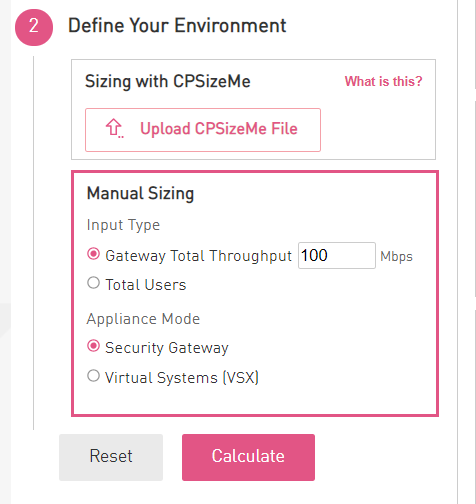
> 1. In the **Sizing with CPSizeMe** section at the bottom, click **Upload CPSizeMe File**.
>
> 
> 2. Select the XML file and click **Upload**.
>
> 3. Immediately, the information from the XML file will be fetched in the AST upper left column.
>
> 4. Review the automatically completed information in the AST.
>
> 5. Adjust characteristics as needed.
>
> **Notes:**
> * Select additional Software Blades, if needed
> * Choose the correct number of users
### Troubleshooting {#Troubleshooting}
Refer to "Uploading cpsizeme results to Check Point" section.
* **Problem: failed to upload report when sending the summary or the detailed archive**
Solution:
* Check connectivity from the Security Gateway to these servers:
* `services.checkpoint.com` on TCP port 443
* `mercury.ts.checkpoint.com` on TCP port 22
For example, run: `telnet services.checkpoint.com 443`
* If you need to use a proxy server to connect to the above sites, use the proxy method of `cpsizeme`.
Run:
`cpsizeme -p <`*PROXY_IP_ADDRESS>:*
* **Problem: failed updating the version**
Solution:
* Check connectivity from the Security Gateway to these servers:
* `services.checkpoint.com` on TCP port 443
* `mercury.ts.checkpoint.com` on TCP port 22
For example, run: `telnet services.checkpoint.com 443`
* If a proxy needs to be configured, configure it in Gaia Portal on the Security Gateway.
* In case you run R76 or earlier version, make sure you have the latest build of CPUSE Agent per [sk92449: CPUSE - Gaia Software Updates (including Gaia Software Updates Agent)](https://supportcenter.checkpoint.com/supportcenter/portal?eventSubmit_doGoviewsolutiondetails=&solutionid=sk92449#Latest build of CPUSE and What's New) - section "*(3) Latest build of CPUSE and What's New*".
---
# Agent Instructions
This content is from the Check Point Support Center (https://support.checkpoint.com), the official knowledge base for Check Point cybersecurity products.
## Navigating This Knowledge Base
- **Complete index**: [llms.txt](https://support.checkpoint.com/llms.txt)
- **All SK articles**: [SecureKnowledge Sitemap](https://support.checkpoint.com/sitemaps/secureknowledge-sitemap-index.xml)
- **SK article URL pattern**: `https://support.checkpoint.com/results/sk/{skId}`
- **Markdown responses**: AI bot User-Agents automatically receive `text/markdown` content