> Source: [sk85560](https://support.checkpoint.com/results/sk/sk85560)
# sk85560 - Installing a Bypass (Fail-Open) network interface card on Check Point appliances
| Property | Value |
|----------|-------|
| Solution ID | sk85560 |
| Date Created | 2012-09-27 |
| Last Modified | 2025-01-12 |
| Technical Level | General |
| Products | Security Gateway, Hardware |
| Versions | R82.10, R82, R81.20, Not Version-Specific |
| OS | Gaia |
| Platform | 15000, 5000, 7000, 28000, 16000, 26000, 6000 |
## Solution
This article describes how to install and use a Bypass (Fail-Open) network interface card on 4000, 5000, 12000, 13000, 15000, 23000, 6000, 7000, 16000, 26000, and 28000 appliances.
**Table of content**
* Feature description
* Supported versions and Gateway modes
* Bypass Card Architecture
* Supported Bypass Cards
* Bypass Card Installation Overview
* Configuring the appliance using SmartConsole
* Enabling the Bypass feature
* Using the Bypass Interface
* Bypass Interface LED
* Traffic loss scenarios in case of failure
* Known Limitations
* Notes
* Additional Resources
Feature description {#Feature description}
------------------------------------------
The Bypass (Fail-Open) network interface card (a.k.a. FONIC) makes sure that network traffic does not stop if the appliance fails or loses power.
* This card is supported only on *Gaia OS*.
* This card is supported only in Single Gateway (non-cluster) configuration.
To enable the Bypass feature, you must disable the non-supported features.
Non-supported features can be found in the Known Limitations section.
### Bypass Card Architecture {#Feature description - Bypass Card Architecture}
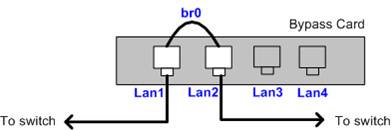
The appliance enters Bypass Mode, if one of the following occurs:
1. There is a power loss.
2. The appliance is rebooting.
3. The appliance is overloaded. It enters Bypass Mode for at least 1 minute.
4. There is a system failure. It enters Bypass Mode for at least 5 minutes.
5. The appliance stops responding for 60 seconds.
### Supported Bypass Cards {#Feature description - Supported Bypass Cards}
* 1 GbE Copper Card, 4 ports
* 1 GbE SFP Line Card, 4 Ports (short and long range)
* 10 GbE SFP+ Line Card, 2 Ports (short and long range)
Bypass Card Installation Overview {#Bypass Card Installation Overview}
----------------------------------------------------------------------
1. Install the Bypass Card in the appliance.
For instructions, refer to [Installing and Replacing Line Cards in Check Point Security Appliances](https://sc1.checkpoint.com/documents/Appliances/FRU_Line_Cards/Default.htm) - Chapter 'Bypass (Fail-Open) Line Cards'.
2. For R77.xx only: Install the Bypass Hotfix. Refer to instructions received with the hotfix from Check Point Solution Center.
3. Configure the Bypass bridge, using the Gaia Portal.
**Important Note:** Before adding the Bridge interface, make sure to enable the physical interfaces (bridge slaves):
* In Gaia Portal:
go to '*Network Management* ' pane - click on '*Network Interfaces* ' - select the interface - click on '*Edit* ' button - check the box "*Enable* " - click on '*OK*'
* In Gaia Clish:
*set interface *INTERFACE_NAME* state on*
*save config*
**Important** **note:** When adding a bridge interface, don't use br0 as the name of the interface- when the name is set to br0, the Bypass functionality will not work.
4. Configure the appliance in SmartConsole (described in this section).
5. Enable the Bypass feature on the appliance (described in this section).
6. Install the security policy on the appliance.
7. Reboot the appliance.
Configuring the appliance in SmartConsole {#Configuring the appliance using SmartDashboard}
-------------------------------------------------------------------------------------------
Check Point Software Blade architecture offers a unique flexibility to quickly expand services as needed without the addition of new hardware or management complexity.
If the appliance is used as a dedicated security solution for combinations of DLP, IPS, Anti-Bot, Anti-Virus, URL Filtering or Application Control Blades (does not require FireWall inspection), configure the Rule Base as follows:
1. Disable non-supported features (refer to Known Limitations section).
2. Disable Anti-Spoofing on the Bypass Card interfaces:
1. Expand the '*Network Objects* ' navigation tree.
2. Expand the '*Check Point* ' navigation tree.
3. Double-click on the appliance object.
4. In the object's left pane, go to '*Topology* '.
5. Select the interface - click on '*Edit...* ' - '*Interface Properties* ' window opens.
6. Go to the '*Topology* ' tab - in the '*Anti-Spoofing* ' section, **clear** the checkbox "*Perform Anti-Spoofing based on interface topology* " - click '*OK* ' to close the '*Interface Properties* ' window.
7. Repeat the previous Steps 2E-2F for all the Bypass Card interfaces.
8. Click '*OK* ' to close the object properties.
9. Save the changes: '*File* ' menu - '*Save*'.
3. Configure the rulebase to allow traffic to the Bypass Card:
1. In the '*Firewall* ' tab, click on "*Policy*".
2. Add these security rules at the **top** of the rulebase:
[](https://sc1.checkpoint.com/sc/SolutionsStatics/sk85560/BypassHF_rulebase.png "Click the image to see it in full size in a new tab/window")
4. Save the changes: '*File* ' menu - '*Save* '.
5. Install the security policy.
Enabling the Bypass feature {#Enabling the Bypass feature in R76 and above}
---------------------------------------------------------------------------
Follow these steps on the security appliance:
* On the Gateway in Expert mode:
1.
1. Backup the current *$FWDIR/conf/fwfonic.conf* file:
***[Expert@HostName:0]# cp $FWDIR/conf/fwfonic.conf $FWDIR/conf/fwfonic.conf_ORIGINAL***` `
2. Edit the current *$FWDIR/conf/fwfonic.conf* file:
***[Expert@HostName:0]# vi $FWDIR/conf/fwfonic.conf***` `
3. Change the value of "*enabled* " attribute from "0" to "1":
```
(bypass_NIC
:enabled (1)
:watch_dog (
............
```
4. Save the changes and exit from Vi editor.
* On the Gateway's WebUI Portal, on the Network Interfaces page:
1.
1. Select the Bridge interface, click on the 'Edit' button, go to the "Fail-Open" tab, select the "Enable" checkbox and select the participating interfaces in the bypass.
-- OR --
(On the Gateway in clish mode) Use the command:
HostName> **set bridging group** ** **fail-open-interfaces** ** **/** **
2. Install the policy on the appliance.
* In VSX mode (starting from R77):
**Note:** Bypass Hotfix has to be installed on the appliance. To obtain this hotfix, contact *Check Point Solution Center* via the *local Check Point office*.
Using the Bypass Interface {#Using the Bypass Interface}
--------------------------------------------------------
The Bypass feature works automatically, and normally there is no need for the administrator to manually change the Bypass Card's state. Nevertheless, using the **fwfonic_bypass** script, administrator can manually activate/deactivate Bypass functionality, and also check the current Bypass status:
Usage:
***[Expert@HostName:0]# fwfonic_bypass { | all} {on | off | status}***
Examples:
* *[Expert@HostName:0]# fwfonic_bypass eth1-01 status*
* *[Expert@HostName:0]# fwfonic_bypass all on*
**Note** : *\* is the name for the *master* interface of the bypass pair.
Status Response Explanation:
Disabled = Fail-open card is not configured to operate in fail open mode.
Off = Fail-open card is configured, but is currently offloading traffic to the firewall for inspection.
On = Fail-open card is configured and is in fail-open mode, passing traffic without inspection.
Bypass Interface LED {#Bypass Interface LED}
--------------------------------------------
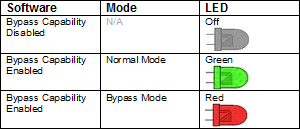
A dedicated Bypass LED is added to all Bypass Cards per each bridge pair.
The LED shows one of the following states:
* Off
* Green
* Red
The following table summarizes the functionality of each LED:
Traffic Loss Scenario in Case of Failure {#Traffic loss scenarios in case of failure}
-------------------------------------------------------------------------------------
When the Bypass Card returns from fail-open state, there could be a delay of 15-40 seconds before the link is re-established. The delay is due to Linux Bridge forwarding mechanism to allow Spanning Tree Protocol (running on Switches) enough time for listening and learning the network topology and to block switch ports in case a loop is identified.
* This is an expected behavior for Bypass Cards solutions.
* A possible way to reduce the delay, is to configure the switches not to use auto-negotiation, by forcing the speed and duplex on the appliance and surrounding devices.
* Some workarounds exist for the delay (for example, either disable STP on the interface ports of your switch or enable Port-fast in Spanning Tree settings). However, this may cause severe impact on network behavior and should be carefully considered.
* A short traffic outage is expected during the card switch from Normal to Bypass mode and vice versa.
Known Limitations {#Known Limitations}
--------------------------------------
If even one of the following features is enabled, severe network issues could arise. Disable these features in SmartConsole, before you perform any of the steps in the Configuring the appliance using SmartConsole section.
The non-supported features are:
* HTTPS Inspection
* Anti-Spam
* Traditional Anti-Virus in proactive detection mode
* FTP inspection in DLP Software Blade
* 'Header Spoofing' protection in IPS Software Blade
* 'Initial Sequence Number (ISN) Spoofing' protection in IPS Software Blade
* 'SYN Attack' (SYNDefender) protection in IPS Software Blade
* Link Aggregation (Bonding) of ports on a Bypass card / of Bypass cards
* CPAS features such as "Strict Hold"
* Threat Emulation hold mode from R80.30, named in R80.40 Maximum Security.
* Threat Extracting for web downloads.
* Anti-Virus Strict hold flow
Explanation:
> The reason these features are not supported is due to risks related to the act of flipping (the card changes its state to bypass mode).
> When a networked system sends a TCP packet, which contains an incorrect sequence number to another networked system, the remote system will reply with a TCP ACK packet containing the expected sequence number. This exchange of ACK packets will continue indefinitely back and forth and thus create an "ACK storm".
> HTTPS Inspection and other non-supported features are interfering with the connection, thus on fail-open the connection will break, and Client and Server will send incorrect sequence.
Other Limitations
-----------------
* Hardware Diagnostic is not supported on this card, trying to run Hardware Diagnostic on this card will produce errors such as "general error".
Notes {#Notes}
--------------
* To be able to access the machine during Bypass state, make sure you are using the dedicated management interface on the appliance.
* For bridge mode deployment issues and limitations, [contact Check Point Support](http://www.checkpoint.com/services/contact/index.html).
* For R77.XX in VSX mode, a Bypass Hotfix has to be installed on the appliance. To obtain this hotfix, contact Check Point Solution Center via the local Check Point office.
* Fix is included in R80.30 Jumbo Hotfix Take 217 (PRJ-12833). Refer to [sk153152 - Jumbo Hotfix Accumulator for R80.30 (R80_30_jumbo_hf)](https://support.checkpoint.com/results/sk/sk153152) for more information.
Additional Resources {#Additional Resources}
--------------------------------------------
* [**Check Point Bypass Support Feature Overview**](https://sc1.checkpoint.com/sc/SolutionsStatics/sk85560/Bypass_Feature_Overview.pptx) (Microsoft Power Point presentation)
* [sk87621 - Bypass Card (FONIC) FAQ](http://supportcontent.checkpoint.com/solutions?id=sk87621)
* [sk92461 - How to install the Bypass (FONIC) Hotfix for R75.40 Gaia on 4000, 12000 and 13000 appliances](http://supportcontent.checkpoint.com/solutions?id=sk92461)
* [sk108588 - Issues with FWD daemon on VSX Gateway with Bypass Card (FONIC) installed](https://support.checkpoint.com/results/sk/sk108588)
---
# Agent Instructions
This content is from the Check Point Support Center (https://support.checkpoint.com), the official knowledge base for Check Point cybersecurity products.
## Navigating This Knowledge Base
- **Complete index**: [llms.txt](https://support.checkpoint.com/llms.txt)
- **All SK articles**: [SecureKnowledge Sitemap](https://support.checkpoint.com/sitemaps/secureknowledge-sitemap-index.xml)
- **SK article URL pattern**: `https://support.checkpoint.com/results/sk/{skId}`
- **Markdown responses**: AI bot User-Agents automatically receive `text/markdown` content