> Source: [sk63160](https://support.checkpoint.com/results/sk/sk63160)
# sk63160 - Aggregated TCP logs (Potential Network Configuration Problem)
| Property | Value |
|----------|-------|
| Solution ID | sk63160 |
| Date Created | 2011-05-22 |
| Last Modified | 2021-08-31 |
| Technical Level | General |
| Products | Security Gateway |
| Versions | R81.10 (EOS), R81 (EOS) |
## Symptoms
- * "`TCP Out of Sequence`" log is missing in Smart Tracker or Smart Event.
* "`TCP Segment Limit Enforcement`" log is missing in Smart Tracker or Smart Event.
* "`TCP SYN Modified Retransmission`" log is missing in SmartView Tracker or Smart Event.
* "`TCP Invalid Retransmission`" log is missing in SmartView Tracker or Smart Event.
* "`TCP Invalid Checksum`" log is missing in SmartView Tracker or SmartEvent.
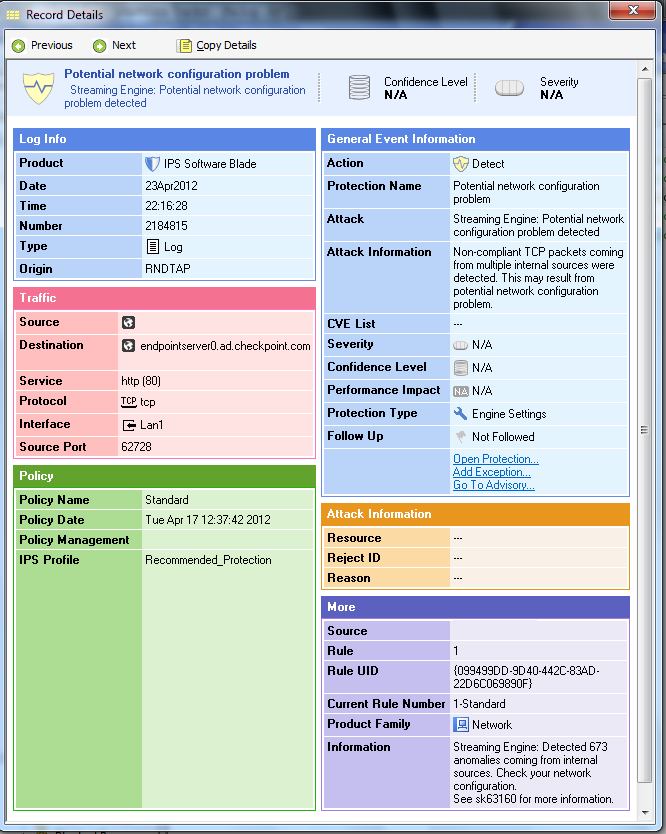
* "`Streaming Engine: Potential network configuration problem detected`" log.
## Cause
Logs for the 5 protections described above are usually an indication of a network configuration problem, and not of an actual attack.
In some environments, these protections produce a large amount of logs, which might prevent processing of other important events.
Therefore, staring from **R75.40** release, the logs can be aggregated into one log with the title "**Potential network configuration problem**", produced once per hour (see "Solution" section for more details).
*Example*:
[](https://sc1.checkpoint.com/sc/SolutionsStatics/sk63160/record_details1.png "Click the image to see it in full size in a new tab/window")
## Solution
### Code was improved:
> In order to enhance the user experience and reduce the load on monitoring logs.
> Check Point has performed several changes in the way the logs for these 5 protections are produced.
>
> By default, the logs for these protections were produced as before, but were not displayed in the SmartView Tracker or SmartEvent.
> Instead, once per hour, a log with the title "`Potential network configuration problem`" is produced.
> The log will summarize the past hours event (aggregation of the 5 different protections).
>
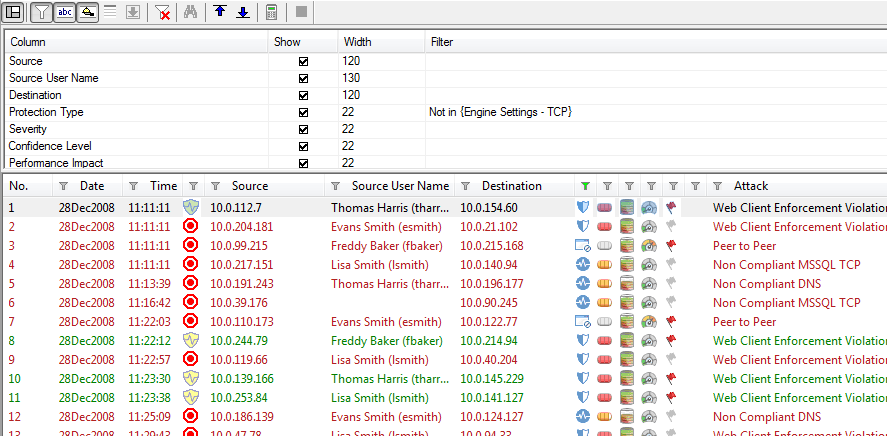
> If the administrator wished to see the specific logs, these logs can be displayed in R70.30 and below SmartView Tracker by simply removing the filter "`Engine Settings - TCP`" from the "`Protection Type`" field:
>
> [](https://sc1.checkpoint.com/sc/SolutionsStatics/sk63160/log.png)
>
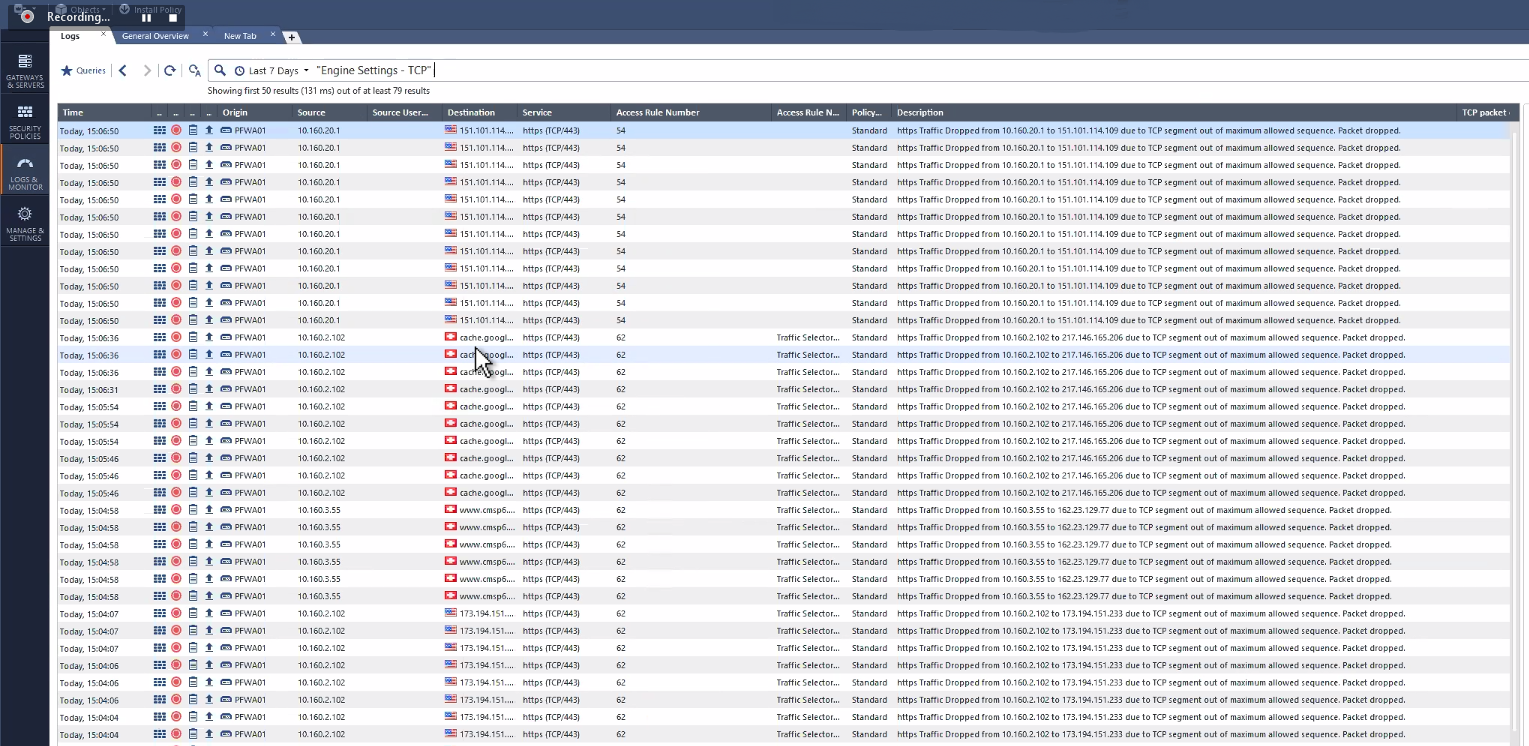
> In R80 and above SmartLog, the specific logs can be viewed by adding the search filter "*Engine Settings - TCP*":
>
> [](https://sc1.checkpoint.com/sc/SolutionsStatics/sk63160/aggr_logs21803060154.png)
>
> In addition (and not by default), the administrator can control the generation of the 5 logs in subject
> at the PSL level by changing the value of the kernel parameter **`fwpslglue_log_ctrl`** on the Security Gateway:
>
> |---------------------------|--------------------------------------------------------------------------------------------------------------------------------------------------------------------------------------------------------------------------------------------------------------------------------------------------------------------------------------------------------------------------------------------------------------------------------------------------------------------------------------------------------------------------------------------------------------------------------------------------------------------------------------------------|
> | Value of kernel parameter | Generation of the logs |
> | `fwpslglue_log_ctrl=0` | Print all logs from these protections (default value; as in previous versions) |
> | `fwpslglue_log_ctrl=1` | Print a log from these protections once per connection/window (default value in Monitor / Mirror / TAP / SPAN mode) The logs will be printed in the following way: * Log from protection '`TCP Out of Sequence`' will be printed once per window per connection * Log from protection '`TCP Segment Limit Enforcement`' will be printed once per window per connection * Log from protection '`TCP SYN Modified Retransmission`' will be printed once per connection * Log from protection '`TCP Invalid Retransmission`' will be printed once per connection * Log from protection '`TCP Invalid Checksum`' will be printed once per connection |
> | `fwpslglue_log_ctrl=2` | Do nor print any logs from these protections |
### Procedure:
* Show / Hide instructions for R80.x, R77.30, R77.20 with *Take_77* or above of R77.20 Jumbo Hotfix
Check and set the desired value of the kernel parameter ***fwpslglue_log_ctrl***:
* To check the current value of this kernel parameter:
***\[Expert@HostName\]# fw ctl get int fwpslglue_log_ctrl***
* To set the desired value *on-the-fly* (does not survive reboot):
Run the following command on the relevant Security Gateway:
***\[Expert@HostName\]# fw ctl set int fwpslglue_log_ctrl* VALUE**
* To set the desired value *permanently* (to survive reboot):
Follow [sk26202 - Changing the kernel global parameters for Check Point Security Gateway](http://supportcontent.checkpoint.com/solutions?id=sk26202).
> For Gaia / SecurePlatform OS:
> 1. Create the *$FWDIR/boot/modules/fwkern.conf* file (if it does not already exit):
>
> ***\[Expert@HostName\]# touch $FWDIR/boot/modules/fwkern.conf***
> 2. Edit the *$FWDIR/boot/modules/fwkern.conf* file in Vi editor:
>
> ***\[Expert@HostName\]# vi $FWDIR/boot/modules/fwkern.conf***
> 3. Add the following line (spaces and comments are not allowed):
>
> ***fwpslglue_log_ctrl=*VALUE**
> 4. Save the changes and exit from Vi editor.
>
> 5. Check the contents of the *$FWDIR/boot/modules/fwkern.conf* file:
>
> ***\[Expert@HostName\]# cat $FWDIR/boot/modules/fwkern.conf***
> 6. Reboot the Security Gateway.
>
> 7. Verify that the new value was set:
>
> ***\[Expert@HostName\]# fw ctl get int fwpslglue_log_ctrl***
* Show / Hide instructions for R77.20 and lower
1. For **[supported](http://www.checkpoint.com/support-services/support-life-cycle-policy/index.html) versions** of Security Gateway, [contact Check Point Support](http://www.checkpoint.com/support-services/contact-support/index.html) to get a required Hotfix that adds the kernel parameter ***fwpslglue_log_ctrl*** .
A Support Engineer will make sure the Hotfix is compatible with your environment before providing the Hotfix.
For faster resolution and verification, please collect [CPInfo files](https://supportcenter.checkpoint.com/supportcenter/portal?eventSubmit_doGoviewsolutiondetails=&solutionid=sk92739) from the Security Management Server and Security Gateways involved in the case.
Hotfix installation instructions Gaia/SecurePlatform OS:
1. Hotfix has to be installed on ***Security Gateway running on Gaia/SecurePlatform OS***.
**Note:** In cluster environment, this procedure must be performed on *all* members of the cluster.
2. Instructions:
* Using CPUSE - On Security Gateway running Gaia OS R75.40 and above:
Make sure to install the [latest build of the CPUSE Agent](https://supportcenter.checkpoint.com/supportcenter/portal?eventSubmit_doGoviewsolutiondetails=&solutionid=sk92449#Latest build of CPUSE and What's New).
Refer to [sk92449: CPUSE - Gaia Software Updates (including Gaia Software Updates Agent)](https://supportcenter.checkpoint.com/supportcenter/portal?eventSubmit_doGoviewsolutiondetails=&solutionid=sk92449#How to work with CPUSE):
* Section "[(4-A-c)](https://supportcenter.checkpoint.com/supportcenter/portal?eventSubmit_doGoviewsolutiondetails=&solutionid=sk92449#How to work with CPUSE - How to download and import a CPUSE package - Import instructions for Offline procedure - Gaia Portal)" / "[(4-A-d)](https://supportcenter.checkpoint.com/supportcenter/portal?eventSubmit_doGoviewsolutiondetails=&solutionid=sk92449#How to work with CPUSE - How to download and import a CPUSE package - Import instructions for Offline procedure - Gaia Clish)" - refer to import instructions for *Offline procedure*
* Section "[(4-B-a)](https://supportcenter.checkpoint.com/supportcenter/portal?eventSubmit_doGoviewsolutiondetails=&solutionid=sk92449#How to work with CPUSE - How to install a CPUSE package - Installing a Hotfix package / Minor Version package)" - refer to installation instructions for *Hotfixes*
You can also use the [sk111158 - Central Deployment Tool (CDT)](https://supportcenter.checkpoint.com/supportcenter/portal?eventSubmit_doGoviewsolutiondetails=&solutionid=sk111158) to install these hotfixes on Security Gateways.
**Note:** Reboot is required.
* Using Legacy CLI - On VSX Gateway running Gaia OS R75.40VS and above; On Security Gateway running SecurePlatform OS:
Note: On these versions of VSX, the CPUSE does not support installation of hotfixes (refer to [sk92449](https://supportcenter.checkpoint.com/supportcenter/portal?eventSubmit_doGoviewsolutiondetails=&solutionid=sk92449#System requirements and limitations) - section "(2)" - "VSX Gateways").
1. Transfer the two hotfix packages to the machine into two *separate* directories:
* FW1 package (*fw1_wrapper_\.tgz* ) into e.g., */path_to_FW1_fix/*
* OS package (*SecurePlatform_\.tgz* ) into e.g., */path_to_OS_fix/*
2. Unpack and install the FW1 hotfix package:
***\[Expert@HostName\]# cd /path_to_FW1_fix/***
***\[Expert@HostName\]# tar -zxvf fw1_wrapper_\.tgz***
***\[Expert@HostName\]# ./fw1_wrapper_\***
**Note:** The script will stop all of Check Point services (*cpstop*) - read the output on the screen.
3. Do **NOT** reboot yet.
4. Unpack and install the OS hotfix:
***\[Expert@HostName\]# cd /path_to_OS_fix/***
***\[Expert@HostName\]# tar -zxvf SecurePlatform_\.tgz***
***\[Expert@HostName\]# ./SecurePlatform_\***
**Note:** The script will stop all of Check Point services (*cpstop*) - read the output on the screen.
5. Reboot the machine.
2. Check and set the desired value of the kernel parameter ***fwpslglue_log_ctrl***:
* To check the current value of this kernel parameter:
***\[Expert@HostName\]# fw ctl get int fwpslglue_log_ctrl***
* To set the desired value *on-the-fly* (does not survive reboot):
Run the following command on the relevant Security Gateway:
***\[Expert@HostName\]# fw ctl set int fwpslglue_log_ctrl* VALUE**
* To set the desired value *permanently* (to survive reboot):
Follow [sk26202 - Changing the kernel global parameters for Check Point Security Gateway](http://supportcontent.checkpoint.com/solutions?id=sk26202).
> For Gaia / SecurePlatform OS:
> 1. Create the *$FWDIR/boot/modules/fwkern.conf* file (if it does not already exit):
>
> ***\[Expert@HostName\]# touch $FWDIR/boot/modules/fwkern.conf***
> 2. Edit the *$FWDIR/boot/modules/fwkern.conf* file in Vi editor:
>
> ***\[Expert@HostName\]# vi $FWDIR/boot/modules/fwkern.conf***
> 3. Add the following line (spaces and comments are not allowed):
>
> ***fwpslglue_log_ctrl=*VALUE**
> 4. Save the changes and exit from Vi editor.
>
> 5. Check the contents of the *$FWDIR/boot/modules/fwkern.conf* file:
>
> ***\[Expert@HostName\]# cat $FWDIR/boot/modules/fwkern.conf***
> 6. Reboot the Security Gateway.
>
> 7. Verify that the new value was set:
>
> ***\[Expert@HostName\]# fw ctl get int fwpslglue_log_ctrl***
{#Step_2}
{#Step_2}
### Changing the log settings of specific protection:
> The administrator can change the log settings of each specific protection by setting the relevant value for these kernel parameters:
>
> |---------------------------------|-----------------------------------|---------------------------------------|
> | Protection | Kernel Parameter and Value | Behavior |
> | TCP Out of Sequence | `fwpslglue_out_of_seq=0` | Ignore a message from this protection |
> | TCP Out of Sequence | `fwpslglue_out_of_seq=1` | Log a message from this protection |
> | TCP Segment Limit Enforcement | `fwpslglue_seg_limit_enforce=0` | Ignore a message from this protection |
> | TCP Segment Limit Enforcement | `fwpslglue_seg_limit_enforce=1` | Log a message from this protection |
> | TCP SYN Modified Retransmission | `fwpslglue_invalid_syn_retrans=0` | Ignore a message from this protection |
> | TCP SYN Modified Retransmission | `fwpslglue_invalid_syn_retrans=1` | Log a message from this protection |
> | TCP Invalid Retransmission | `fwpslglue_incorrect_retrans=0` | Ignore a message from this protection |
> | TCP Invalid Retransmission | `fwpslglue_incorrect_retrans=1` | Log a message from this protection |
> | TCP Invalid Checksum | `fwpslglue_invalid_csum=0` | Ignore a message from this protection |
> | TCP Invalid Checksum | `fwpslglue_invalid_csum=1` | Log a message from this protection |
### Notes:
* In SmartLog, the logs will not be filtered by default. However, changing the PSL setting will behave as described above.
### Related solutions:
* [sk26202 - Changing the kernel global parameters for Check Point Security Gateway](http://supportcontent.checkpoint.com/solutions?id=sk26202)
---
# Agent Instructions
This content is from the Check Point Support Center (https://support.checkpoint.com), the official knowledge base for Check Point cybersecurity products.
## Navigating This Knowledge Base
- **Complete index**: [llms.txt](https://support.checkpoint.com/llms.txt)
- **All SK articles**: [SecureKnowledge Sitemap](https://support.checkpoint.com/sitemaps/secureknowledge-sitemap-index.xml)
- **SK article URL pattern**: `https://support.checkpoint.com/results/sk/{skId}`
- **Markdown responses**: AI bot User-Agents automatically receive `text/markdown` content