> Source: [sk54442](https://support.checkpoint.com/results/sk/sk54442)
# sk54442 - How to troubleshoot SmartDashboard connection issues
| Property | Value |
|----------|-------|
| Solution ID | sk54442 |
| Date Created | 2010-09-21 |
| Last Modified | 2021-11-01 |
| Technical Level | General |
| Products | SmartConsole |
| Versions | R81.10 (EOS), R81 (EOS) |
## Solution
To troubleshoot the connection issues in R7X.X and R8X.X, perform:
1. Make sure that the Security Management server is running and the client is able to communicate with the Security Management server, either trace route or ping the interface.
If they cannot, then there is a communication issue that needs to be addressed, such as routing issue or there is a Firewall installed on the Security Management server (this would be true if it is a standalone configuration). See if the user can SSH into the Security Management server or a do a remote session to the Windows box running the Security Management server. If there should not be a Firewall and Security Management server, check for the FWD process in Windows Task Manager. In Gaia OS open an SSH to the management server and run cphwd_admin list and confirm that the FWD process is running. There should be an "E" if the process is running or a "T" if it is not.

Above is an Image of a Windows Security Management server with CP Firewall installed - FWD is the firewall daemon.
If the Security Management server is a standalone box, run *fw unloadlocal* (this command can be run on Windows, Linux and SecurePlatform), this will remove the local policy if a firewall is installed on the Security Management server.
If there is no firewall installed, it will say "Local host is not a Firewall -1 module"
If everything is OK, move to step 2.
2. Run *cpconfig* on the Security Management server, either through SSH connection or through command line from Windows. Check the GUI clients list.
See if the clients IP address is listed or if the word 'any' is used. Also check and see if the Admin account being used is listed under admins list.
Remove and recreate the Admin account or reset its password.
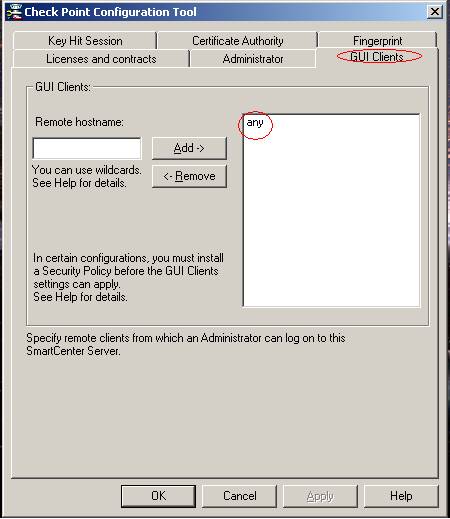
If all of this seems good, move step 3.
3. Use the output of top to check the CPU usage of the fwm process. Take note of fwm's PID. If CPU is \~100, fwm may stall out. Consider killing and restarting the process.
* # *top*
* *# kill -9 \*
* *# cpstart*
4. Backup and remove the following files from *$FWDIR/conf* or *C:\\windows\\fw1\\version\\fw1\\conf* :
* *applications.C*
* *applications.C.backup*
* *CPMILinksMgr.db*
* *CPMILinksMgr.db.private*
After the files are backed up and removed, run a *cpstop* and then *cpstart*.
Try to connect to the Security Management server. If the same problem occurs move to step 5.
5. It is possible that the GUI clients file is corrupted. On the Security Management server, look for a file called *gui-clients* (located in *$FWDIR/conf* or *C:/windows/fw1/version/fw1/conf*)
Once you find the file, run *cpstop* , backup and then remove the *gui-clients* file.
Run *cpstart* on the box.
Run *cpconfig*and add new clients or the word 'any' to the GUI clients list
If this does not work, go to step 6.
6. Verify that the FWM or CPD process is up and running.
On Windows, check the Task Manager for *FWM.exe* and *CPD.exe*

On SecurePlatform run *ps -aux* to view the active process.
Also for SecurePlatform and Windows you can run *cpwd_admin list*, it shows the process started by Watchdog and how many times process was started and if it has been terminated.
CMD from Windows:

Command ran on SecurePlatform:

If the FWM or CPD is not running, debugging will be needed.
Run *FWM -d \> \* or *CPD -d \> \* and examine the info. That is presented when attempting to force the FWM to start.
If the FWM process is running, move to step 7.
7. When the client tries to connect, if the connection error pops up instantly then the issue will be with the SIC certificate for the SmartDashboard on the Security Management server.
Confirm that the SIC certificate is still valid.
On the Security Management Server run the *cpca_client lscert -stat Valid -kind SIC* command.
If it does not show a certificate for "*CN=cp_mgmt....* ." proceed with the steps below.
In this case you need to revoke the client's certificate
**Procedure for revoking and creating new certificate to the Security Management server:**
* Switch directories by running *cd $CPDIR/conf*
or for Windows, *C:/program files/checkpoint/cpshared/Rxx/conf*
* Backup and then remove the *sic_cert.p12* file. Run:
*cp sic_cert.p12 sic_cert.p12old* and then run: *rm sic_cert.p12*
* Run the following command to revoke the certificate from the Security Management server Objects file:
*cpca_client revoke_cert -n "CN=cp_mgmt"*
* Recreate a brand new SIC certificate for the Security Management server:
*cpca_client create_cert -n "CN=cp_mgmt" -f sic_cert.p12*
* Once the new certificate is created run:
*cpstop;* *cpstart*
* Try to connect to the Security Management server. If an issue still occurs move to step 8.
8. Perform the following steps on the Security Management server (recommended for SecurePlatform only):
1. Backup the files:
*$FWDIR/conf/objects.C*
*$FWDIR/conf/objects_5_0.C*
*$CPDIR/registry/HKLM_registry.data*
2. Search in the object_5_0.C file the expression:
sic_name ("cn=cp_mgmt,o=XXXX")
3. Search in the InternalCA.NDB file the expression:
CommonName ("cn=cp_mgmt,o=YYYY")
4. Verify that the values are different, and modify all the occurrences of the expression "o=XXXX" to "o=YYYY" in the following files:
1. In the *$FWDIR/conf/objects.C* file the lines containing:
*sic_name ("cn=cp_mgmt,o=XXXX")*
2. In the *$FWDIR/conf/objects_5_0.C* file, the lines containing:
*sic_name ("cn=cp_mgmt,o=XXXX")*
3. In the *$CPDIR/registry/HKLM_registry.data* file, the lines containing:
*ICAdn ("o=XXXX")*
4. In the *$CPDIR/registry/HKLM_registry.data* file the lines containing:
*MySICname ("cn=cp_mgmt,o=XXXX")*
5. Replace the expression in the backup files
objects_5_0.C.backup
objects_5_0.C.bak
HKLM_registry.data
6. After making these changes, run the *cpstop;cpstart*commands.
7. Connect to the Security Management server with the SmartDashboard.
**Note:** check if there are any additional *objects_5_0.C_\** files exist and edit them accordingly.
---
# Agent Instructions
This content is from the Check Point Support Center (https://support.checkpoint.com), the official knowledge base for Check Point cybersecurity products.
## Navigating This Knowledge Base
- **Complete index**: [llms.txt](https://support.checkpoint.com/llms.txt)
- **All SK articles**: [SecureKnowledge Sitemap](https://support.checkpoint.com/sitemaps/secureknowledge-sitemap-index.xml)
- **SK article URL pattern**: `https://support.checkpoint.com/results/sk/{skId}`
- **Markdown responses**: AI bot User-Agents automatically receive `text/markdown` content