> Source: [sk22716](https://support.checkpoint.com/results/sk/sk22716)
# sk22716 - How to create / join a User Center account
| Property | Value |
|----------|-------|
| Solution ID | sk22716 |
| Date Created | 2003-09-25 |
| Last Modified | 2026-01-11 |
| Technical Level | General |
| Products | User Center |
| Versions | Not Version-Specific |
## Solution
The Check Point User Center offers single sign-on management for all your Check Point needs:
* Manage Accounts \& Products
* Get Support Offers
* License Products
* Open \& manage your Service Requests
* Access Downloads and product documentation
* Search Technical Knowledge Center
To Create a New User Center account
-----------------------------------
1. Log into the [User Center](https://usercenter.checkpoint.com/usercenter/index.jsp).
2. **In the Partner map view**:
1. At the top, go to the **`MY CHECK POINT`** menu
2. On the left, in **`My Accounts`** section, click on the **`My Accounts:`**
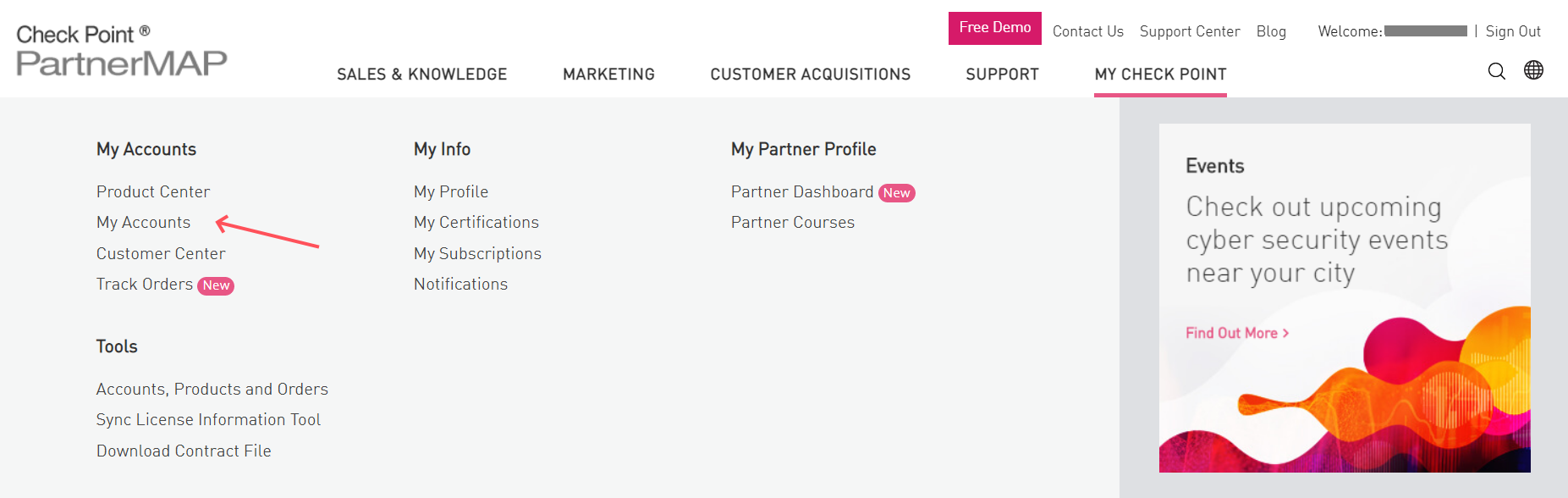
Click on the **`Create Account`** button:

**In the User Center view:**
1. At the top, go to **ASSETS / INFO** menu
2. On the left, in **`My Accounts`** section, click on the **`My Accounts:`**

Click on the **`Create Account `** button:

3. Complete all required fields (marked with an asterisk).
4. Click **`Submit`** .
Once your new Account has been created, you can locate your Account ID by clicking "**`Back to Accounts`** ".
Your Account ID will be located under the section titled "**`Empty Accounts`**" until products are added.
To Join an existing User Center account
---------------------------------------
To be added to a company's current User Center account, be prepared with the Administrator's e-mail address and the Company Name. (**The Company Name is character specific.**).
Only the company's User Center account administrator can add a user to the account.
1. If you are not a current user, then go to the [User Center home page](https://usercenter.checkpoint.com/usercenter/portal).
2. Log in.
3. Click on the "**`Join Account`**" button:
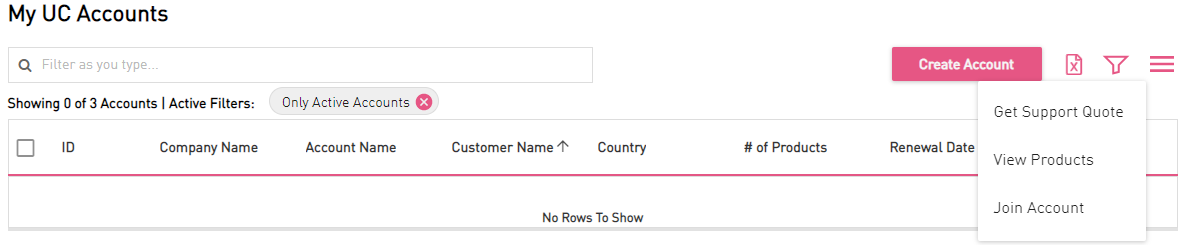
4. Complete all required fields (marked with an asterisk) and click on the "**`Submit`**" button:
[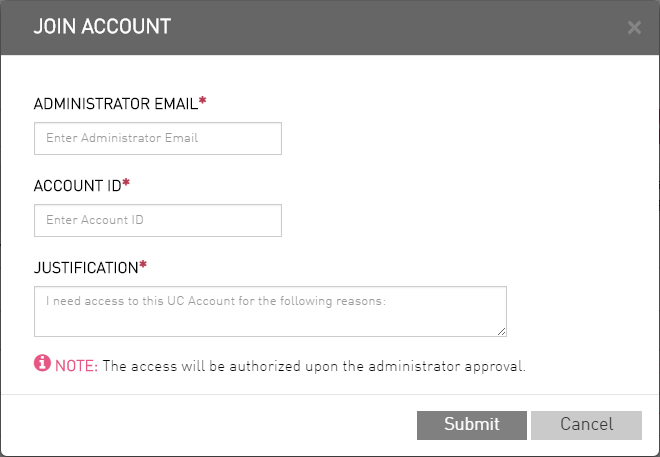](https://sc1.checkpoint.com/sc/SolutionsStatics/sk22716/JoinAccount2.png "Click the image to see it in full size in a new tab/window")
Notification will be sent via e-mail when the account's Administrator adds the user to the account.
*** ** * ** ***
For further assistance, contact Check Point Account Services in one of these ways:
* by creating a [Non-Technical Service Request](https://help.checkpoint.com/)
* by phone - Americas: +1-972-444-6600 option 5, or International: +972-3-611-5100 option 5
---
# Agent Instructions
This content is from the Check Point Support Center (https://support.checkpoint.com), the official knowledge base for Check Point cybersecurity products.
## Navigating This Knowledge Base
- **Complete index**: [llms.txt](https://support.checkpoint.com/llms.txt)
- **All SK articles**: [SecureKnowledge Sitemap](https://support.checkpoint.com/sitemaps/secureknowledge-sitemap-index.xml)
- **SK article URL pattern**: `https://support.checkpoint.com/results/sk/{skId}`
- **Markdown responses**: AI bot User-Agents automatically receive `text/markdown` content