> Source: [sk19746](https://support.checkpoint.com/results/sk/sk19746)
# sk19746 - How to force a Security Gateway to send a TCP [RST] packet upon TCP connection expiration
| Property | Value |
|----------|-------|
| Solution ID | sk19746 |
| Date Created | 2003-05-08 |
| Last Modified | 2025-07-15 |
| Technical Level | General |
| Products | Security Gateway |
| Versions | R81.10 (EOS), R81 (EOS) |
## Solution
### Background
For some applications (e.g., Rational ClearQuest), connections stay idle for a time, and when communication is resumed after a connection timeout, TCP \[RST\] packets are sent to the Client and to the Server.
Without this TCP \[RST\], connections may hang or behave unexpectedly.
**Important** : Due to a code limitation, this feature does not work when SecureXL is enabled.
As a workaround, add the line "*fw_reject_non_syn=1* " to the *$FWDIR/modules/fwkern.conf* file.
This will provide the same result and will send the TCP\[RST\] packet after "First packet isn't SYN".
This limitation was resolved in PMTR-72977. The fix is included starting from:
* [Check Point R81.20](https://support.checkpoint.com/results/sk/
sk173903)
* [Jumbo Hotfix Accumulator for R81.10](https://sc1.checkpoint.com/documents/Jumbo_HFA/R81.10/Default.htm) starting from Take 82
* [Jumbo Hotfix Accumulator for R81](https://sc1.checkpoint.com/documents/Jumbo_HFA/R81/Default.htm) starting from Take 77
* [Jumbo Hotfix Accumulator for R80.40](https://sc1.checkpoint.com/documents/Jumbo_HFA/R80.40/Default.htm) starting from Take 190
**Important** : Due to a code limitation, this feature does not work for connections that traverse VPN.
### Procedure
It is possible to configure Check Point Security Gateway to send a TCP \[RST\] packet upon expiration of a TCP connection.
This behavior is controlled using the parameter ***fw_rst_expired_conn*** in the following way:
**Note:** In cluster environment, this procedure must be performed on *all* members of the cluster.
* To change the Security Gateway's behavior *on-the-fly* until the next policy installation / reboot:
> 1. Connect to the command line on the Security Gateway and log in to the Expert mode.
>
> 2. Set the value of the kernel parameter `fw_rst_expired_conn` to 1:
>
> **`[Expert@HostName:0]# fw ctl set int fw_rst_expired_conn 1`**
> 3. Verify that the value of the kernel parameter was changed to 1:
>
> **`[Expert@HostName:0]# fw ctl get int fw_rst_expired_conn`**
> Output should show:
> *fw_rst_expired_conn = 1*
* To change the Security Gateway's behavior *permanently* across all policy installations / reboot:
> 1. Close all SmartConsole windows.
>
> Verify by running the "*cpstat mg* " command on Security Management Server / in the context of *each* Domain Management Server.
> 2. Connect with [GuiDBedit Tool](https://supportcenter.checkpoint.com/supportcenter/portal?eventSubmit_doGoviewsolutiondetails=&solutionid=sk13009) to Security Management Server / Domain Management Server.
>
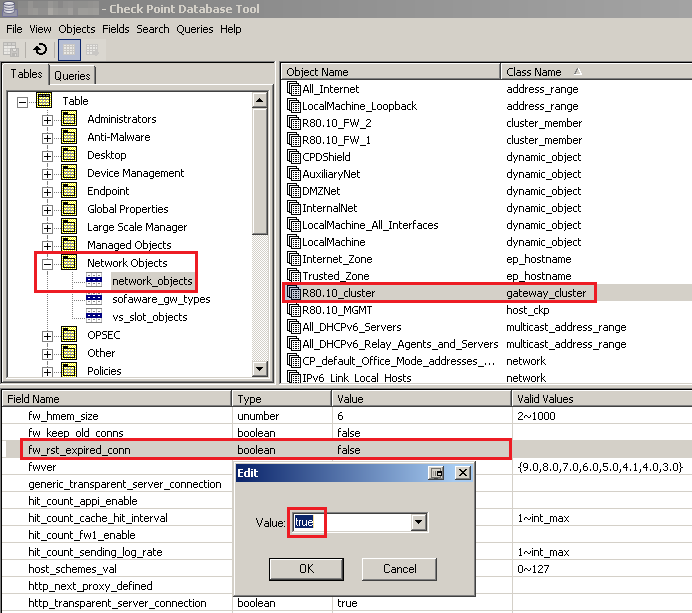
> 3. In the upper left pane, go to ***Table*** - ***Network Objects*** - ***network_objects***.
>
> 4. In the upper right pane, select the relevant Security Gateway / Cluster object.
>
> 5. Press CTRL+F (or go to ***Search*** menu - ***Find*** ) - paste ***fw_rst_expired_conn*** - click on ***Find Next***.
>
> 6. In the lower pane, right-click on the ***fw_rst_expired_conn*** - select ***Edit...*** - select "***true*** " - click on ***OK***.
>
> *Example* :
> [](https://sc1.checkpoint.com/sc/SolutionsStatics/sk19746/Example.png "Click the image to see it in full size in a new tab/window")
> 7. Save the changes: go to ***File*** menu - click on ***Save All***.
>
> 8. Close the GuiDBedit Tool.
>
> 9. Connect with SmartConsole to Security Management Server / Domain Management Server.
>
> 10. Install the policy onto the relevant Security gateway / Cluster object.
>
> 11. Verify that the value of the kernel parameter on Security gateway was changed to 1:
>
> **`[Expert@HostName:0]# fw ctl get int fw_rst_expired_conn`**
> Output should show:
> *fw_rst_expired_conn = 1*
**Related solution:** [sk72640 - Optimizing Security Gateway Configuration for Mirror Port Use](https://supportcenter.checkpoint.com/supportcenter/portal?eventSubmit_doGoviewsolutiondetails=&solutionid=sk72640)
---
# Agent Instructions
This content is from the Check Point Support Center (https://support.checkpoint.com), the official knowledge base for Check Point cybersecurity products.
## Navigating This Knowledge Base
- **Complete index**: [llms.txt](https://support.checkpoint.com/llms.txt)
- **All SK articles**: [SecureKnowledge Sitemap](https://support.checkpoint.com/sitemaps/secureknowledge-sitemap-index.xml)
- **SK article URL pattern**: `https://support.checkpoint.com/results/sk/{skId}`
- **Markdown responses**: AI bot User-Agents automatically receive `text/markdown` content