> Source: [sk180929](https://support.checkpoint.com/results/sk/sk180929)
# sk180929 - Locally Managed Spark Firewall - Best Practice for SSL Inspection
| Property | Value |
|----------|-------|
| Solution ID | sk180929 |
| Date Created | 2023-05-02 |
| Last Modified | 2023-05-15 |
| Technical Level | General |
| Products | Spark Firewall (Locally Managed) |
| Versions | R81.10.X |
| Platform | 1570R, 1500, 1600, 1800, 1595R |
## Solution
This article outlines some recommendations and best practices for easy HTTPS Inspection deployment on Locally Managed Quantum Spark appliances, and use to avoid common configuration / connectivity issues.
**Note**- "Locally Managed" also refers to a Quantum Spark gateway managed from within Spark Management and the Infinity Portal.
**SSL inspection per asset type**
---------------------------------
The main goal of this feature is to improve the SSL inspection deployment:
**Note**- SSL inspection requires that the gateway CA is installed on the host. Installing the CA on non-computer devices can often be challenging.
By default SSL inspection inspects the traffic on computers, laptops and desktops.
**To change which assets are inspected (WebUI):**
1. Go to **Access Policy** \> **SSL Inspection** \>**Policy**.
2. Select **All Assets** or **Inspect other assets**.
3. Select the desired assets.
202305011651262.png)
4. Click **Apply** .
**SSL Exception**
-----------------
A new exception rule was added by default to the SSL Exception Rule Base.
This rule bypasses inspection for specific domains, which are mainly not compatible with Check Point SSL inspection technology, to prevent connectivity issues.
**To disable the rule:**
1. Go to **Access Policy** \> **SSL Inspection** \> **Exceptions**.
2. Select the rule
3. Click **Disable**.

**Smart Accel**
---------------
This feature accelerates domains which are trusted by Check Point if the SSL inspection feature is off. If you want to use SSL inspection to inspect your traffic, turn off the Smart Accel feature before turning on the SSL inspection.
**To turn off Smart Accel:**
* Go to **Access Policy** \> **Smart Accel**.
Move the slider to **OFF**.

**How to troubleshoot an HTTPS Inspection issue**
**Traffic is not being inspected on specific host:** 1. Verify that the GW's CA was installed on the host - you can find instructions on https://my.firewall/ica
2. Go to "Active devices" page, check the device type of the host (i.e Tablet / VM and etc)
3. Go to "Access Policy" --\> "SSL Inspection" --\> "Policy":
if the specific device type is not in the list of "Assets to inspect" add it by checking the relevant asset type.
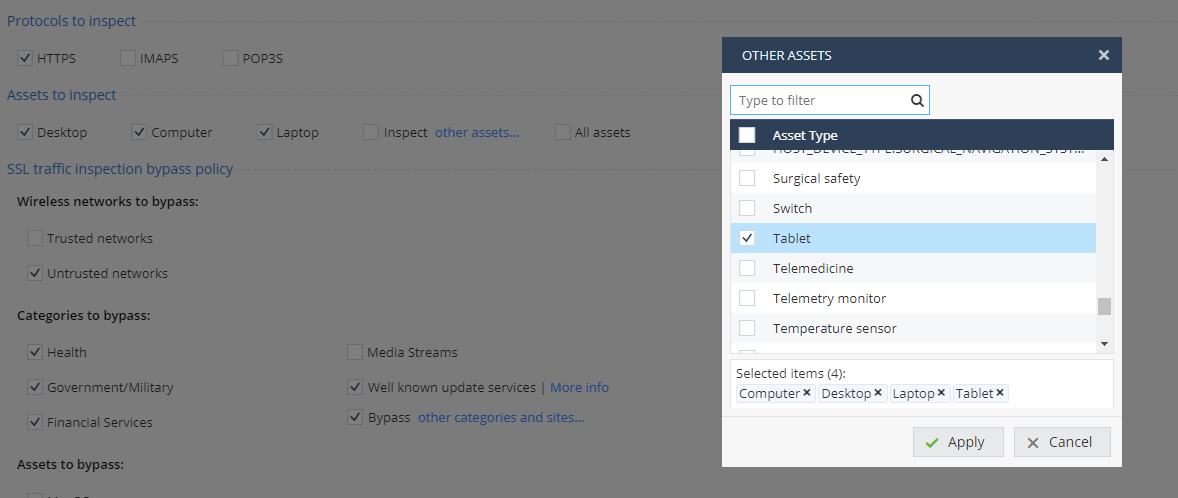
**By default** Desktop, Computers and Laptops are being inspected.
**Traffic is not being inspected on specific domain:** 1. Go to **Access Policy** \> **SSL Inspection** \> **Exceptions** \> Check if the domain is in the Exception rule.
2. Go to **Access Policy** \> **SSL Inspection** \> **Policy** \> Check if the domain belongs to the "Bypass category."
---
# Agent Instructions
This content is from the Check Point Support Center (https://support.checkpoint.com), the official knowledge base for Check Point cybersecurity products.
## Navigating This Knowledge Base
- **Complete index**: [llms.txt](https://support.checkpoint.com/llms.txt)
- **All SK articles**: [SecureKnowledge Sitemap](https://support.checkpoint.com/sitemaps/secureknowledge-sitemap-index.xml)
- **SK article URL pattern**: `https://support.checkpoint.com/results/sk/{skId}`
- **Markdown responses**: AI bot User-Agents automatically receive `text/markdown` content