> Source: [sk180690](https://support.checkpoint.com/results/sk/sk180690)
# sk180690 - Offline updates for Endpoint Security Anti-Malware DHS
| Property | Value |
|----------|-------|
| Solution ID | sk180690 |
| Date Created | 2023-03-13 |
| Last Modified | 2026-07-07 |
| Technical Level | General |
| Products | Endpoint Security |
| Versions | E89.X, E88.X |
| OS | Windows, Gaia |
## Cause
## Solution
**About Anti-Malware DHS Offline Update Tool**
----------------------------------------------
The Anti-Malware DHS Offline Updates tool enables you to update Anti-Malware DHS signatures and engines on an Endpoint Security server that cannot establish an internet connection, or on an Endpoint Security client installed on a computer without network connectivity and unable to connect to the Endpoint Security server. It is a self-extracting archive that includes a standalone tool. This tool runs on a computer with internet access and can generate update packages for both the Endpoint client and Endpoint server.
Note, that for Endpoint Security for Linux, as of release 1.12.4, the Linux client also utilizes Anti-Malware DHS signatures. When the **Windows DHS-Complaint \& macOS Signatures** option is selected, this also updates the signatures for the DHS Linux client. Note, that the specific text displayed on the user interface will be updated in a future on-premises release. For Linux client versions earlier than 1.12.4, the **Linux Signatures** option should be selected.
To download the tool, click [Offline updater tool](https://supportcenter.checkpoint.com/supportcenter/portal/role/supportcenterUser/page/default.psml/media-type/html?action=portlets.DCFileAction&eventSubmit_doGetdcdetails=&fileid=127184).
**Notes:**
1. **The tool requires .NET 8 runtime installed and administrator access.**
2. **When running the offline updater tool on a machine with an Endpoint version earlier than E89.10 installed, the package build may fail. Therefore, the tool should be run on a machine that does not have Endpoint installed.**
*** ** * ** ***
**Creating an offline update package**
--------------------------------------
To create an Anti-Malware offline update package, follow these steps:
1. On a computer that can connect to the internet or an Endpoint Security Server, run the
`OfflineUpdaterInstaller.exe ` file.
2. In the tool window, configure the following settings:
Download Options:
*
* Packages: Select the components you want to include in the offline update package:
* **Anti Malware:**
* **Create a package for a server**: If this option is selected, the tool will generate a zip archive that can be uploaded to the server via the web portal.
* **Create a package for a client**: If this option is selected, the tool will generate a self-extracting archive that can be used to update an Endpoint client installed on a computer without network connectivity, unable to connect to the Endpoint Security server.
* **Static Analysis:** If selected, this option creates a zip archive containing the latest Static Analysis files.
* **Offline Reputation:** If selected, this option creates a zip archive containing the latest Offline Reputation files.
* **Vulnerable Driver Protection:** If selected, this option creates a zip archive containing the latest Vulnerable Driver Protection files.
* **Behavioral Guard:** If selected, this option creates a zip archive containing the latest Vulnerable Behavioral Guard files.
* **Destination folder**: Choose a location to save the generated package. Ensure that there is a minimum of 200 MB of available disk space.
* **Proxy** **Settings:** If a proxy is required for downloading the signatures, select "Configure Proxy" and set it up accordingly.
3. Click on **Generate** .
The tool downloads the Anti-Malware signatures and security engines from the Check Point server and saves the generated package to the specified destination folder.

**Note:** It's possible that the package download attempt might fail because the updates package on the server is currently undergoing an update process, which could take up to half an hour. In such a situation, the following message will appear after clicking the **Generate** button: "The download failed because the definition file in the update source isn't updated. Please try again in a few minutes."
*** ** * ** ***
**Installing the package on the Security Management Server**
------------------------------------------------------------
1. Make sure that you have a supported Endpoint Security Management Server version and JHF installed.
|-------------|---------------------------|
| **Version** | **Required Jumbo Hotfix** |
| R81 | Take 82 |
| R81.10 | Take 87 |
| R81.20 | Take 8 |
| R82 | - |
2. Copy the package to a computer that has access to the web portal of the server.
3. Log in to the web portal:
1.
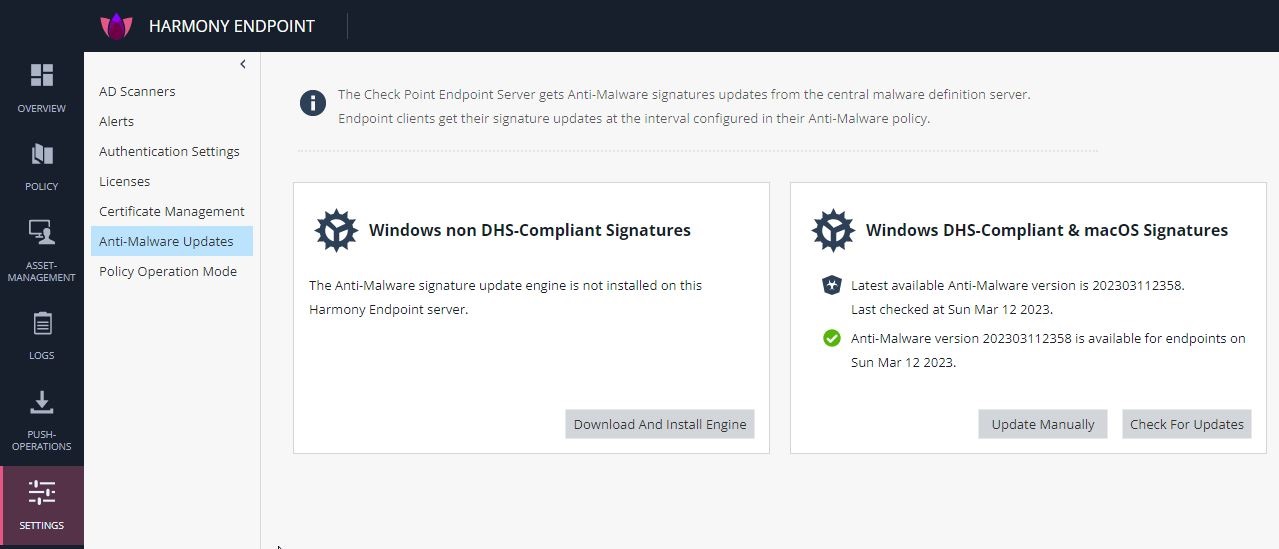
* On the left pane, click **Settings \> Anti-Malware Updates**.
* In the **Windows DHS-Complaint \& macOS Signatures** section, click **Update Manually** .
In the pop-up that appears, follow the instructions to upload the package.
* After the package is installed successfully, the signature version and update time is displayed in the **Windows DHS-Complaint \& macOS Signatures** section.
**\*\*\*\*\*\*\*\*\*\*\*\*\*\*\*\*\*\*\*\*\*\*\*\*\*\*\*\*\*\*\*\*\*\*\*Important\*\*\*\*\*\*\*\*\*\*\*\*\*\*\*\*\*\*\*\*\*\*\*\*\*\*\*\*\*\*\*\*\*\*\***
All Windows client versions from version 87.40 and later, with management version R81, should work with an old VDL update. in order to do so you need to push a registry key to the clients using the Push Operation option in the server.
The key path is: `Computer\HKEY_LOCAL_MACHINE\SOFTWARE\WOW6432Node\CheckPoint\Endpoint Security\Anti-Malware`
The key name is: `UseOldVdlUpdate`
The value is (type: DWORD): 1
**Troubleshooting "Failed to extract archive"**
To resolve the **Failed to extract archive** issue, do this:
1. Modify the XML file at**`C:\Program Files (x86)\CheckPoint\Endpoint Security\EFR\InjectSalInclusions.xml`**
Set the following fields to 'false':
``
``
` ...`
``
``
``
` ....`
``
2. Restart the system or stop forensic service.
**Note**: Unpacking detection was updated in version 88.40 and later. The settings in the XML file can be reverted once version 88.40 or higher is reached.
*** ** * ** ***
Installing the package on the client
------------------------------------
1. Ensure that the client version you want to update is E87.40 or above and that Anti-Malware DHS is running.

2. Copy the package to a computer where a client requiring an update is installed.
3. Run the package to initiate the update process.

* The update process may take up to 3 minutes to complete.
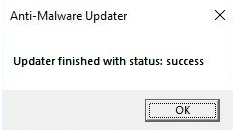
* Once the update is finished, a message indicating the completion status will appear. The completion status can be one of the following:
* Success
* Failed
* Already up to date
* Another update is running
*** ** * ** ***
---
# Agent Instructions
This content is from the Check Point Support Center (https://support.checkpoint.com), the official knowledge base for Check Point cybersecurity products.
## Navigating This Knowledge Base
- **Complete index**: [llms.txt](https://support.checkpoint.com/llms.txt)
- **All SK articles**: [SecureKnowledge Sitemap](https://support.checkpoint.com/sitemaps/secureknowledge-sitemap-index.xml)
- **SK article URL pattern**: `https://support.checkpoint.com/results/sk/{skId}`
- **Markdown responses**: AI bot User-Agents automatically receive `text/markdown` content