> Source: [sk178326](https://support.checkpoint.com/results/sk/sk178326)
# sk178326 - How to transfer files using Beyond attachment tool for Check Point Service Requests (SRs)
| Property | Value |
|----------|-------|
| Solution ID | sk178326 |
| Date Created | 2022-04-04 |
| Last Modified | 2026-05-07 |
| Technical Level | General |
| Products | Other |
| Versions | Not Version-Specific |
## Solution
The Beyond attachment tool handles file transfers within Service Requests (SRs). By default, these transfers go through HTTPS on port 443 of your Check Point computer. No additional configuration is required for this communication.
You can accelerate these transfers using IBM Aspera Connect. Aspera Connect maximizes speed while maintaining the highest security, regardless of file size, transfer distance and network conditions. Aspera Connect uses IBM's patented FASP protocol over UDP port 33001 on your Check Point computer. To use Aspera connect, you must download the IBM Aspera Extension client to your web browser and allow outgoing traffic from your Check Point computer on ports TCP/33001 and UDP/33001
**To use Aspera Connect for accelerated file transfers in the Beyond attachment tool:**
1. Add the **IBM Aspera Extension** and **Aspera Connect** (2 steps) to your browser.
The extensions are specific to the browser; the procedure to add an extension to a browser is the same regardless of which OS platform that browser uses.
[Installation on Windows](https://www.ibm.com/docs/en/aspera-connect/4.1?topic=suc-installation-1)
[Installation on Mac](https://www.ibm.com/docs/en/aspera-connect/4.1?topic=connect-installation)
[Installation on Linux](https://www.ibm.com/docs/en/aspera-connect/4.1?topic=suc-installation)
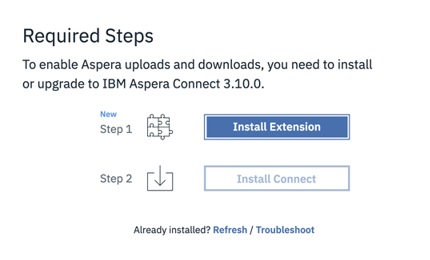
If you did not add this extension in advance, you will receive a prompt to install it before you upload/download files within the SR.
To download the Aspera client, click [here](https://www.ibm.com/support/fixcentral/swg/selectFixes?parent=ibm%7EOther%20software&product=ibm/Other+software/IBM+Aspera+Connect&release=4.2.19&platform=All&function=all&source=fc).
2. Allow outgoing traffic on ports TCP/33001 and UDP/33001 on their company's firewall to below hosts/IPs.
For instructions, click [here](https://www.ibm.com/support/pages/firewall-considerations).
Accel-prd-a.checkpoint.com
CNAME to: aspera-accl-prd-nlb-a-142c11a1c3dbe440.elb.eu-west-1.amazonaws.com
Address: 54.155.40.140
Address: 52.30.229.0
Accel-prd-b.checkpoint.com
CNAME to: aspera-accl-prd-nlb-b-da372a5d655b79da.elb.eu-west-1.amazonaws.com
Address: 52.17.15.223
Address: 52.50.135.68
To learn more about IBM Aspera Connect, click this [link](https://www.ibm.com/products/aspera).
To learn more about FASP protocol (UDP 33001), click this [link](https://www.ibm.com/downloads/documents/us-en/131cf878bb3313ad).
For additional information, visit the [FAQ page](https://sc1.checkpoint.com/sc1/aspera/en/aspera-faq.html).
---
# Agent Instructions
This content is from the Check Point Support Center (https://support.checkpoint.com), the official knowledge base for Check Point cybersecurity products.
## Navigating This Knowledge Base
- **Complete index**: [llms.txt](https://support.checkpoint.com/llms.txt)
- **All SK articles**: [SecureKnowledge Sitemap](https://support.checkpoint.com/sitemaps/secureknowledge-sitemap-index.xml)
- **SK article URL pattern**: `https://support.checkpoint.com/results/sk/{skId}`
- **Markdown responses**: AI bot User-Agents automatically receive `text/markdown` content