> Source: [sk178307](https://support.checkpoint.com/results/sk/sk178307)
# sk178307 - Replacing Kaspersky Anti-Malware Blade in Harmony Endpoint with a Department of Homeland Security (DHS) Compliant or EU recommended Anti-Malware Blade
| Property | Value |
|----------|-------|
| Solution ID | sk178307 |
| Date Created | 2022-03-10 |
| Last Modified | 2026-03-05 |
| Technical Level | General |
| Products | Endpoint Security |
| Versions | Cloud, E89.X, E88.X |
| OS | Gaia |
## Solution
Introduction
------------
Some versions of Check Point Harmony Endpoint for Windows use the Kaspersky Anti-Malware blade for static file analysis. This is called E1.
Check Point also offers a version of Harmony Endpoint that does not include the the Kaspersky Anti-Malware blade. This is called E2
You can configure the Anti-Malware blade settings to comply with the [US Department of Homeland Security](https://www.dhs.gov/news/2017/09/13/dhs-statement-issuance-binding-operational-directive-17-01) (US DHS) and [item 108 of the European Community recommendations](https://www.europarl.europa.eu/doceo/document/TA-9-2022-0064_EN.pdf#page=38).
**Note** - Replacing an E2 compliant Anti-Malware blade with an E1 non-compliant Anti-Malware blade is not supported (if required, contact [Check Point Support](https://www.checkpoint.com/support-services/contact-support/)).
Licensing Requirements
----------------------
Replacing the E1 Kaspersky Anti-Malware blade with the E2 compliant Anti-Malware blade does not require new licenses.
**Note** : Harmony Endpoint customers with basic or prevent license - the Threat Emulation feature is not included. For version 88.20 or lower - the TE blade will be deployed as there are dependencies for E2 Anti-malware, but should be turned off in the policy. For E88.30+ clients AM E2 should be deployed without the TE blade.
**How to verify whether the client is E1 or E2?**
-------------------------------------------------
### **For cloud customers (that use our Anti-Virus):**
* Open asset management and add the **Anti-Malware Type** column to your view.
* If the value is "**E1**" then this machine is running E1.
* If the value is "**E2 (DHS Compliant)**" then this machine is running E2.
* If the value is "**N/A** " you probably don't have Anti Malware installed, and we advise you to check the compliance of your package using the script provided below.
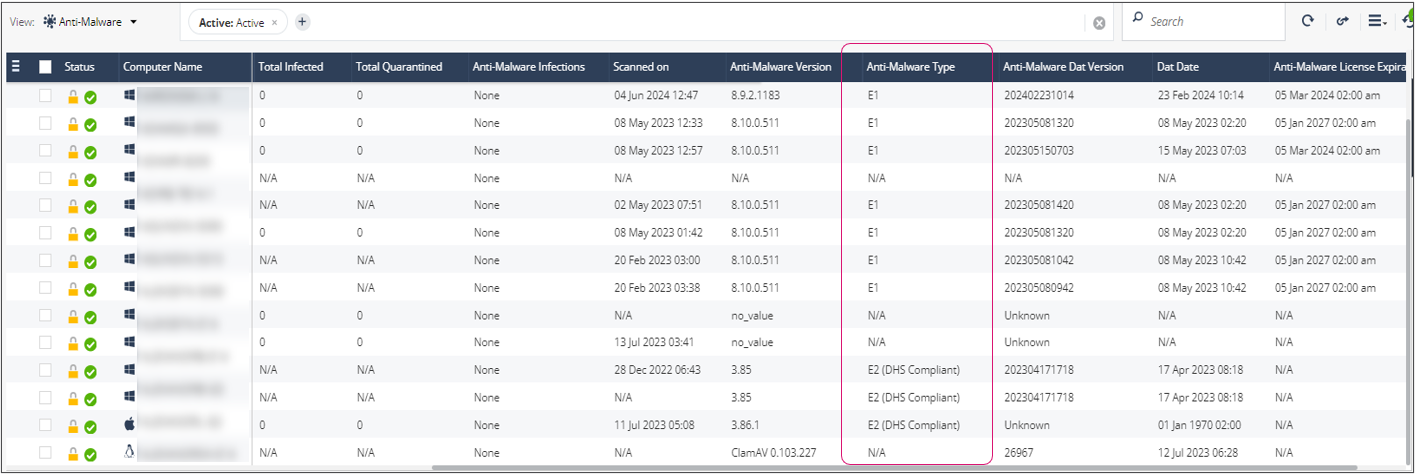
* In addition, you can add a new widget, named **Anti Malware Engine Types**, to any of your custom dashboards. This widget provides the overall status of your endpoints E1 vs. E2 posture.

### For on-premises customers:
* If you are using SmartEndpoint, you can look for a report based on "Anti-Malware Provider Brand", this report will provide you with a status of your endpoints E1 vs. E2 posture.
* If you are using the Web-UI infinity Portal, you can open the asset management and add the "Anti-Malware Version" column to your view:
* If the value is "**8.8.0.165**" (or in general "8.8.\*") then this machine is running E1.
* If the value is "**3.90**" (or in general "3.\*") then this machine is running E2.
* If the value is "**N/A**" you probably don't have Anti Malware installed, and we advise you to check the compliance of your package using the script provided below.

### For all customers:
**Including customers that are not using Anti-Malware, such as, Remote Access (VPN), Data protection etc.**
If you are still not sure whether your clients include E1 code:
1. Download the script (named "CheckAmEngine.zip"), by clicking [download](https://support.checkpoint.com/results/download/134244).
2. Run the script on your clients, either by a push operation of "Remote Command" or use any GPO (or any other way to distribute the tool for multiple executions) or run it locally on the machine in PowerShell 5.0+ prompt.
The script results will provide you with accurate value whether your clients include E1 code in any form or not:
* If E1 is installed, then the machine includes E1 code in it.
* If E2 is installed, then the machine does not include E1 code.
* If neither of them are installed then we check within the package that used to install the endpoint, if it include E1 binaries. If it does then E1 code is there, otherwise the machine is not compromised with E1 code.
For more details, refer to [sk182513.](https://support.checkpoint.com/results/sk/sk182513)
Procedure to migrate Endpoint clients from E1 to E2:
----------------------------------------------------
### For cloud deployments
**Important** - Before you proceed with the migration, make sure that the Harmony Endpoint client has access to the Internet. For more information, see [sk116590: Harmony Endpoint Cloud Client Connectivity Requirements](https://support.checkpoint.com/results/sk/sk116590).
1. Log in to the **Infinity Portal** and use one of the following option:
* Navigate to **Overview** \> **Getting Started** and click **\>** in the **Configure US-DHS and EU compliant method** icon.
* Navigate **Policy** \> **Deployment Settings** \> **Anti-Malware Settings**.
2. Click**Switch to Compliant Version** .
A warning message appears.
3. Click **OK**.
4. Redeploy the Endpoint Security Client on all the endpoints using one of the following option:
* [Automatic Deployment of Endpoint Clients](https://sc1.checkpoint.com/documents/Infinity_Portal/WebAdminGuides/EN/Harmony-Endpoint-Admin-Guide/Topics-HEP/Automatic-Deployment-of-Endpoint-Clients.htm)
* [Manual Deployment of Endpoint Clients](https://sc1.checkpoint.com/documents/Infinity_Portal/WebAdminGuides/EN/Harmony-Endpoint-Admin-Guide/Topics-HEP/Manual-Deployment-of-Endpoint-Clients.htm)
* [Remote Installation of Initial Client](https://sc1.checkpoint.com/documents/Infinity_Portal/WebAdminGuides/EN/Harmony-Endpoint-Admin-Guide/Topics-HEP/Remote-Installation-of-Initial-Client.htm)
After you redeploy the clients, the system automatically restarts the endpoints.
### For on-premises deployments
**Important** - Before you proceed with the procedure, set your primary signature source to **Local Endpoint Servers** , and your fallback signature source to **Check Point External Signature Source** . For more information, see the **Web \& Files Protection** topic for the respective version of Harmony Endpoint Web Management Administration Guide ([R81.20](https://sc1.checkpoint.com/documents/R81.20/WebAdminGuides/EN/CP_R81.20_HarmonyEndpointWebManagement_AdminGuide/Content/Topics-HEPWM-R81.20/Web-and-Files-Protection.htm?Highlight=Web%20%26%20Files%20Protection), [R81.10](https://sc1.checkpoint.com/documents/R81.10/WebAdminGuides/EN/CP_R81.10_HarmonyEndpointWebManagement_AdminGuide/Topics-HEPWM-R81.10/Web-and-Files-Protection.htm?Highlight=Web%20%26%20Files%20Protection), [R81](https://sc1.checkpoint.com/documents/R81/WebAdminGuides/EN/CP_R81_EndpointWebManagement_AdminGuide/Topics-HEPWM-R81/Web-and-Files-Protection.htm?Highlight=Web%20%26%20Files%20Protection%20)).[](https://sc1.checkpoint.com/documents/R81/WebAdminGuides/EN/CP_R81_EndpointWebManagement_AdminGuide/Topics-HEPWM-R81/Web-and-Files-Protection.htm?Highlight=Web%20%26%20Files%20Protection%20)
**Procedure**
1. Download the E2 package and upload it to the on-premises Management Server:
E2 packages of Endpoint Security Clients can be found in each version's SK. See [Endpoint Security Homepage](https://support.checkpoint.com/results/sk/sk117536).
2. To completely remove all the Kaspersky components from your server:
|--------------------------------------------------------------|------------------------------------------------------------------------------------------------------------------------------------------------------------------------------------------------------------------------------------------------------------------------------------------------------------------------------------------------------------------------------------------------------------------------------------------------------------------------------------------------------------------------------------------------------------------------------------------------|
| **If** | **Then** |
| You have upgraded your server at least once | 1. Download the **KAV_remove.sh** script from [here](https://support.checkpoint.com/results/download/122146). 2. Transfer the **KAV_remove.sh** script to the Endpoint Manager Server. For example, use FileZilla or WinSCP to transfer the file. 3. Connect to the Endpoint Manager Server over SSH. 4. Before you execute the script, update its permission by running the `chmod 777 KAV_remove.sh` command. 5. Execute the **KAV_remove.sh** script. 6. Run the `uepm_stop && uepm_start` command and restart any open Smart Endpoint instances or restart the Endpoint Management Server. |
| If it is a fresh install or a server that was never upgraded | 1. In the Gaia portal, scroll down to **Upgrades (CPUSE)** and click **Status \& Actions**. 2. On the toolbar, click **Showing all packages**. 3. Right-click the package with the name **KAV** , and click **Uninstall**. 4. Right-click the package again and click **Delete from disk**. |
3. For Management Servers running a version lower than R80.40, do one of these:
* Upgrade the Management Server, including the connection points and High-Availability (HA) servers to R80.40 or higher and apply the patch from [sk178413](https://supportcenter.checkpoint.com/supportcenter/portal?eventSubmit_doGoviewsolutiondetails=&solutionid=sk178413).
* Obtain signature updates only from internet by changing the policy signature source to **Check Point External Signature Source** . For more information, see **Web \& Files Protection** in the [Harmony Endpoint Administration Guide](https://sc1.checkpoint.com/documents/Infinity_Portal/WebAdminGuides/EN/Harmony-Endpoint-Admin-Guide/Topics-HEP/Web-and-Files-Protection.htm?Highlight=web%20files%20).
4. Upgrade the Endpoint Security Client to the relevant Build that supports the DHS compliant Anti-Malware blade (see [here](#version)). For more information, see **Deploying Endpoint Security Clients \> Automatic Deployment Using Deployment Rules \> Deploying the Endpoint Security Package with Deployment Rules** in the [Endpoint Security R80.40 Administration Guide](https://sc1.checkpoint.com/documents/R80.40/SmartEndpoint_OLH/EN/Topics-EPSG/Automatic-Deployment-Overview.htm?tocpath=Deploying%20Endpoint%20Security%20Clients%7C_____2).
5. Delete the existing client package on the Management Server using SmartEndpoint.
### For ATM deployments
* Use this command line with the *EPS.msi* file: `msiexec.exe /i EPS.msi /ISATM=1`
Known Limitations {#Known_Limitations}
--------------------------------------
|------------------------------------------------------------------------------------------------------------------------------------------------------------------------------------------------------------------------------------------------------------------------------------------------------------------------------------------------------------------------------------------------------------------------------------------------------------------------------------------------------------|---------------------------------------------------------------------------------------------------------------------------------------------------------------------------------------------|
| Limitation | Updates |
| The E2 compliant client requires all Harmony Endpoint Threat Prevention blades, except Anti-Bot and URL Filtering, which are optional. | From version E88.30 (included), there is an option to install AM without any additional blades. |
| After you install the Harmony Endpoint client with the E2 compliant Anti-Malware blade, there is no indication of its type. To verify the blade installed, check whether the Check Point Endpoint Security Anti-Malware process is running in the Task Manager. If yes, then the Kaspersky Anti-Malware blade is installed. Otherwise, the E2 compliant blade is installed. | Starting from E86.50, the new client UI shows the E2 compliant icon on the Anti-malware blade panel (see sk178346: Changing the Endpoint Client User Interface for changing to the new UI). |
| In all versions older than R80.40, obtaining signature updates through the Management Server is not supported and updates may be obtained only through the Internet. In versions R80.40 and above, support for both local signature \& external updates is available. For R80.40 you may install hotfix available in [sk178413](https://supportcenter.checkpoint.com/supportcenter/portal?eventSubmit_doGoviewsolutiondetails=&solutionid=sk178413) or the latest Jumbo Hotfix which includes this hotfix. | For R81 and above no additional hotfix is required. |
| Servers upgraded to an E2 complaint Anti-Malware blade may still contain residue files related to Kaspersky. If you delete these residue files, the snapshot might get corrupted and you will not be able to revert. | |
| After you replace the Kaspersky Anti-Malware blade with a E2 compliant Anti-Malware blade, the system automatically restarts the computers on which the Endpoint Security client is installed. | |
| For Windows - to turn off AM and turn on Windows Defender, a restart is required after turning off AM. |
|
| Critical scan target by AM in E2 doesn't include the boot sector |
|
---
# Agent Instructions
This content is from the Check Point Support Center (https://support.checkpoint.com), the official knowledge base for Check Point cybersecurity products.
## Navigating This Knowledge Base
- **Complete index**: [llms.txt](https://support.checkpoint.com/llms.txt)
- **All SK articles**: [SecureKnowledge Sitemap](https://support.checkpoint.com/sitemaps/secureknowledge-sitemap-index.xml)
- **SK article URL pattern**: `https://support.checkpoint.com/results/sk/{skId}`
- **Markdown responses**: AI bot User-Agents automatically receive `text/markdown` content