> Source: [sk176249](https://support.checkpoint.com/results/sk/sk176249)
# sk176249 - How to configure IPsec VPN between Check Point Security Gateways and Azure Virtual WAN VPN Gateway
| Property | Value |
|----------|-------|
| Solution ID | sk176249 |
| Date Created | 2021-11-11 |
| Last Modified | 2026-10-13 |
| Technical Level | General |
| Products | Cloud Firewall |
| Versions | R82.10, R81 (EOS), R81.10 (EOS), R81.20, R82 |
| OS | Gaia |
## Solution
**Table of Contents**
* 1. Introduction
* 2. Lab Diagram
* 3. Create new Virtual WAN site
* 4. Check Point Gateway VPN configuration
* 5. BGP and Routemap Configuration
* 6. Gateway Interfaces
* 7.Check Point HA Cluster - Virtual WAN Configuration
* 8. Verification
* 9. Related documentations
10. How to route all internet bound traffic over VPN tunnel
Introduction {#Introduction}
----------------------------
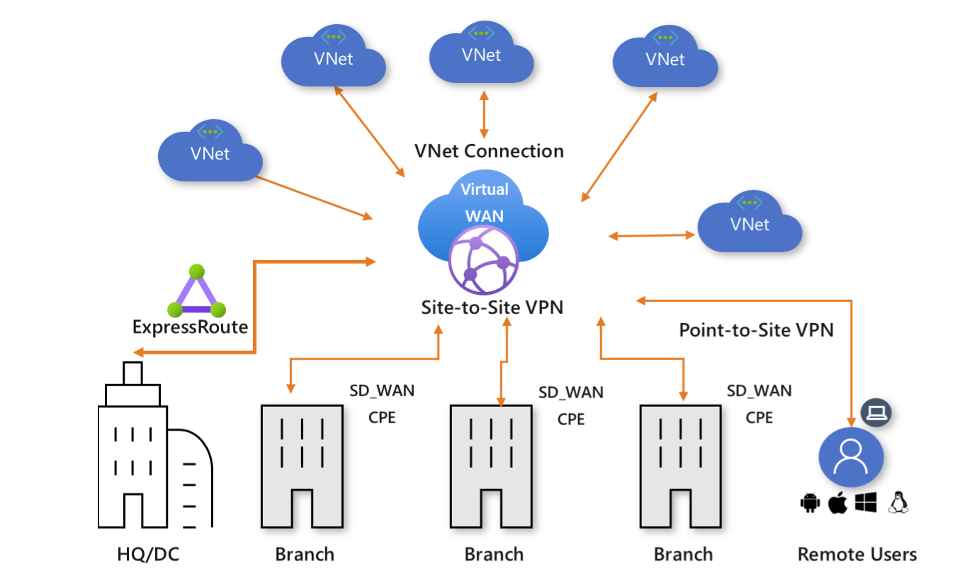
Azure Virtual WAN is a networking service that brings many networking, security, and routing functionalities together to provide a single operational interface. These functionalities include branch connectivity, Site-to-site VPN connectivity, remote user VPN (Point-to-site) connectivity, private (ExpressRoute) connectivity, intra-cloud connectivity (transitive connectivity for virtual networks), VPN ExpressRoute inter-connectivity, routing, Azure Firewall, and encryption for private connectivity.
The Virtual WAN architecture is a hub and spoke architecture with scale and performance built-in for branches (VPN/SD-WAN devices), users (Azure VPN/OpenVPN/IKEv2 clients), ExpressRoute circuits, and virtual networks. It enables global transit network architecture, where the cloud-hosted network 'hub' enables transitive connectivity between endpoints that may be distributed across different types of 'spokes'.
This guide provides step by step configuration of VPN from Check Point security gateway to Azure Virtual WAN.
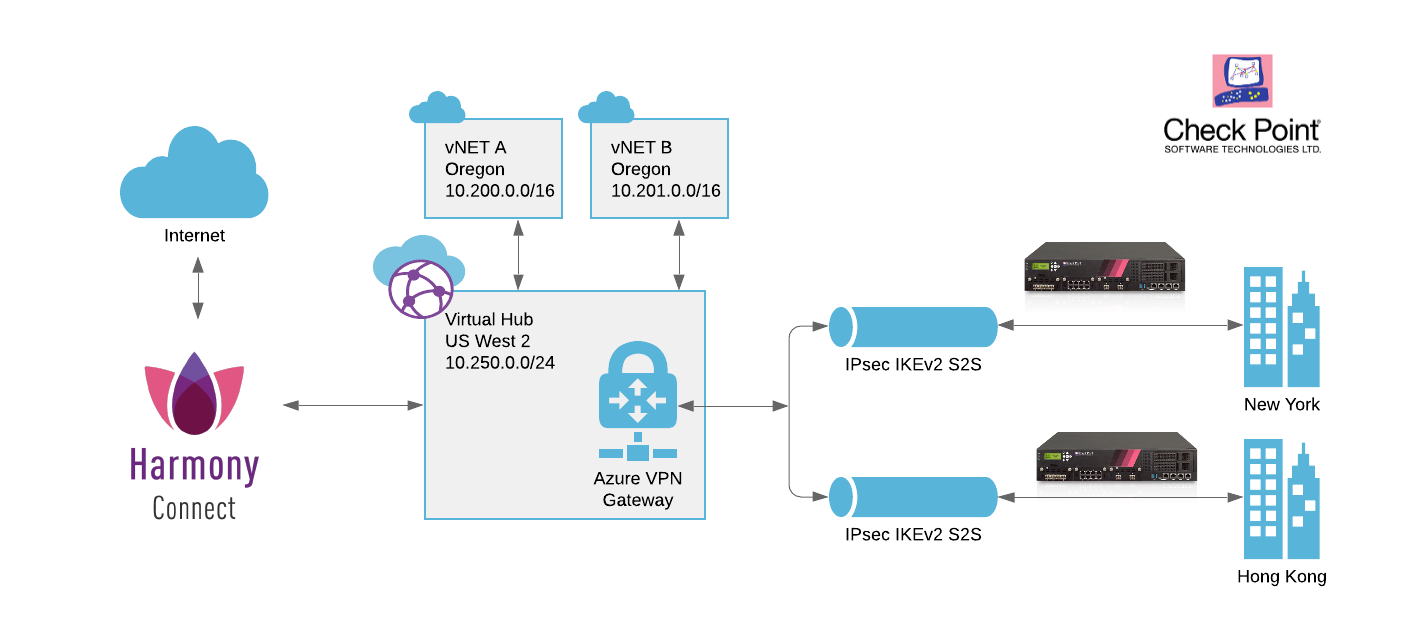
Lab Diagram {#Lab Diagram}
--------------------------
Create new Virtual WAN site {#Create new vWAN site}
---------------------------------------------------
1. **Create Hong Kong site**
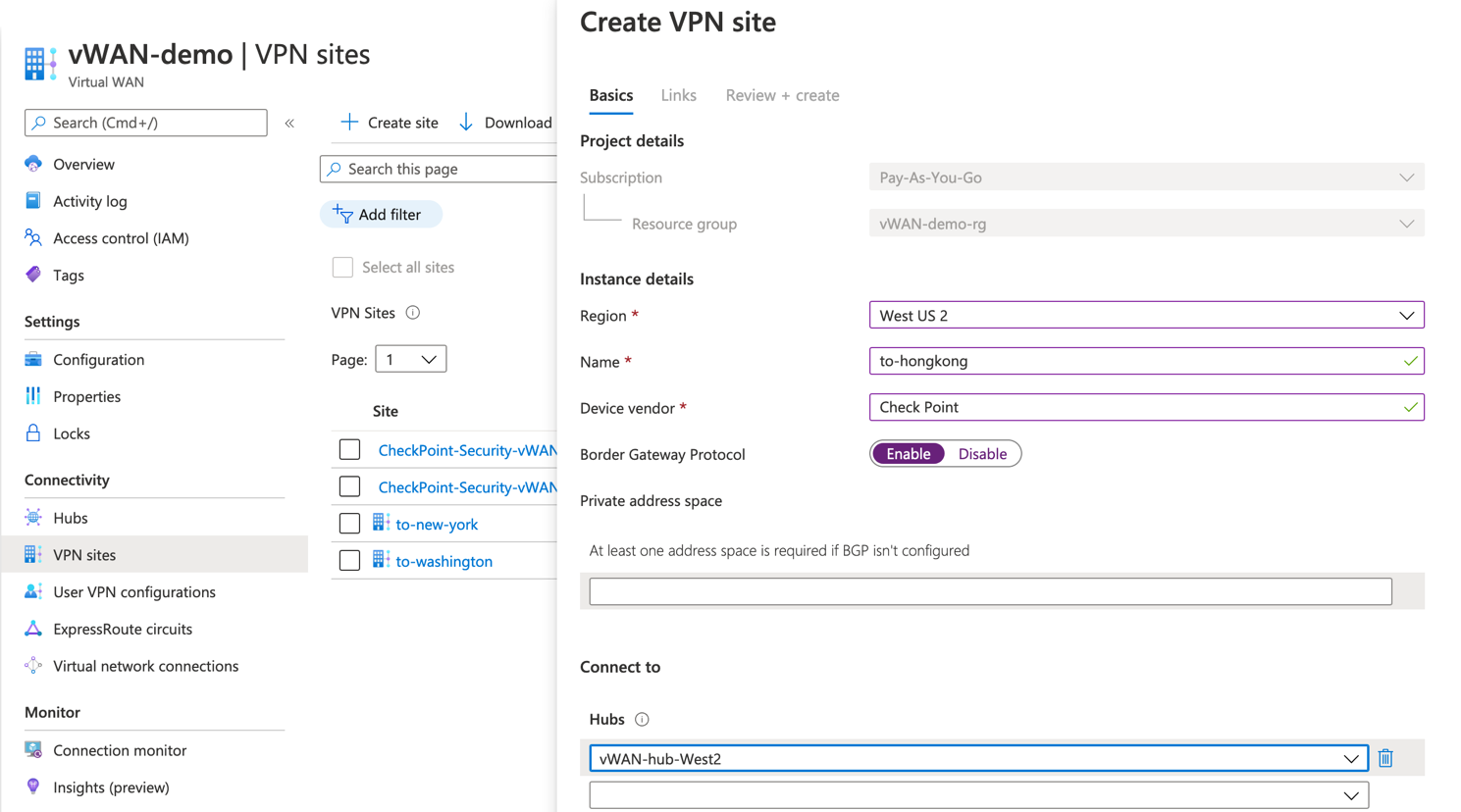
2. **Link details**
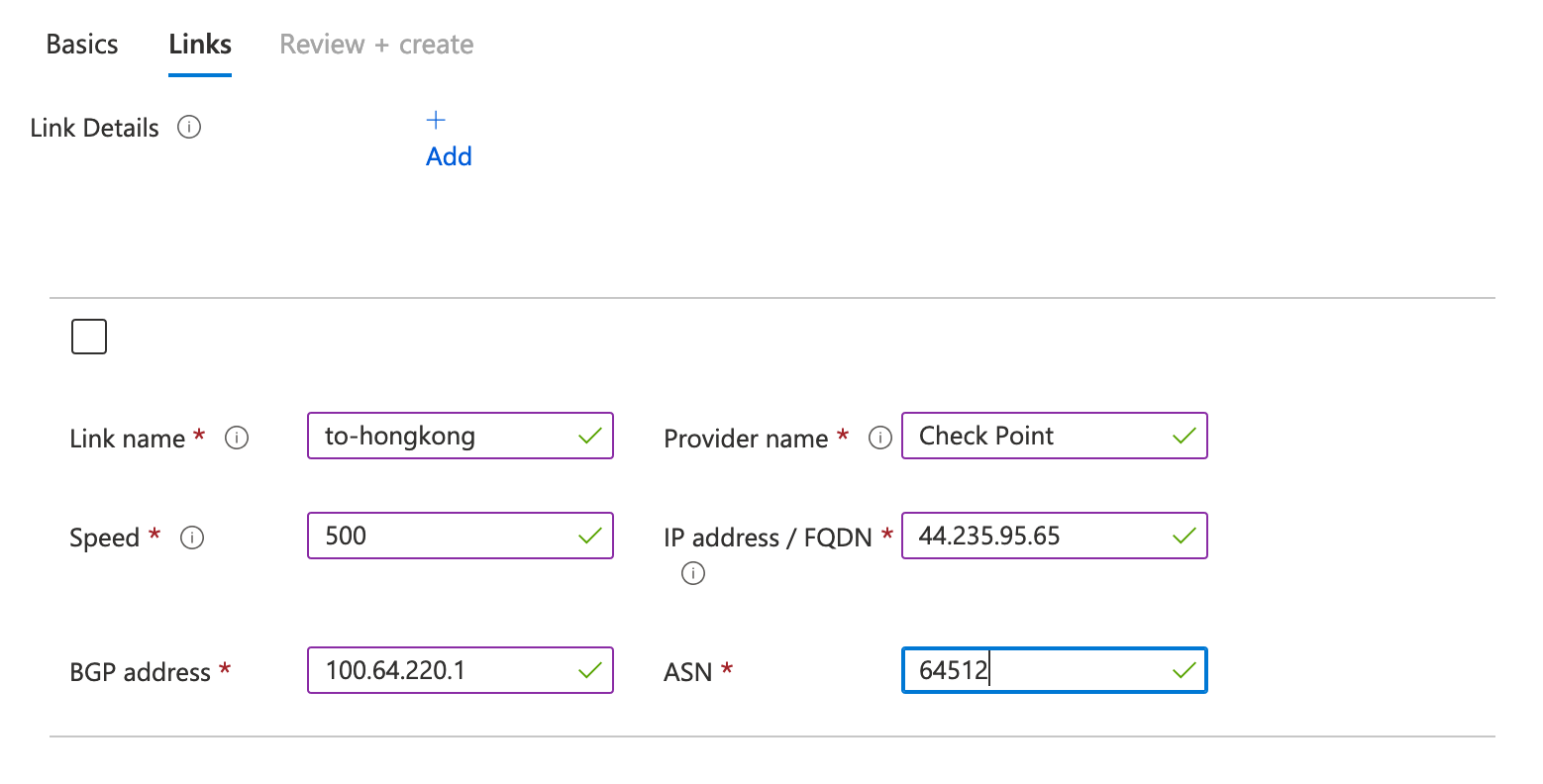
3. **Download the Hong Kong site VPN configuration**
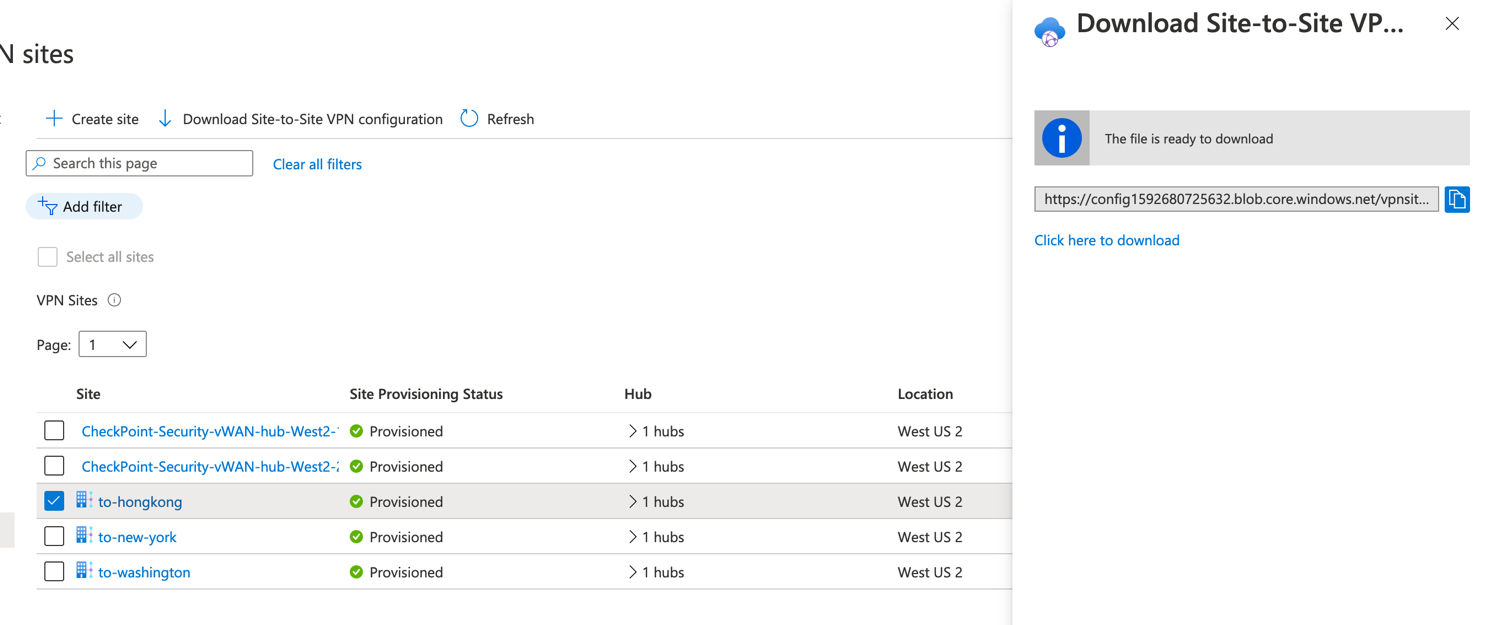
4. **Break down of the Hong Kong VPN configuration file**
1. Virtual WAN VPN Gateway address
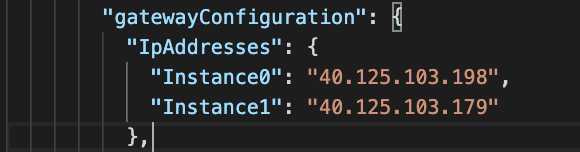
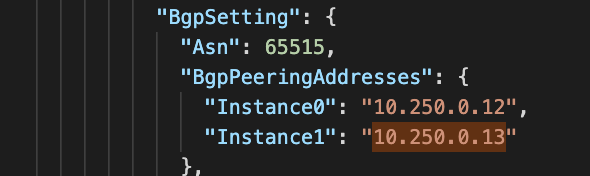
2. Virtual WAN BGP setting
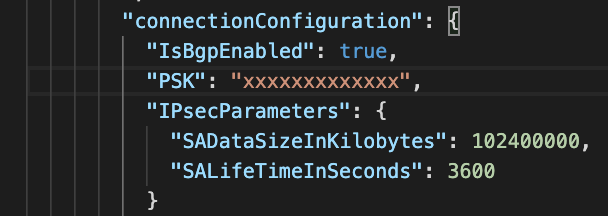
3. Pre-share key and IPSEC setting
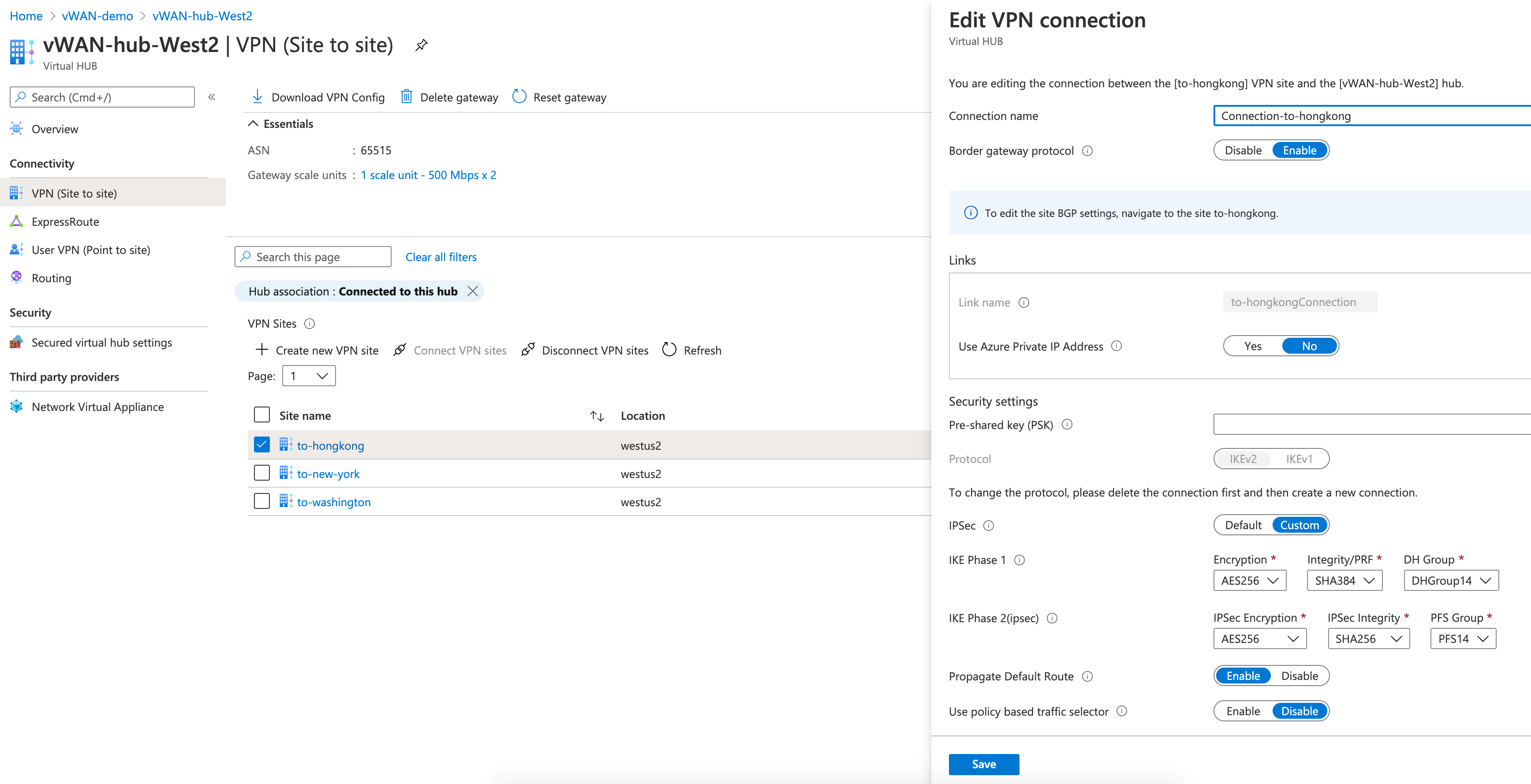
5. **Modify the Site to Site VPN configuration**
Check Point Security Gateway IPSec VPN configuration {#Check Point Gateway VPN configuration}
---------------------------------------------------------------------------------------------
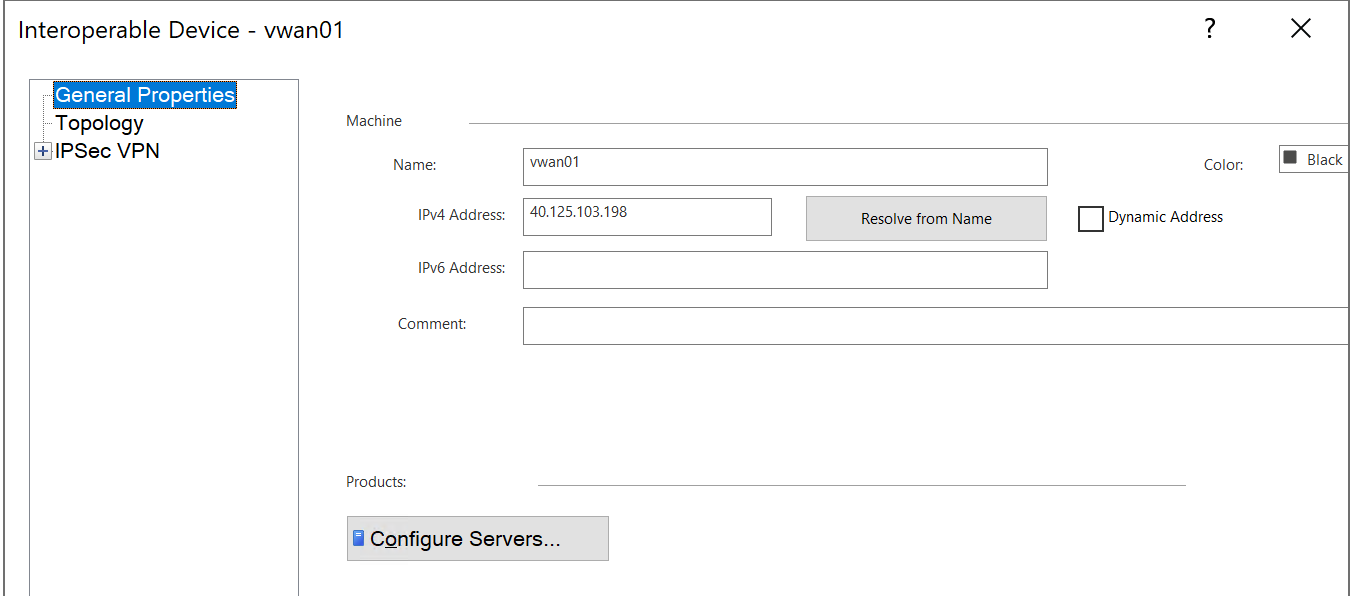
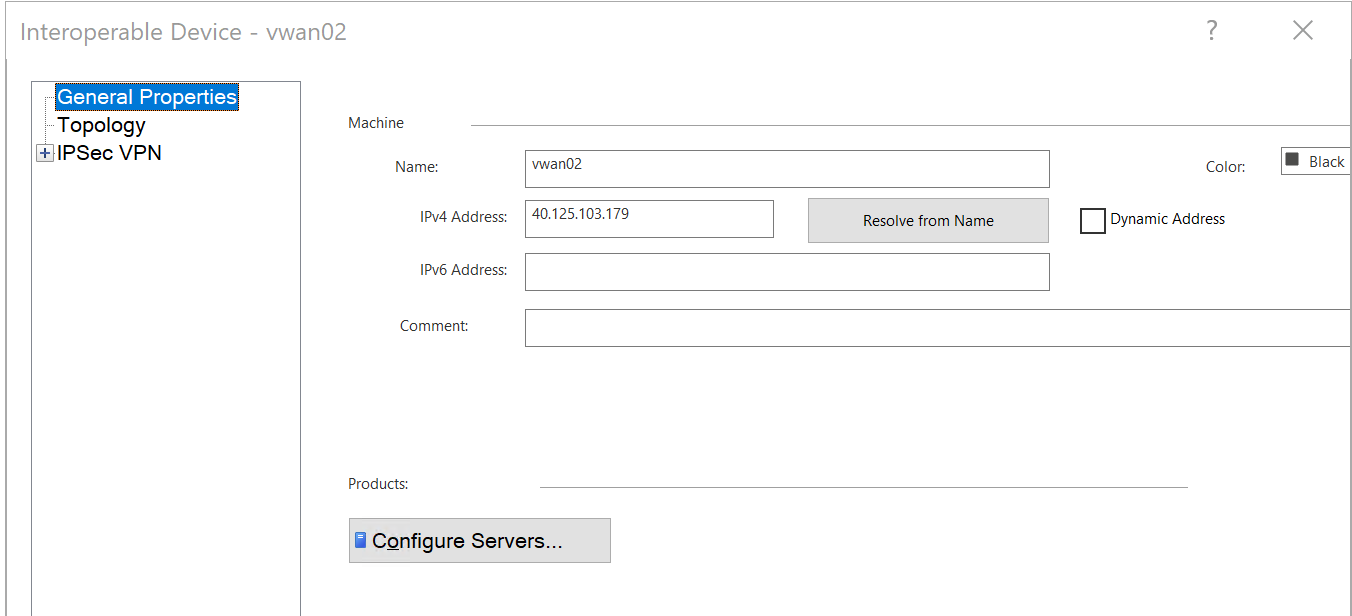
1. Create 2 x interoperable devices, 1 for each Virtual WAN VPN Gateway
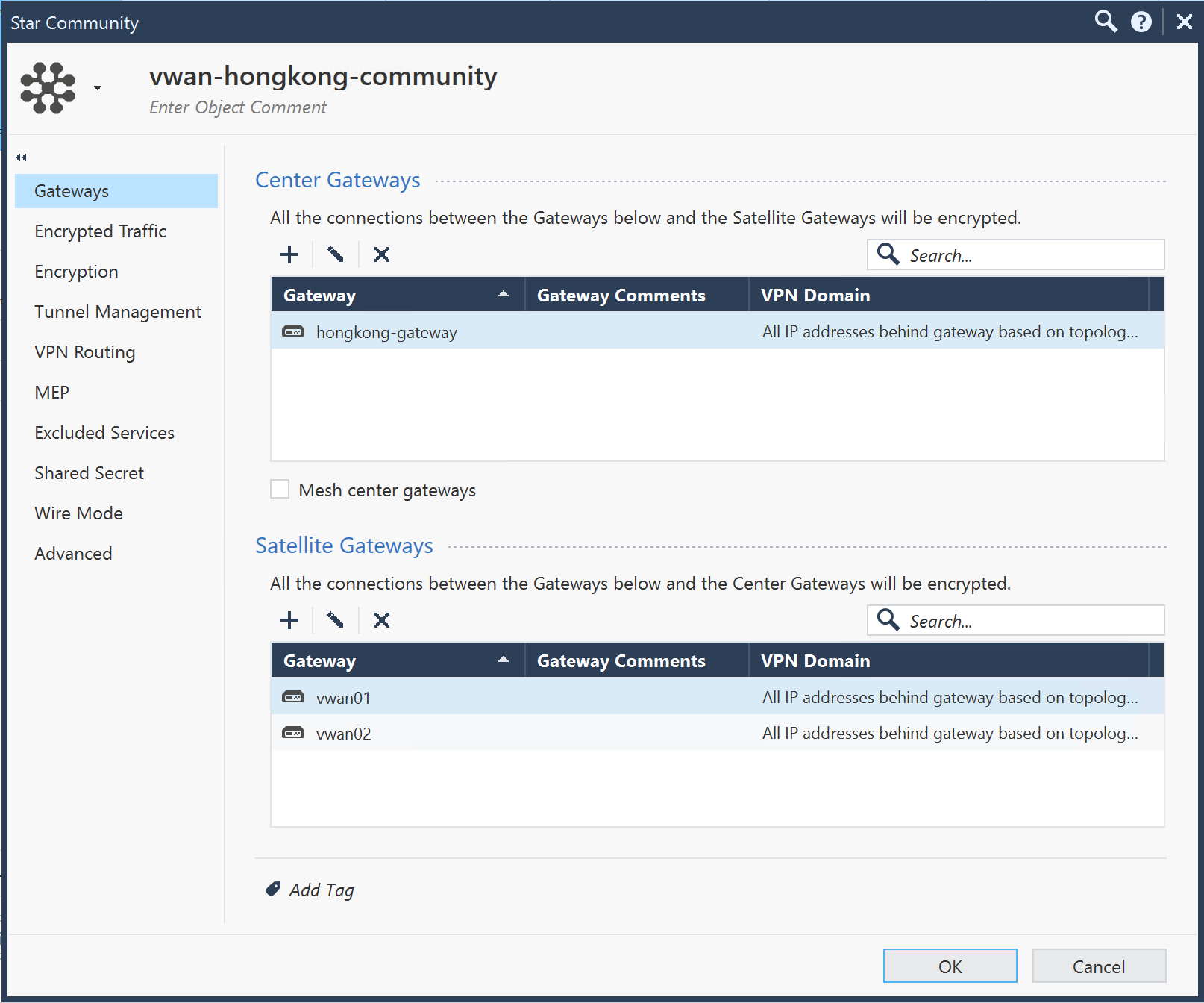
2. Create VPN Community
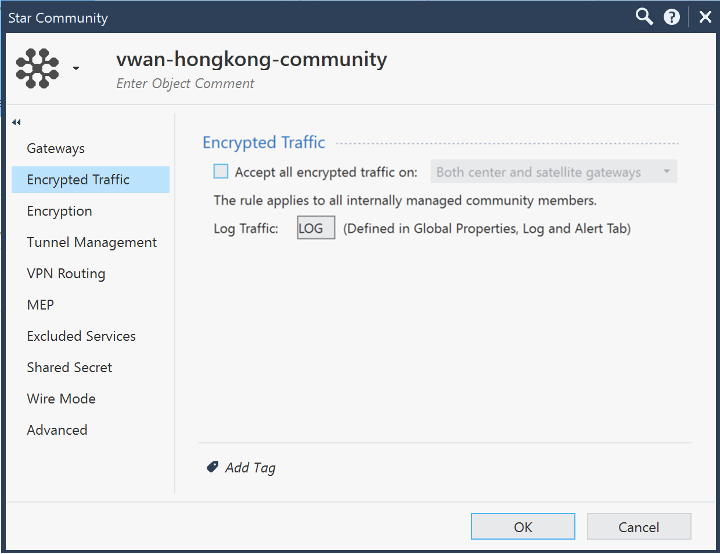
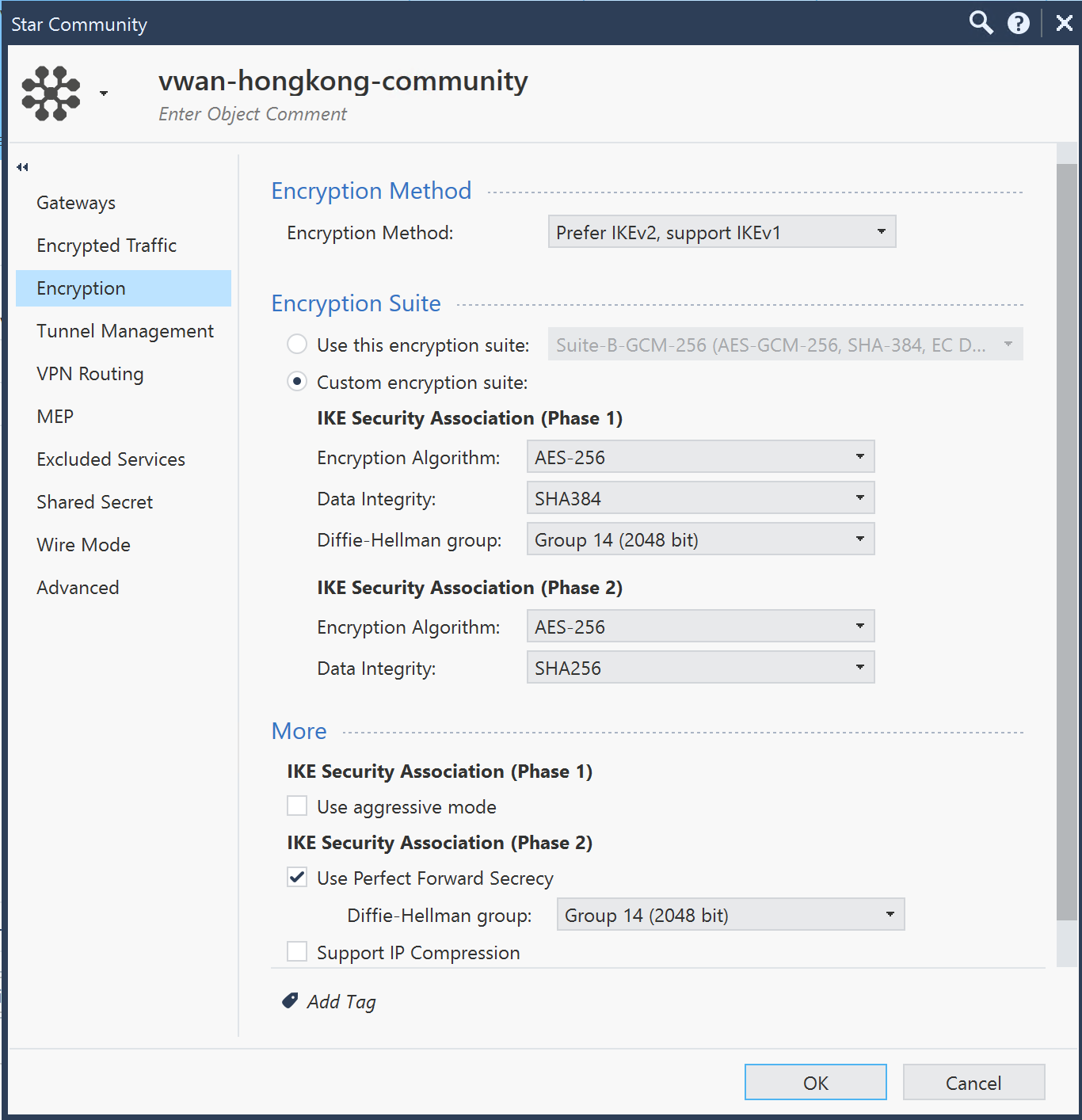
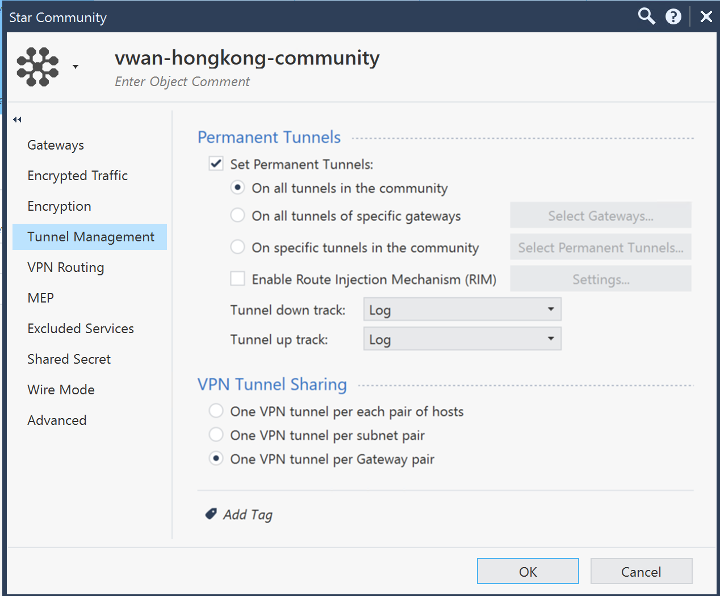
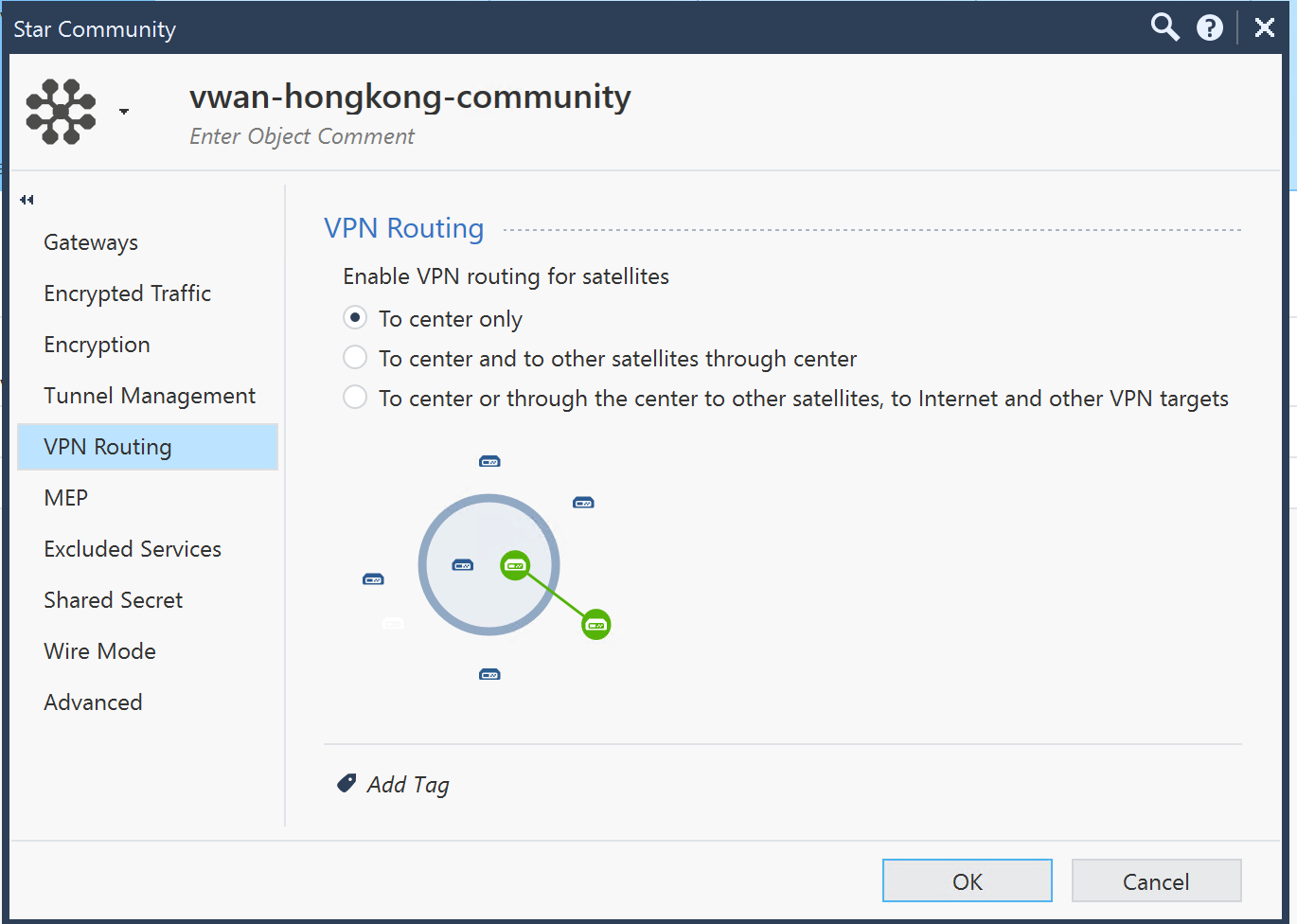
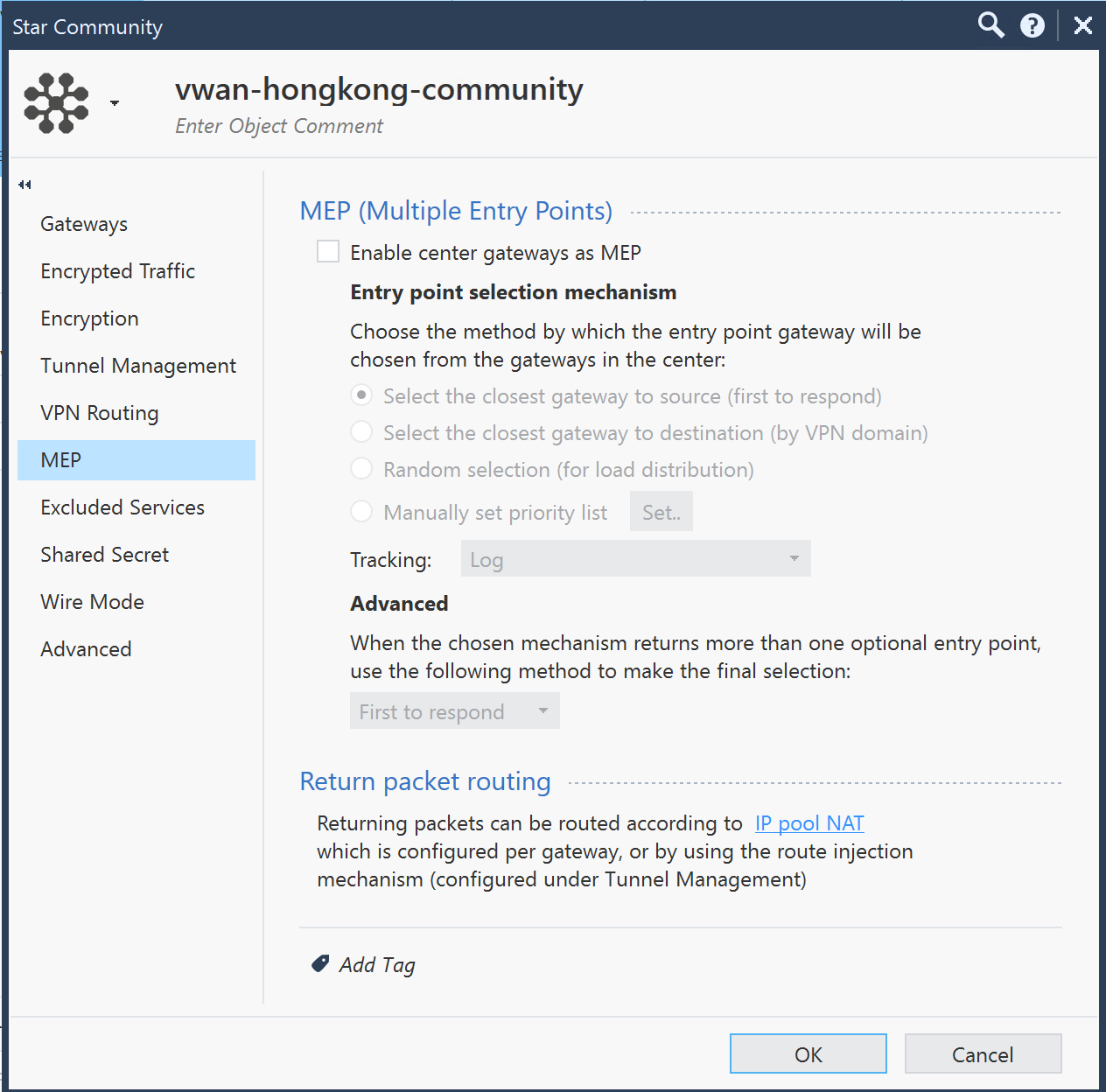
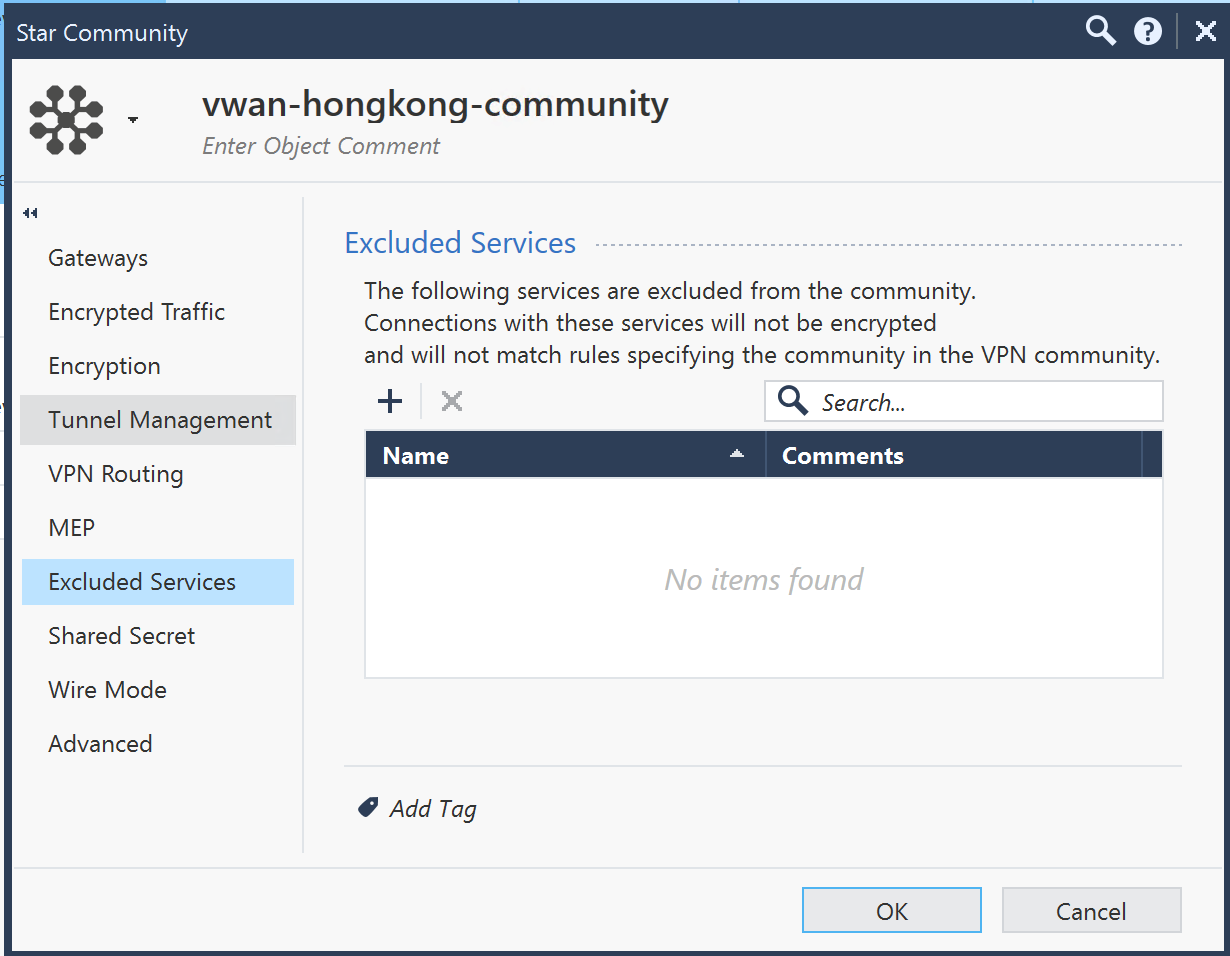
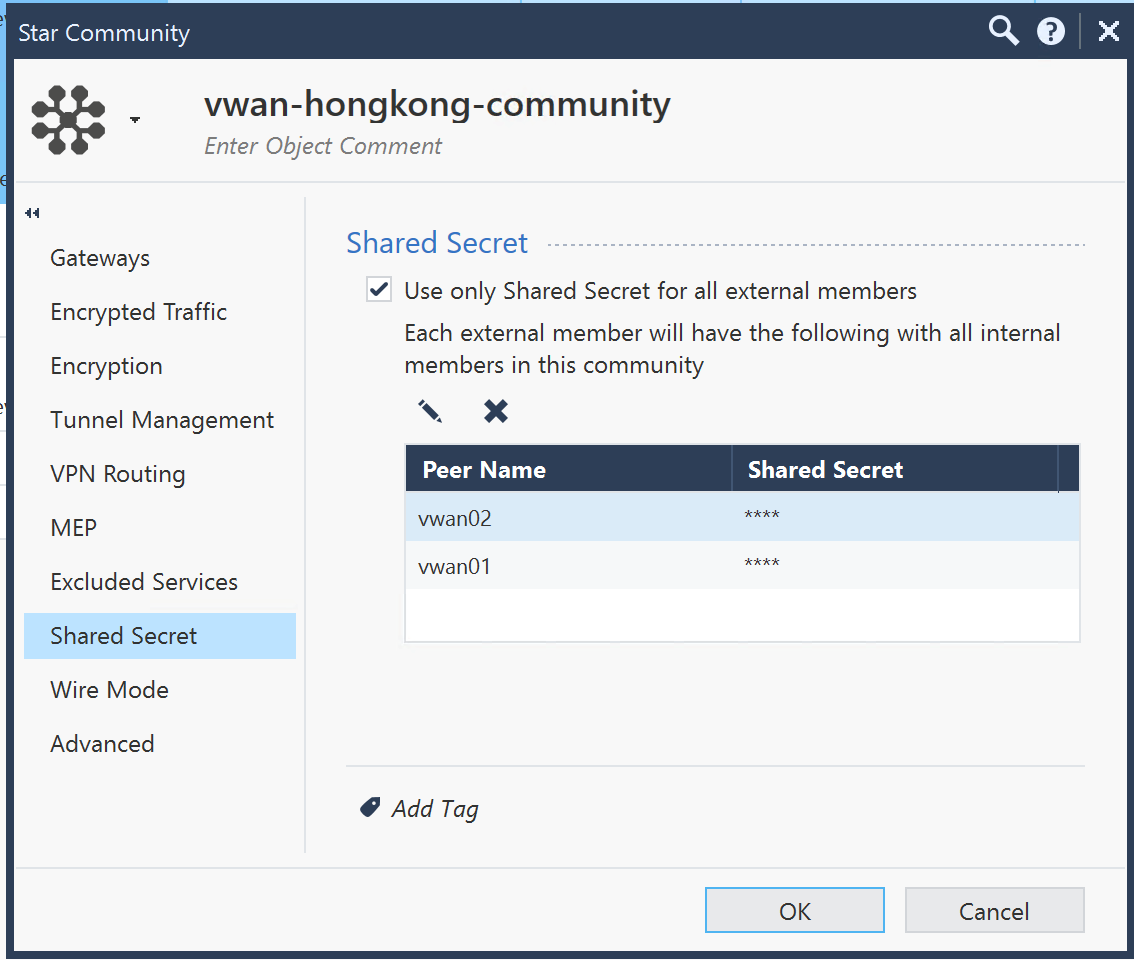
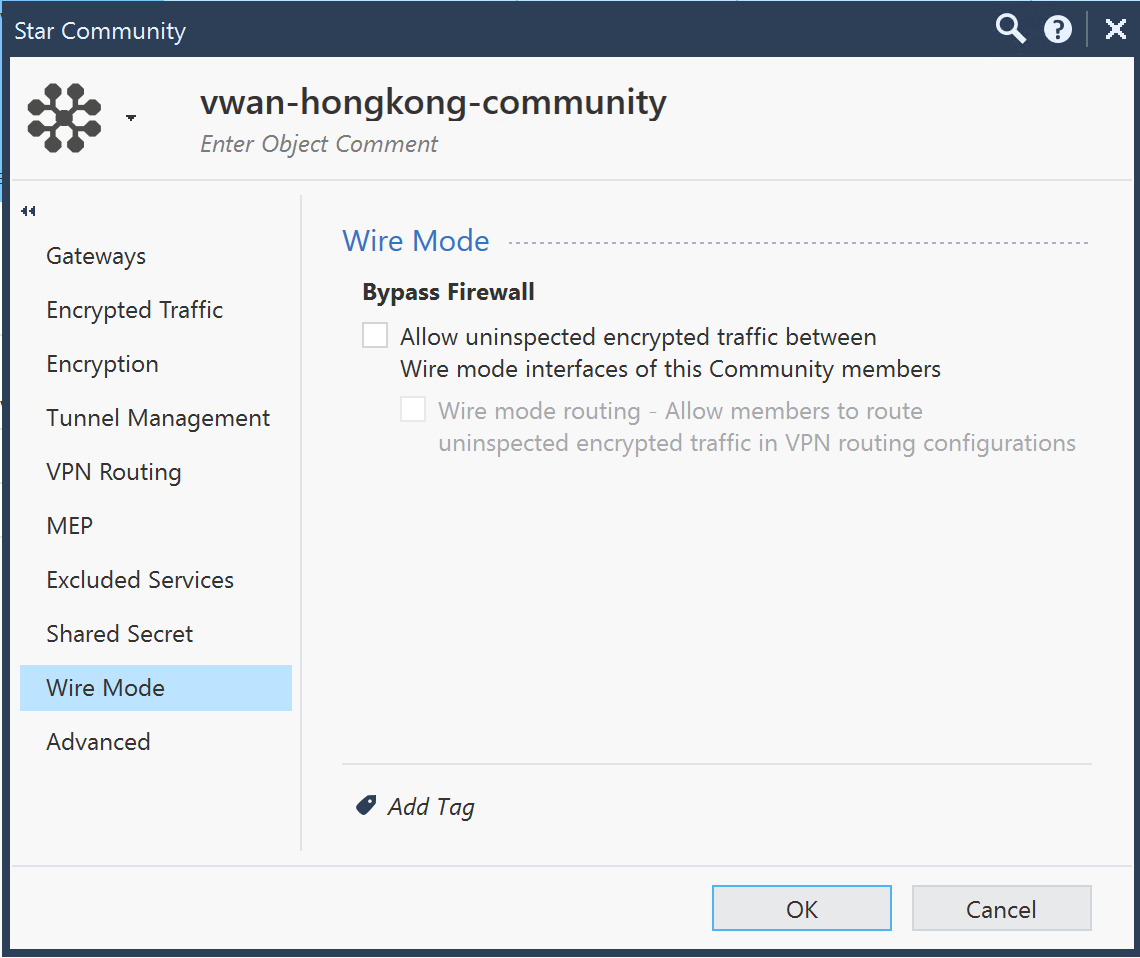
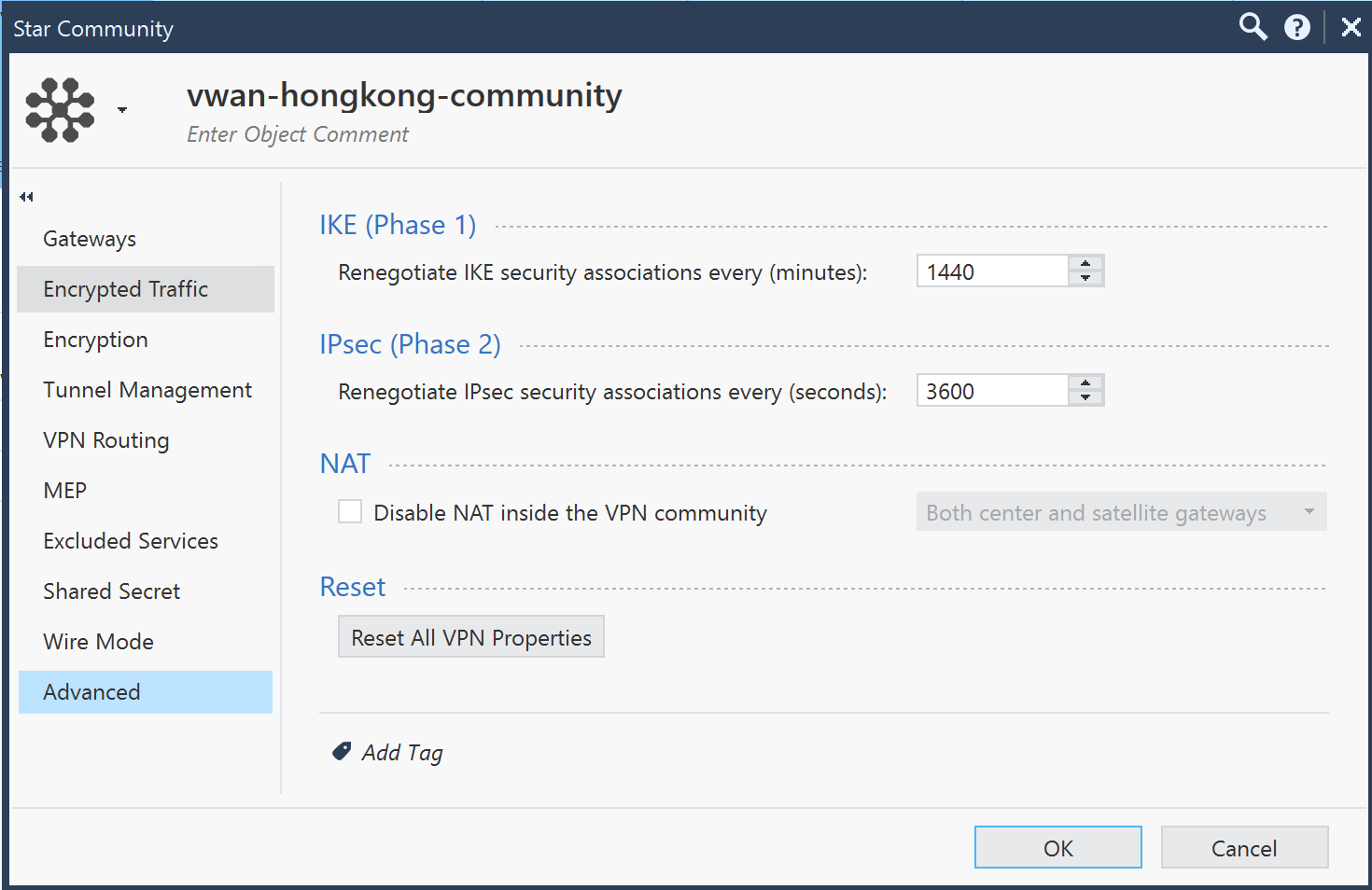
3. Hong Kong gateway configuration
1. Site Details
|-----------------|---------------|
| GW IP | 44.235.95.65 |
| Internal Subnet | 10.157.2.0/24 |
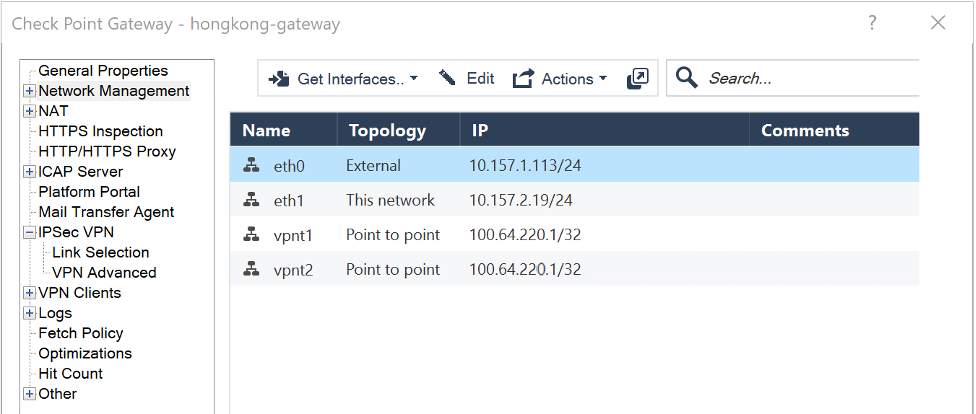
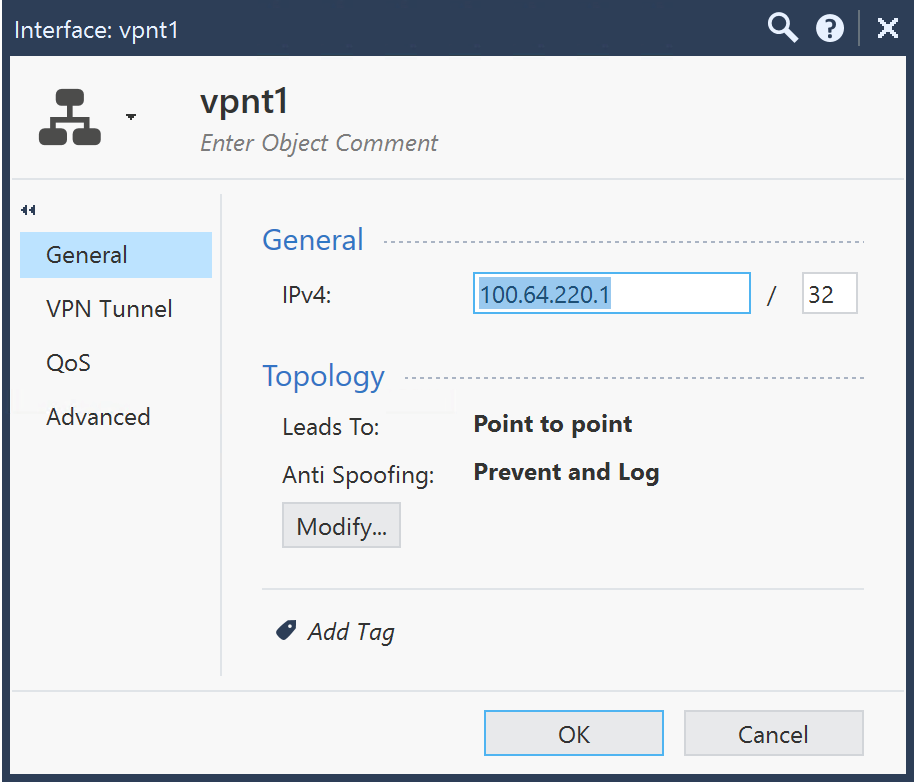
| vpnt1 | 100.64.220.1 |
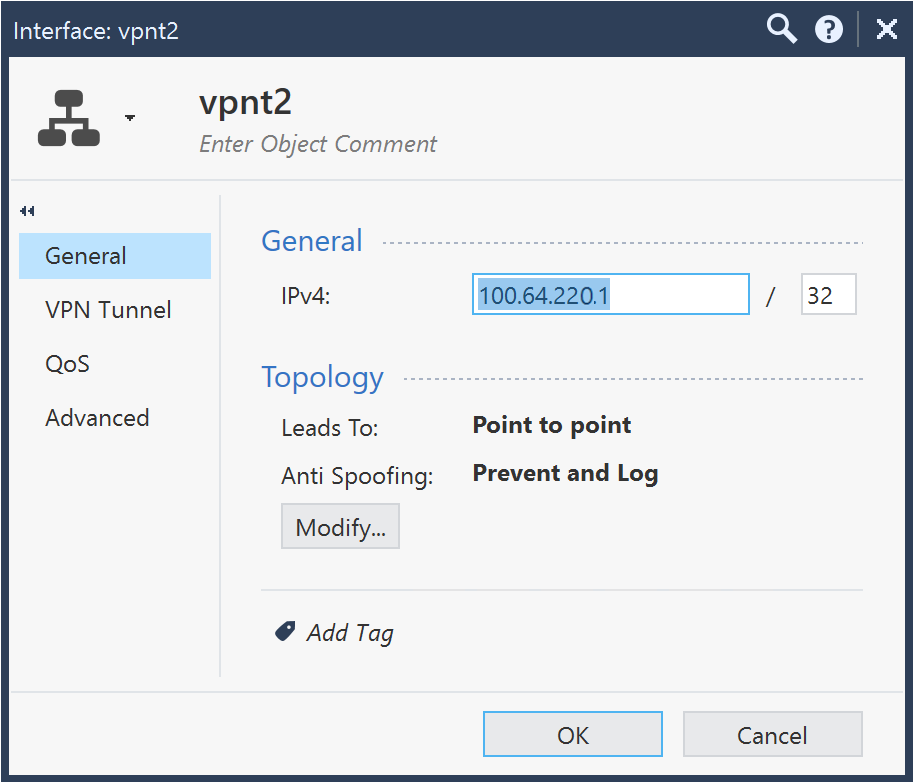
| vpnt2 | 100.64.220.1 |
| ASN | 64512 |
2. Gateway Properties
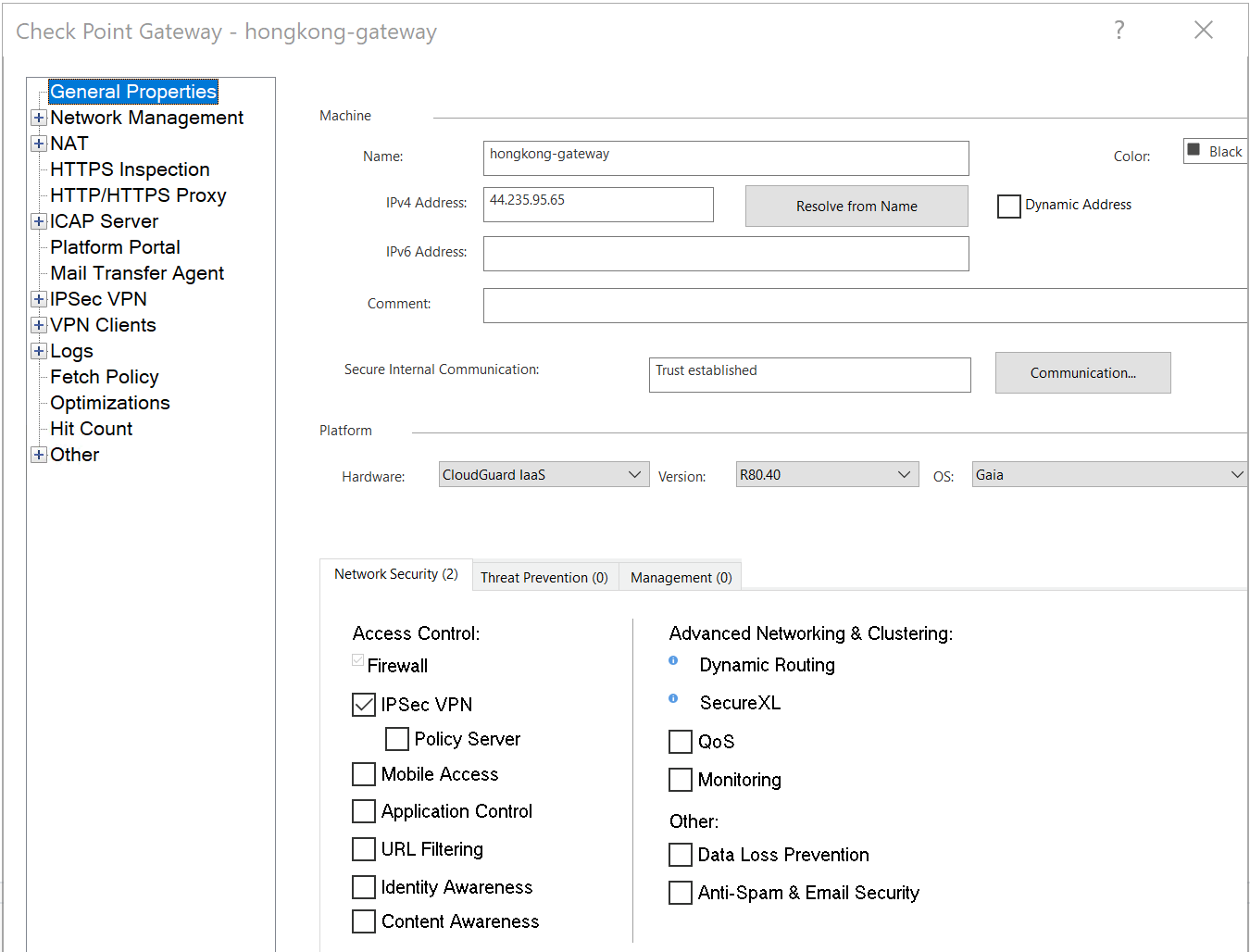
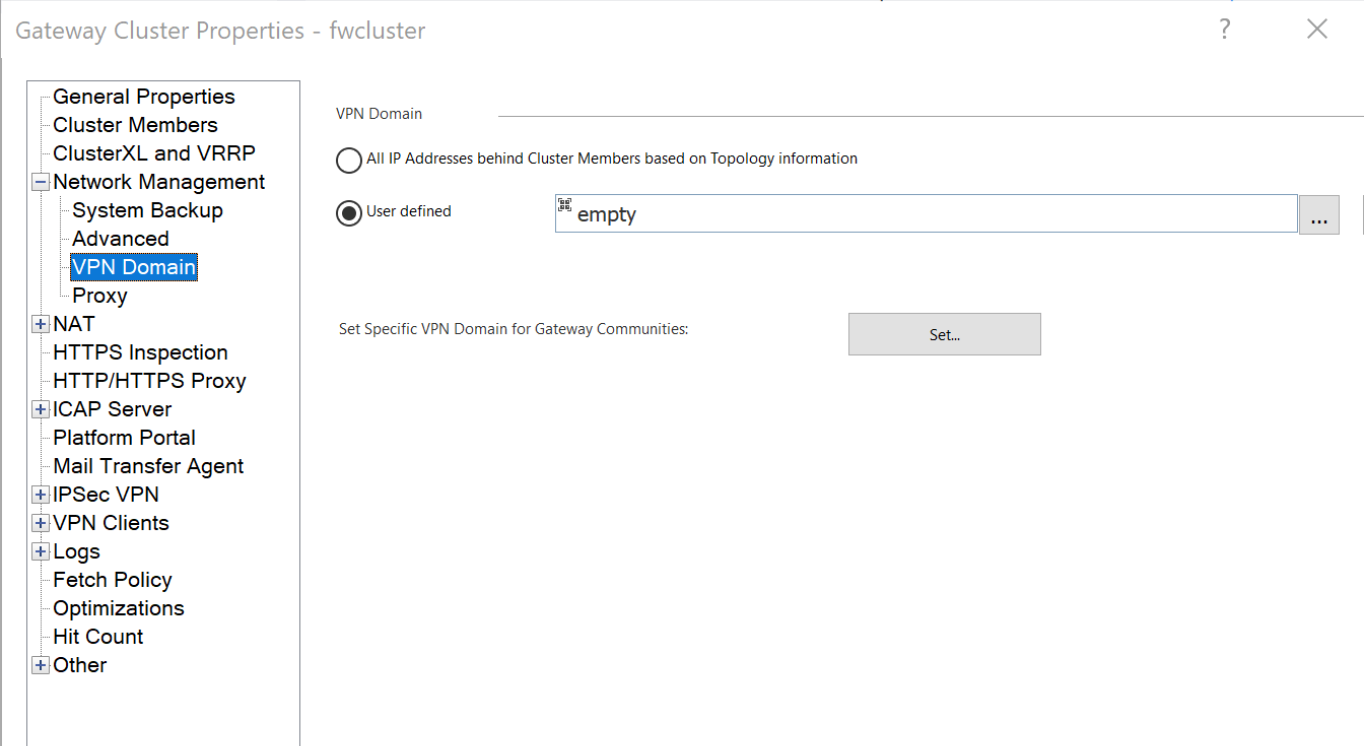
3. Set encryption domain with empty network object group.
Note: If you already had a VPN domain configured, you can keep your current configuration. But make sure that hosts and networks that you want to use, or served by, the new VPN connection will not be declared in the VPN domain, particularly if the VPN domain is automatically derived ("Based on Topology information").
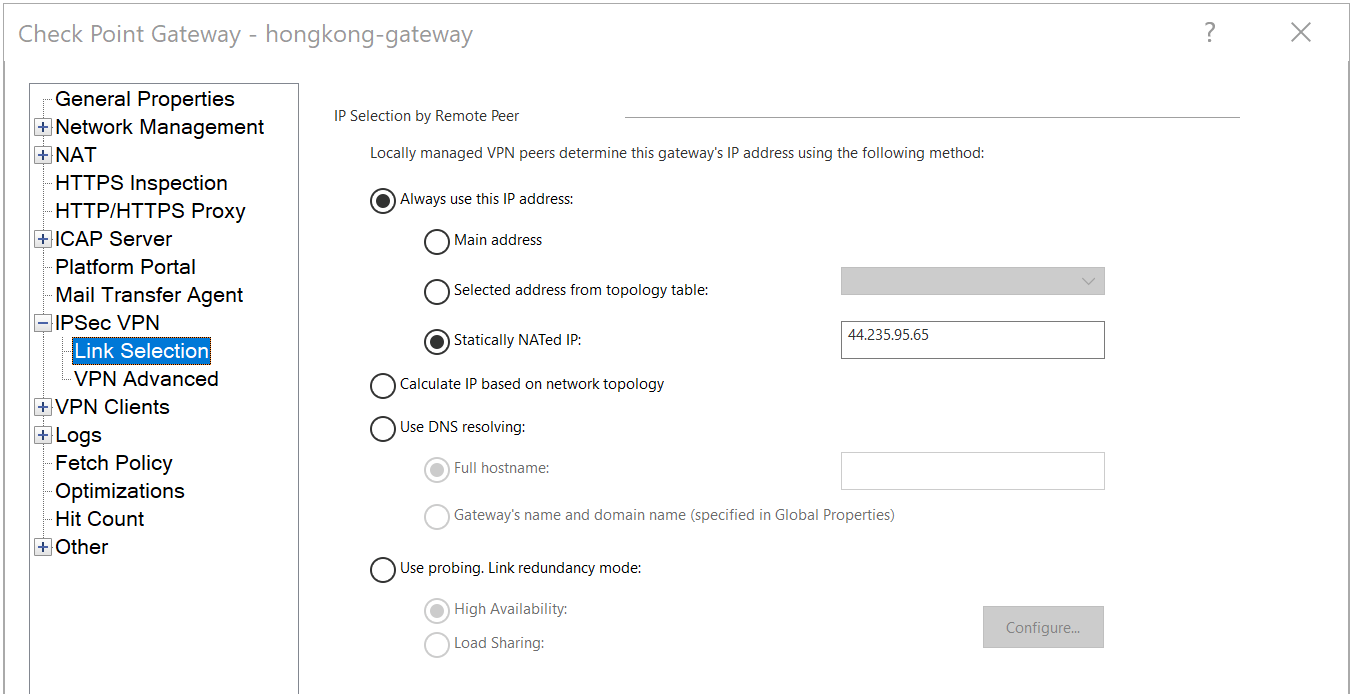
4. Link Selection
You need to do this step only if gateway is NAT behind an IP address such as Azure HA Clusters. If gateway already has routable IP on it is external interface then you can skip this step.
1. Set statically NATed IP
2. Outgoing Route Selection -\> Setup -\> Manual -\> Select external interface
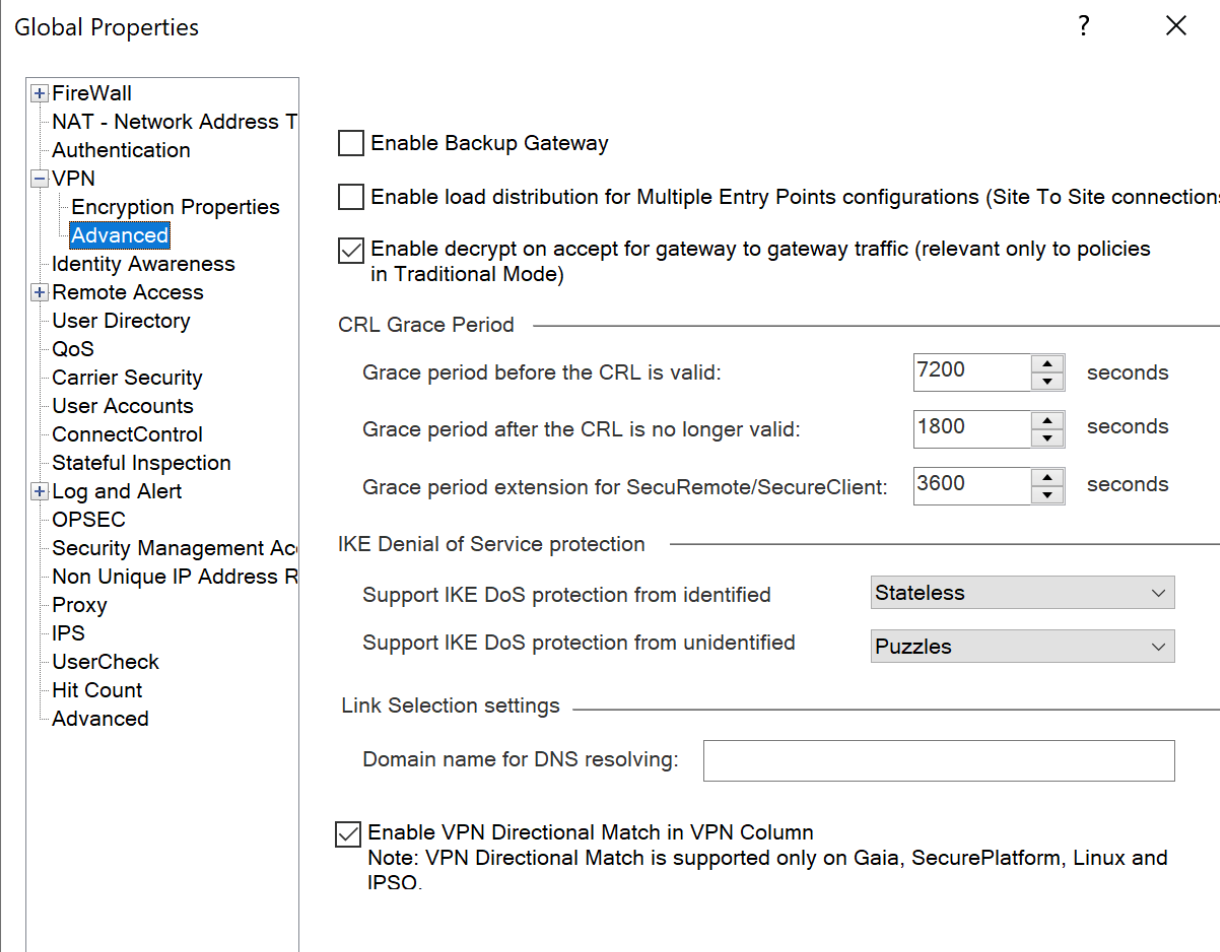
4. Creating firewall rules (required when specifying a community inside the VPN column):
Open Global Properties, and navigate to VPN \> Advanced.
Check the "Enable VPN Directional Match in VPN Column" checkbox.
For every firewall rule related to VPN traffic, add the following directional match rules in the VPN column:
* Internal_clear \> VPN community
* VPN community \> VPN community
* VPN community \> Internal_clear
To create a directional match rule, right-click the VPN cell for the rule and click "Edit Cell". In the VPN Match Conditions window, choose "Match traffic in this direction only". To add directions, click "Add".
**Note**: Globally enabling directional match rules in SmartConsole will not affect previously configured and functioning VPN rules. Those will continue to function as expected.
BGP and Routemap Configuration {#BGP and Routemap Configuration}
----------------------------------------------------------------
Refer to Hong Kong site details and vpn site configuration file for details
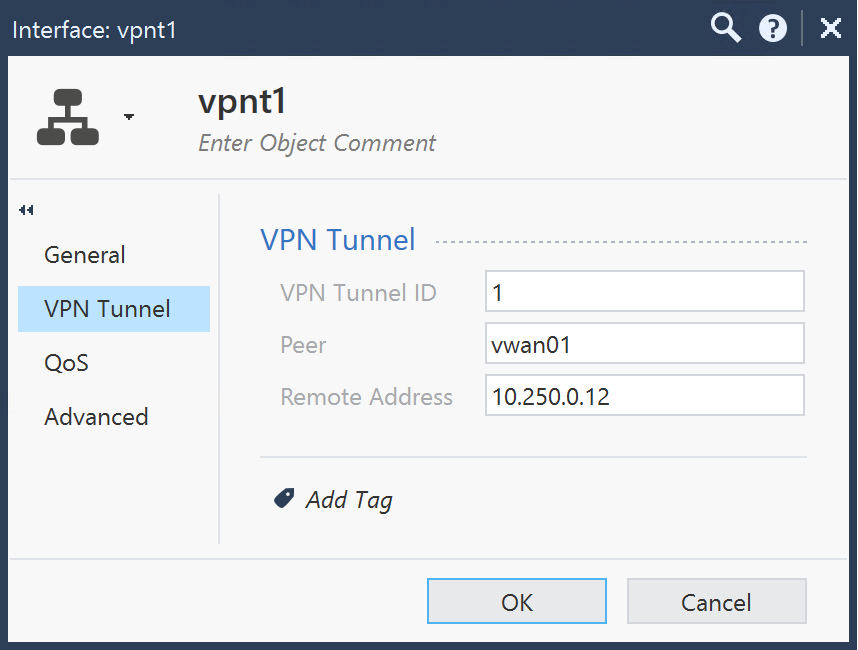
10.250.0.12 = Virtual WAN BGP peering address
10.250.0.13 = Virtual WAN BGP peering address
|-----------------------------------------------------------------------------------------------------------------------------------------------------------------------------------------------------------------------------------------------------------------------------------------------------------------------------------------------------------------------------------------------------------------------------------------------------------------------------------------------------------------------------------------------------------------------------------------------------------------------------------------------------------------------------------------------------------------------------------------------------------------------------|
| `set as 64512` `set router-id 100.64.220.1` `set bgp ecmp on` `set bgp external remote-as 65515 on` `set bgp external remote-as 65515 export-routemap "ex_azure" preference 10 on` `set bgp external remote-as 65515 import-routemap "im_azure" preference 10 on` `set bgp external remote-as 65515 peer 10.250.0.12 on` `set bgp external remote-as 65515 peer 10.250.0.12 ip-reachability-detection on` `set bgp external remote-as 65515 peer 10.250.0.12 ip-reachability-detection check-control-plane-failure on` `set bgp external remote-as 65515 peer 10.250.0.13 on` `set bgp external remote-as 65515 peer 10.250.0.13 ip-reachability-detection on` `set bgp external remote-as 65515 peer 10.250.0.13 ip-reachability-detection check-control-plane-failure on` |
### Export
|------------------------------------------------------------------------------------------------------------------------------------------------------------------------------------------------------------------------------------------------------------------------------------------------|
| set routemap ex_azure id 9 on set routemap ex_azure id 9 restrict set routemap ex_azure id 9 match protocol static set routemap ex_azure id 9 match network 0.0.0.0/0 exact set routemap ex_azure id 10 on set routemap ex_azure id 10 allow set routemap ex_azure id 10 match protocol static |
### Import
|----------------------------------------------------------------------|
| `set routemap im_azure id 10 on` `set routemap im_azure id 10 allow` |
### Tunnel Interface
|-------------------------------------------------------------------------------------------------------------------------------------------------------------------------------------------------------------------------------------------------------------------------------------------------------|
| `add vpn tunnel 1 type numbered local 100.64.220.1 remote 10.250.0.12 peer vwan01 ` `add vpn tunnel 2 type numbered local 100.64.220.1 remote 10.250.0.13 peer vwan02` `set interface vpnt1 state on ` `set interface vpnt1 mtu 1500 ` `set interface vpnt2 state on ` `set interface vpnt2 mtu 1500` |
**Note** : Please make sure the Azure VPN Gateway name matches the Interoperable device name in SmartConsole. In this case vwan01 and vwan02 are the names we used for both VTI tunnel peers and interoperable device names inside the VPN community.
Gateway Interfaces {#Gateway Interfaces}
----------------------------------------
1. Create Required VPN Access Rules
2. Update Gateway Interfaces
1. Get interface with topology to detect vpnt1 and vpnt2
2. vpnt1 details
3. vpnt2 details
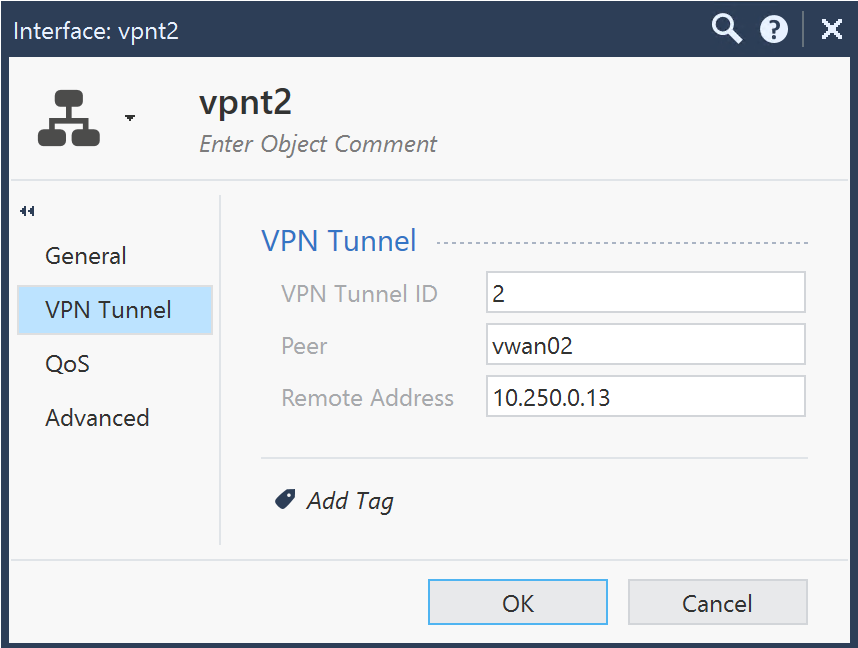
4. Install Policy
Check Point HA Cluster - Virtual WAN Configuration {#Check Point HA Cluster - vWAN Configuration}
-------------------------------------------------------------------------------------------------
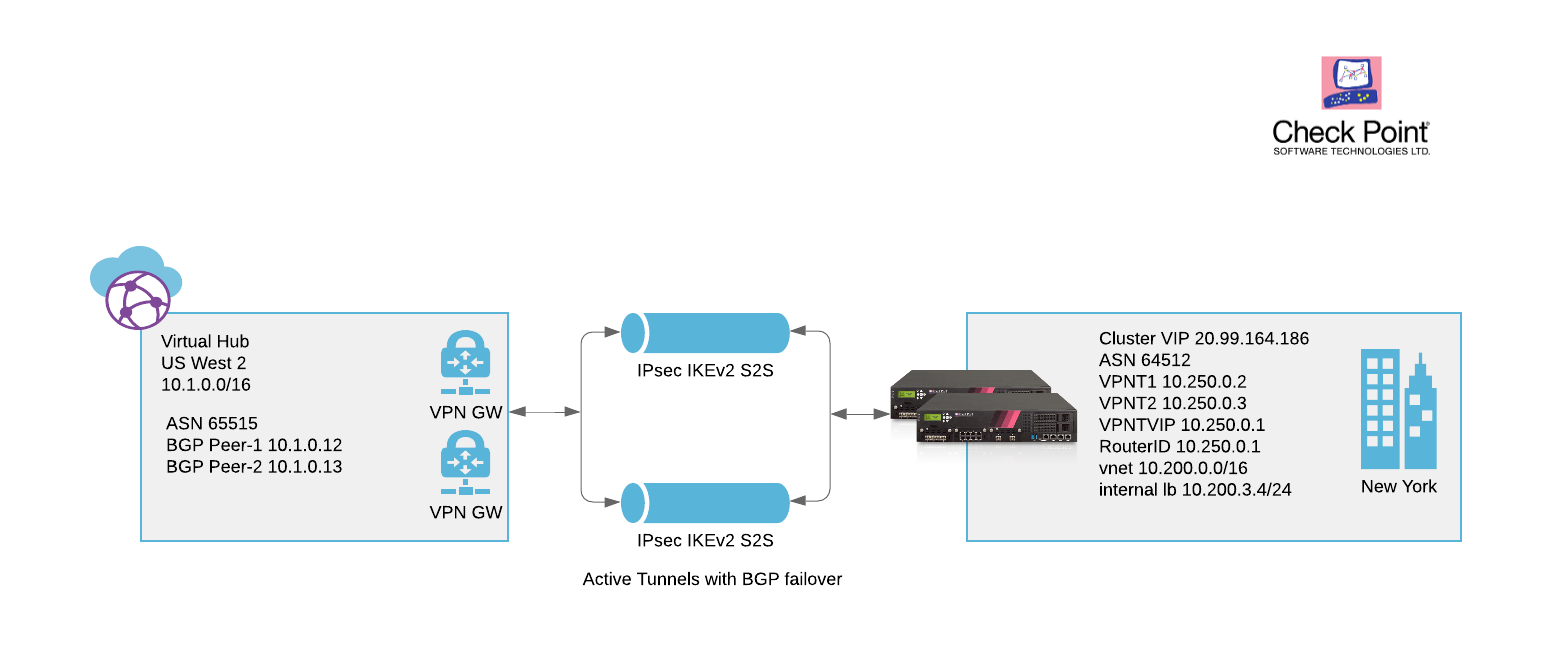
### Virtual WAN Hub VPN Gateway Configuration
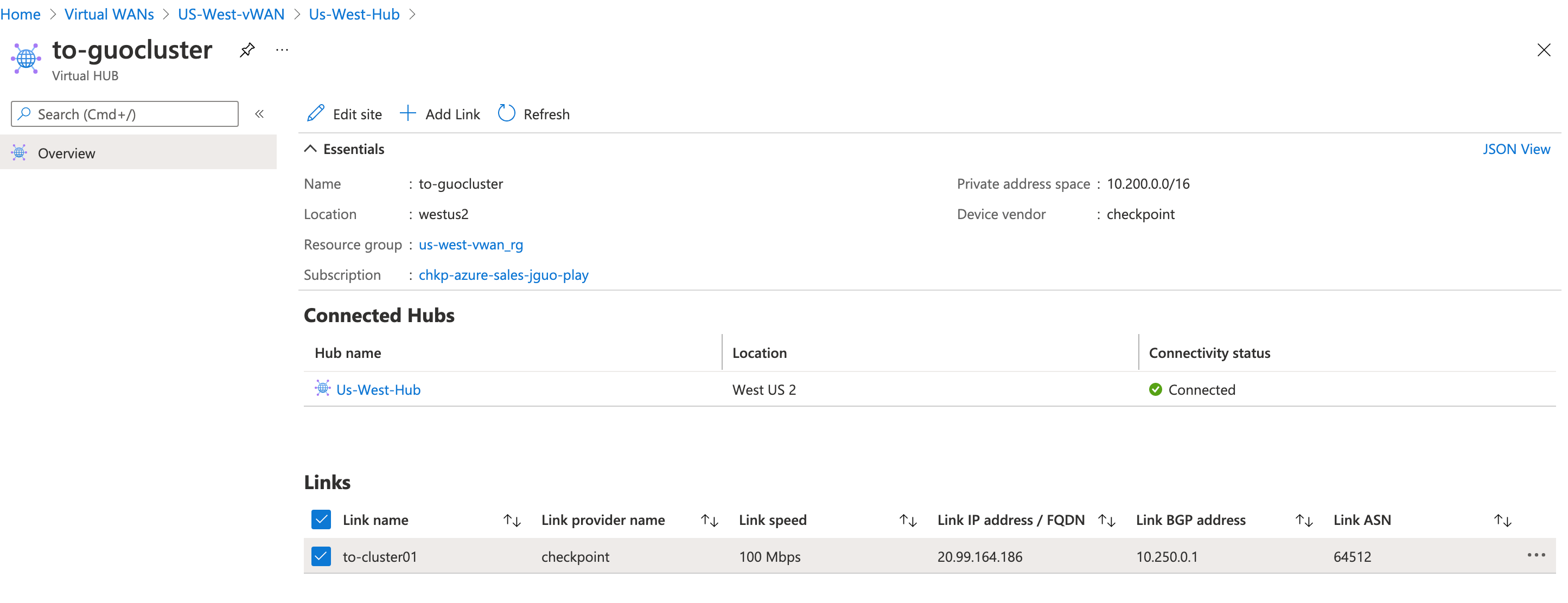
All other configuration remain the same, follow Virtual WAN steps above
### Check Point HA Cluster Configuration
1. BGP import and export route map (FW01 and FW02)
|----------------------------------------------------------------------------------------------------------------------------------------------------------------------------------------------------------------------------------------------------------------------------------------------------------------------------------------------------------------------------------------------------------|
| `- Import` `set routemap im_azure id 10 on` `set routemap im_azure id 10 allow` `- Export` `set routemap ex_azure id 9 on` `set routemap ex_azure id 9 restrict` `set routemap ex_azure id 9 match protocol static` `set routemap ex_azure id 9 match network 0.0.0.0/0 exact` `set routemap ex_azure id 10 on` `set routemap ex_azure id 10 allow` `set routemap ex_azure id 10 match protocol static ` |
2. BGP Config (FW01 and FW02)
|---------------------------------------------------------------------------------------------------------------------------------------------------------------------------------------------------------------------------------------------------------------------------------------------------------------------------------------------------------------------------------------------------------------------------------------------------------------------------------------------------------------------------------------------------------------------------------------------------------------------------------------------------------------------------------------------------------------------------------------------------------------|
| `set as 64512` `set router-id 10.250.0.1` `set bgp ecmp on` `set bgp external remote-as 65515 on` `set bgp external remote-as 65515 export-routemap "ex_azure" preference 10 on` `set bgp external remote-as 65515 import-routemap "im_azure" preference 10 on` `set bgp external remote-as 65515 peer 10.1.0.12 on` `set bgp external remote-as 65515 peer 10.1.0.12 ip-reachability-detection on` `set bgp external remote-as 65515 peer 10.1.0.12 ip-reachability-detection check-control-plane-failure on` `set bgp external remote-as 65515 peer 10.1.0.13 on` `set bgp external remote-as 65515 peer 10.1.0.13 ip-reachability-detection on` `set bgp external remote-as 65515 peer 10.1.0.13 ip-reachability-detection check-control-plane-failure on` |
3. VTI interface (FW01)
|------------------------------------------------------------------------------------------------------------------------------------------------------------------------------------------------------------------------------------------------------------------------------------------------------------|
| `add vpn tunnel 1 type numbered local 10.250.0.2 remote 10.1.0.12 peer vwan01` `add vpn tunnel 2 type numbered local 10.250.0.2 remote 10.1.0.13 peer vwan02` `set interface vpnt1 state on ` `set interface vpnt1 mtu 1500 ` `set interface vpnt2 state on ` `set interface vpnt2 mtu 1500` `save config` |
**Note** : Make sure the Azure VPN Gateway name matches the Interoperable device name in SmartConsole. In this case vwan01 and vwan02 are the names we used for both VTI tunnel peer and interoperable device names inside the VPN community.
4. VTI interface (FW02)
|------------------------------------------------------------------------------------------------------------------------------------------------------------------------------------------------------------------------------------------------------------------------------------------------------------|
| `add vpn tunnel 1 type numbered local 10.250.0.3 remote 10.1.0.12 peer vwan01` `add vpn tunnel 2 type numbered local 10.250.0.3 remote 10.1.0.13 peer vwan02` `set interface vpnt1 state on ` `set interface vpnt1 mtu 1500 ` `set interface vpnt2 state on ` `set interface vpnt2 mtu 1500` `save config` |
**Note** : Please make sure the Azure VPN Gateway name matches the Interoperable device name in SmartConsole. In this case vwan01 and vwan02 are the names we used for both VTI tunnel peer and interoperable device names inside the VPN community.
5. Cluster Interfaces
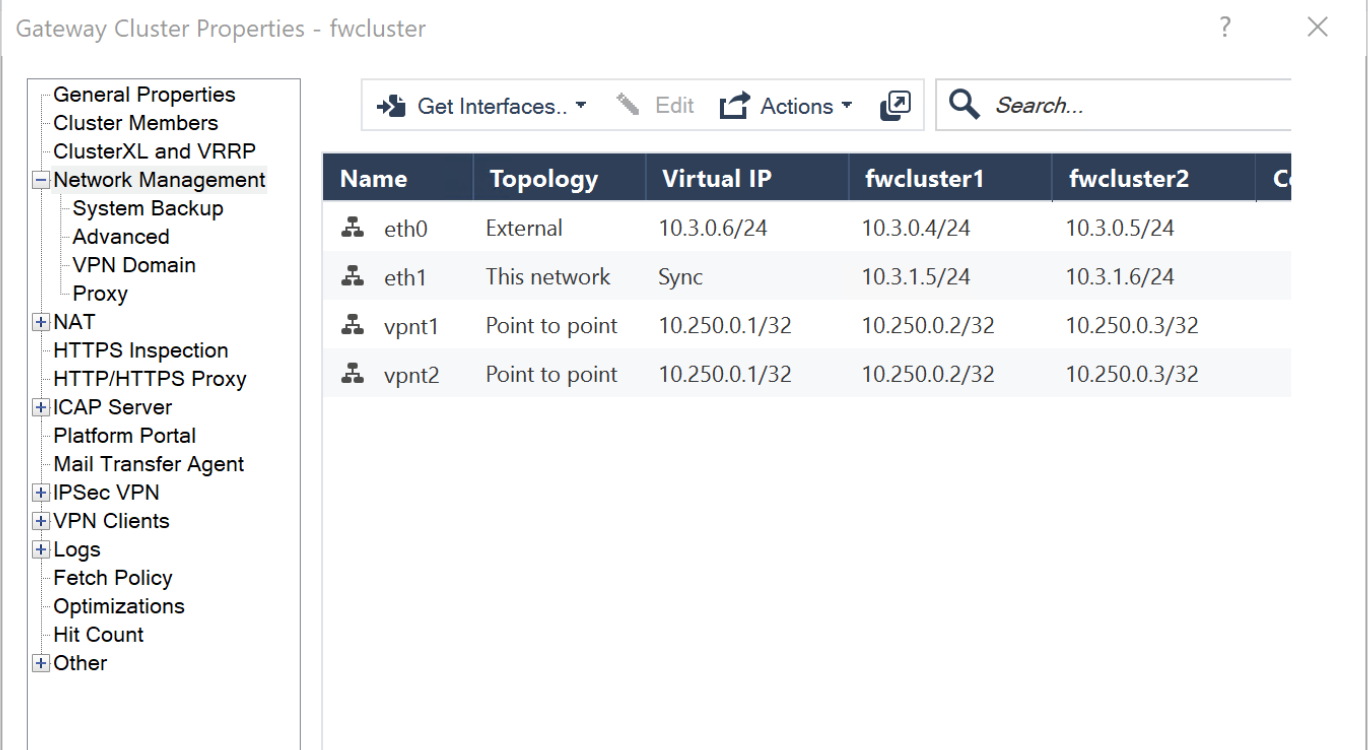
6. Set encryption domain with empty network object group
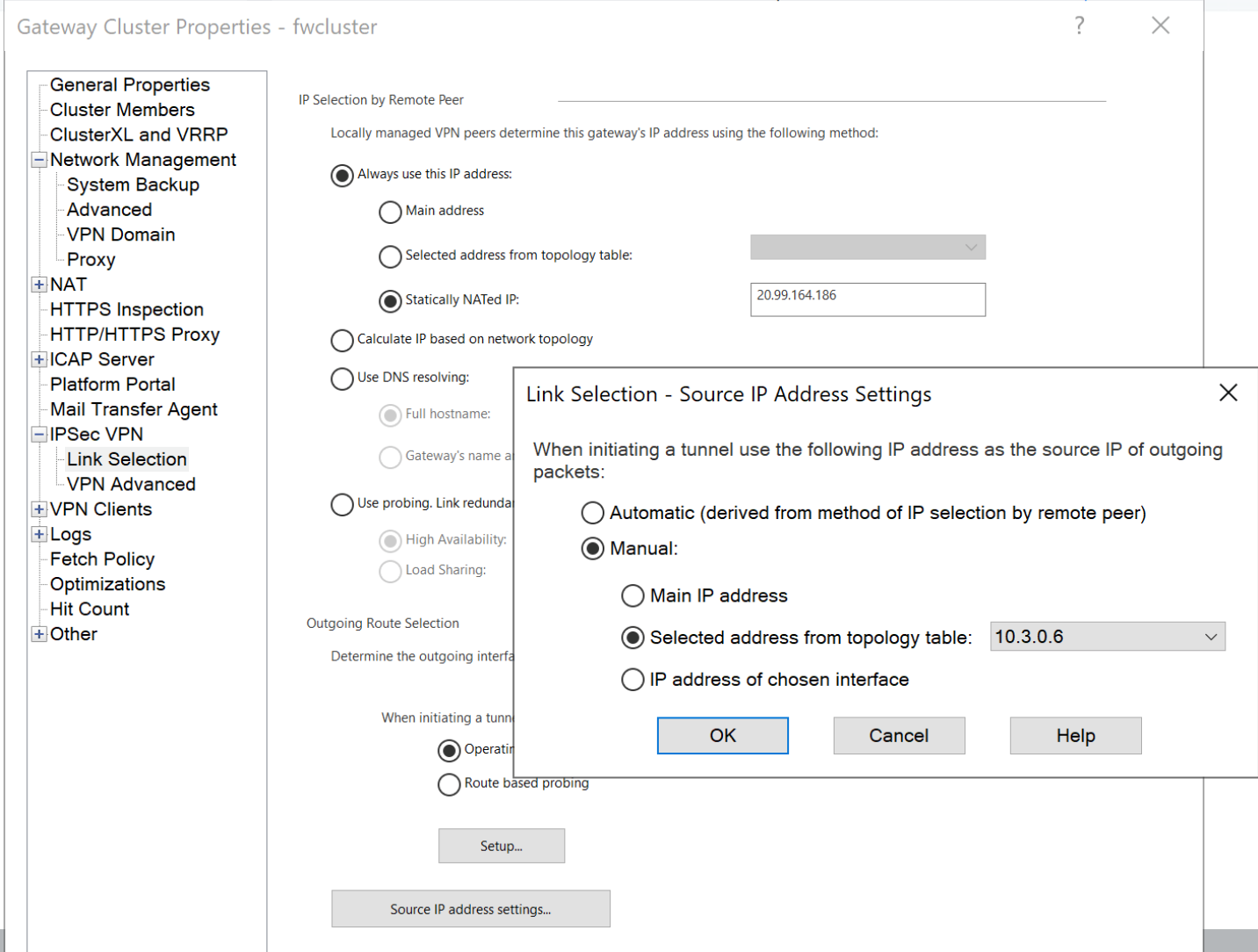
7. Cluster Link Selection
You need to do this step only if gateway is NAT behind an IP address such as Azure HA Clusters. If gateway already has routable IP on it's external interface then you can skip this step.
a. Set statically NATed IP
b. Outgoing Route Selection -\> Setup -\> Manual -\> Select external interface
8. All other configurations are the same as single gateway.
Verification {#Verification}
----------------------------
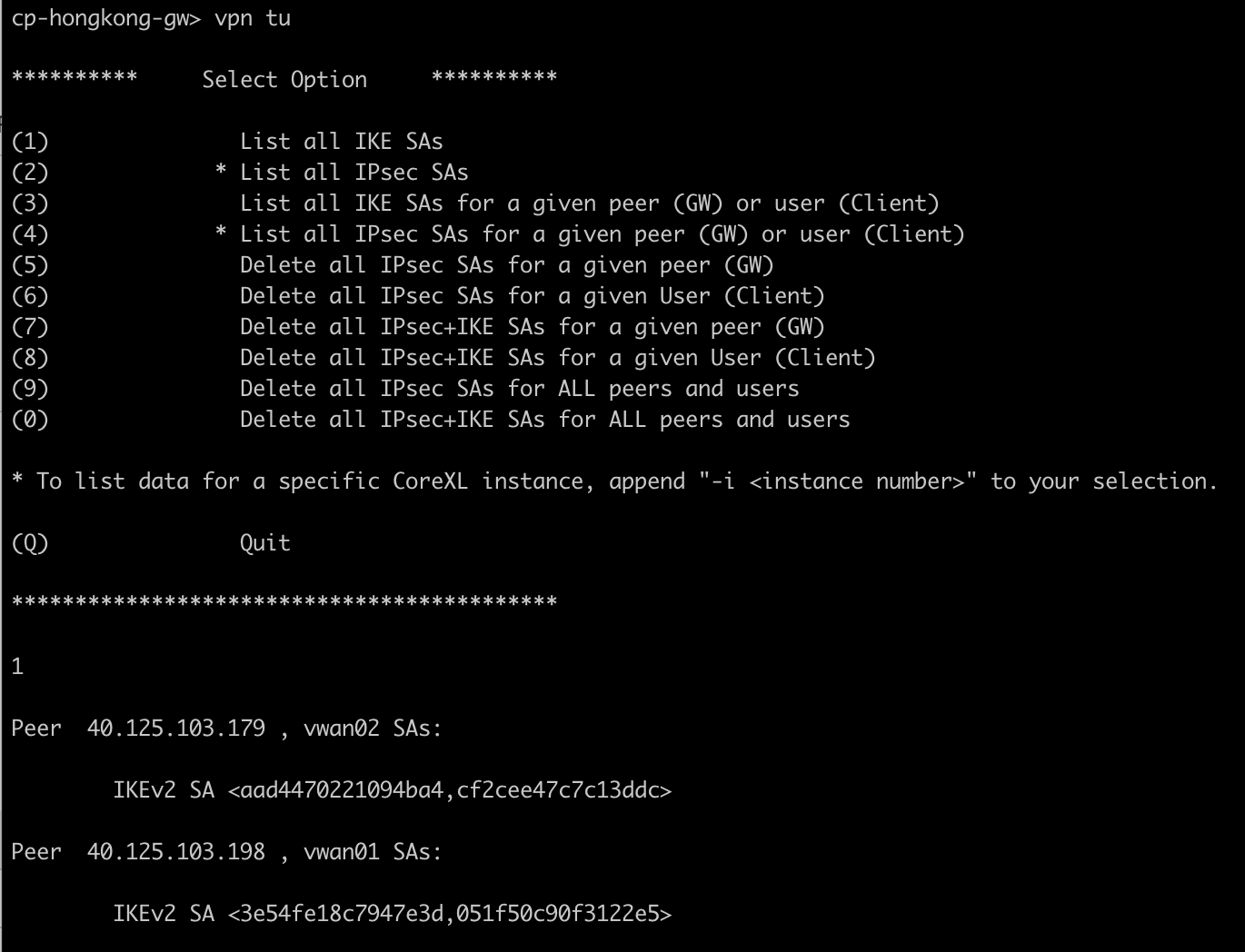
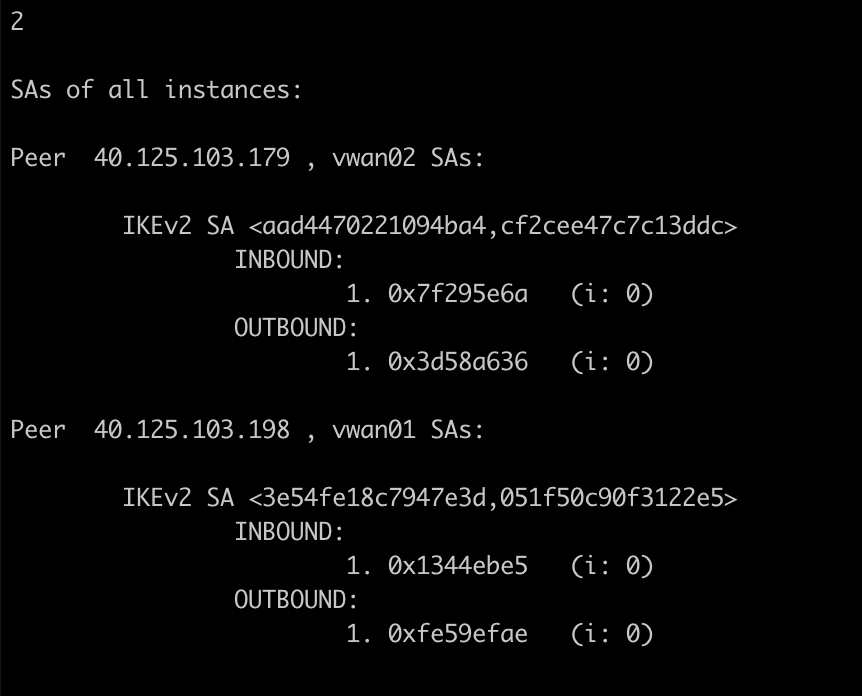
1. VPN status with "vpn tu" command
1. Phase 1
2. Phase 2
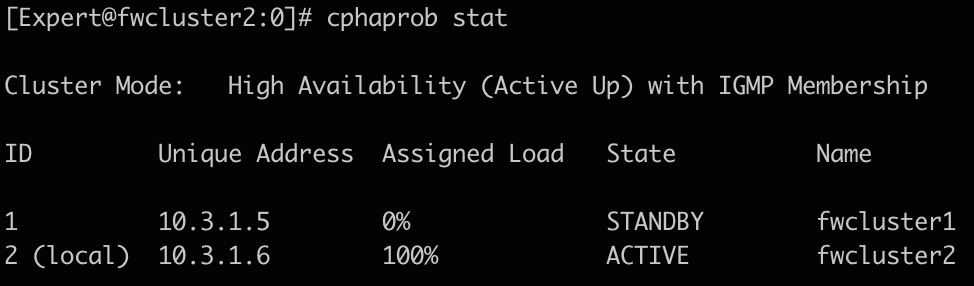
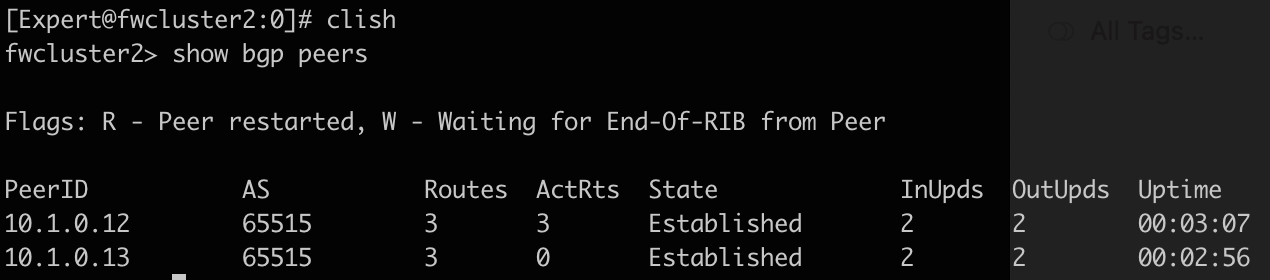
2. BGP Peers

3. Routes (updated 09/24)

4. From FW1
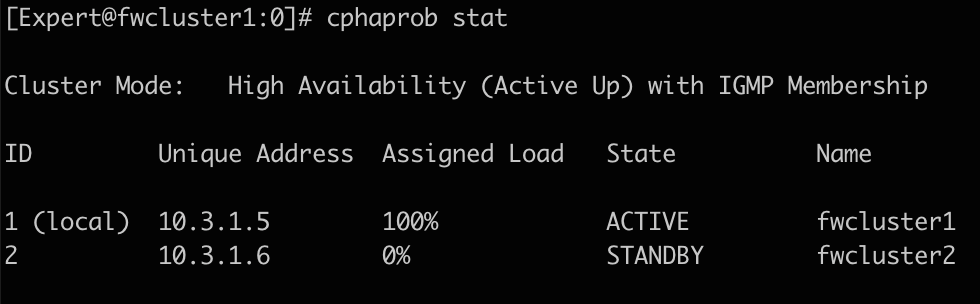
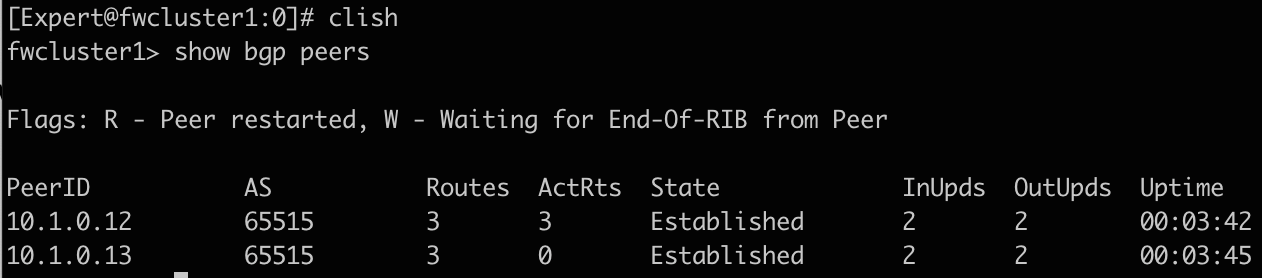
5. After failover from FW1 to FW2
Related documentations: {#Related documentations}
-------------------------------------------------
* [R80.10 VPN Site to Site Administration Guide](https://sc1.checkpoint.com/documents/R80.10/WebAdminGuides/EN/CP_R80.10_SitetoSiteVPN_AdminGuide/html_frameset.htm) \> Getting Started with Site-to-Site VPN
* [Site to Site VPN R81 Administration Guide](https://sc1.checkpoint.com/documents/R81/WebAdminGuides/EN/CP_R81_SitetoSiteVPN_AdminGuide/Default.htm) \> Getting Started with Site-to-Site VPN
* [How to configure IPsec VPN tunnel between Check Point Security Gateway and Amazon Web Services VPC using static routes](https://sc1.checkpoint.com/documents/IaaS/WebAdminGuides/EN/CP_CloudGuard_AWS_AutoScale_with_Transit_Gateway/Content/Topics-AWS-AutoScale-TGW-DG/Configure-IPsec-VPN-Static-Routes-Numbered-VTI.htm)
How to route all internet bound traffic over VPN tunnel:
--------------------------------------------------------
Azure VPN gateways advertise default route 0.0.0.0/0 via BGP to Check Point gateways. Our default BGP route rank is set to 170 and our default route rank is set to 1, lower rank number has higher priority over BGP route. In order to route all internet traffic over the VPN tunnel we need to set our gateway default gateway rank to 171 so BGP route takes precedence. However, we first need to ensure Azure VPN Gateway IP address and any services that should not be routed over the VPN tunnel has a static route to existing default gateway.
1. Set static route for Azure VPN Gateway address
set static-route \ nexthop gateway address \ on
set static-route \ nexthop gateway address \ on
save config
2. Set gateway default route rank to 171
set default route rank to 171
save config
3. Validate
r8110vpngw\> show route all
Codes: C - Connected, S - Static, R - RIP, B - BGP (D - Default),
O - OSPF IntraArea (IA - InterArea, E - External, N - NSSA),
A - Aggregate, K - Kernel Remnant, H - Hidden, P - Suppressed,
NP - NAT Pool, U - Unreachable, i - Inactive
B 0.0.0.0/0 via 192.168.0.12, vpnt1, cost None, age 677569
via 192.168.0.13, vpnt2
B i 0.0.0.0/0 via 192.168.0.13, vpnt2, cost None, age 770672
S i 0.0.0.0/0 via 10.15.15.1, eth0, cost 0, age 1385696
Big thanks to Chris Suri from Sapphire.net, Dan Morris and Christian Castillo from Check Point that contributed to this SK.
---
# Agent Instructions
This content is from the Check Point Support Center (https://support.checkpoint.com), the official knowledge base for Check Point cybersecurity products.
## Navigating This Knowledge Base
- **Complete index**: [llms.txt](https://support.checkpoint.com/llms.txt)
- **All SK articles**: [SecureKnowledge Sitemap](https://support.checkpoint.com/sitemaps/secureknowledge-sitemap-index.xml)
- **SK article URL pattern**: `https://support.checkpoint.com/results/sk/{skId}`
- **Markdown responses**: AI bot User-Agents automatically receive `text/markdown` content