> Source: [sk154872](https://support.checkpoint.com/results/sk/sk154872)
# sk154872 - Microsoft Sentinel / Azure Log Analytics: Example configuration for Cloud Firewall and on-premises Check Point appliances
| Property | Value |
|----------|-------|
| Solution ID | sk154872 |
| Date Created | 2019-05-30 |
| Last Modified | 2026-05-11 |
| Technical Level | General |
| Products | Security Gateway, Cloud Firewall |
| Versions | R82.10, R82, R81.20, R81.10 (EOS), R81 (EOS) |
## Solution
### Introduction
Microsoft Azure is a full-featured cloud platform with many useful management features included as standard or for a fee.
This document describes how to send traffic and audit logs from a Check Point Management environment (Security Management Server or Multi-Domain Management Server) to Azure for processing into the Microsoft toolchain.
**Note**: This document assumes that you have "contributor" or "owner" access to the subscription. This may not be true in a tightly controlled enterprise Azure subscription. Address any issues with permissions to your Azure subscription owner or ask Microsoft Azure support for help.
The Check Point documentation for Log Exporter is available at: [sk122323 - Log Exporter - Check Point Log Export](https://support.checkpoint.com/results/sk/sk122323)
The Azure portal has a detailed workflow for enabling the service.
### Topology
The solution topology is for Check Point Management, whether on-premises or in the cloud, to send data to a Microsoft Sentinel Workspace using a Linux CEF agent installed on a separate VM. (The Linux VM can be on-premises or in the Cloud.)
Direct Check Point Management and Microsoft Sentinel communication are not possible.
**Notes**:
* If the traffic from the Check Point Management to Linux agent goes over the Internet, the log traffic should ideally be encrypted with TLS. This is not in the scope of this document. For instructions refer to [sk122323 - Log Exporter.](https://support.checkpoint.com/results/sk/sk122323)
* It can take 20 minutes for the Check Point traffic and audit logs to start appearing in Sentinel.
How to send Check Point logs to Microsoft Sentinel
--------------------------------------------------
**Show / Hide the section**
Starting from August 31, 2024 Microsoft Sentinel retired the previous Log Analytics agent, and you must configure all log forwarding on the new Azure Monitor Agent.
#### The new Azure Monitor Agent {#send_logs}
* Simpler management with Data Collection Rule
* 25% higher throughput
* Azure or On-Premises (Requires Azure ARC)
For more information, refer to the [Azure Monitor Agent documentation](https://learn.microsoft.com/en-us/azure/sentinel/connect-cef-syslog-ama?tabs=portal).
**Note:** This solution applies to Check Point Security Management Server, Multi-Domain Security Management Server and Smart-1 Cloud only. For Harmony SASE refer to:
* [Harmony SASE](https://support.perimeter81.com/docs/ms-sentinel)
#### Architecture diagram

#### Configuration Steps
1. Configure Microsoft Sentinel
2. Install Azure Monitor Agent on CEF Collector
3. Configure Check Point Security Management / Smart-1 Cloud
4. Verification and Troubleshooting
### Step 1 - Configure Microsoft Sentinel {#step1}
1. Create new CEF Data Connector:
In the Azure Portal, go to **Microsoft Sentinel** \> **Content management** \> **Content hub** , search for **Common Event Format** and click **Install**.

2. Configure the new Data Connector:
In the Azure Portal, go to **Microsoft Sentinel** \> **Configuration** \> **Data connectors** \> **Common Event Format (CEF) via AMA** and open the connector page.
3. In the Basic tab, input rule name.

4. In the **Resources** tab, select the CEF Collector to install the agent on.
**Note:**If the CEF Collector is not installed in Azure, add it to Azure ARC. Refer to step 2.2 below.

5. In the **Collect** tab, set all Facility Minimum log level to LOG_DEBUG.

6. in the **Review + create** tab, review the settings and create the Data Collection Rule.
### Step 2 - Install Azure Monitor Agent on CEF Collector {#step2}
1. Copy the installation command and apply the CEF collector.
* After the agent installation, it fetches the data collection rules automatically.
* Future data collection rule updates also apply to the agent automatically.


2. Add CEF collector to Azure ARC:
Note: Skip this step if a collector is installed in Azure.
Why must the Azure Arc Connected Machine agent be installed to use Azure Monitor Agent?
Azure Monitor Agent authenticates to your workspace through managed identity, which is created when you install the Connected Machine agent. Managed Identity is a more secure and manageable authentication solution from Azure. The legacy Log Analytics agent used the workspace ID and key to authenticate, so it did not need Azure Arc.
1. In the Azure Portal, go to **Azure Arc** \> **Azure Arc resources** \> **Machines** \> **Add/Create** \> **Add a machine** \> **Add multiple servers** \> **Generate script**.
2. Download the on-boarding script.

3. Update the on-boarding script with service principle secret.

4. Copy and run the on-boarding script on CEF Collector.

5. Make sure that the CEF Collector is on-boarded to Azure ARC:
Take note of the resource group and name for next step.

3. Refer to step 2.a to complete the installation of Azure Monitor Agent.

### Step 3 - Configure Check Point Security Management and Smart-1 Cloud {#step3}
1. Configure Log Export on Check Point Security Management Server:
1. Connect to the command line on the Security Management Server.
2. Log in to the Expert mode.
3. Run:
`cp_log_export add name syslog-forwarder target-server target-port 514 protocol tcp format cef`
`cp_log_export restart`
2. Configure Log Export on Smart-1 Cloud:
Open Infinity portal \> **Smart-1 Cloud** \> **Settings** \> **Advanced** \> **Forward to SIEM** \> **New**.

### Step 4 - Verification and Troubleshooting {#step4}
1. Run a Microsoft Sentinel Query.
From the Azure Portal, go to **Microsoft Sentinel** \> **Logs** \> **Tables** \> **Microsoft Sentinel** \> **CommonSecurityLog**.

Example output of Check Point firewall logs in Microsoft Sentinel:

2. To make sure that logs from the Security Management or Smart-1 Cloud are logging the to CEF collector, run this command from the collector:
`sudo netstat -planvt | grep 514`

3. To make sure that AMA is running correctly on the CEF collector, run the command:
`sudo wget -O Sentinel_AMA_troubleshoot.py https://raw.githubusercontent.com/Azure/Azure-Sentinel/master/DataConnectors/Syslog/Sentinel_AMA_troubleshoot.py&&sudo python Sentinel_AMA_troubleshoot.py --cef`
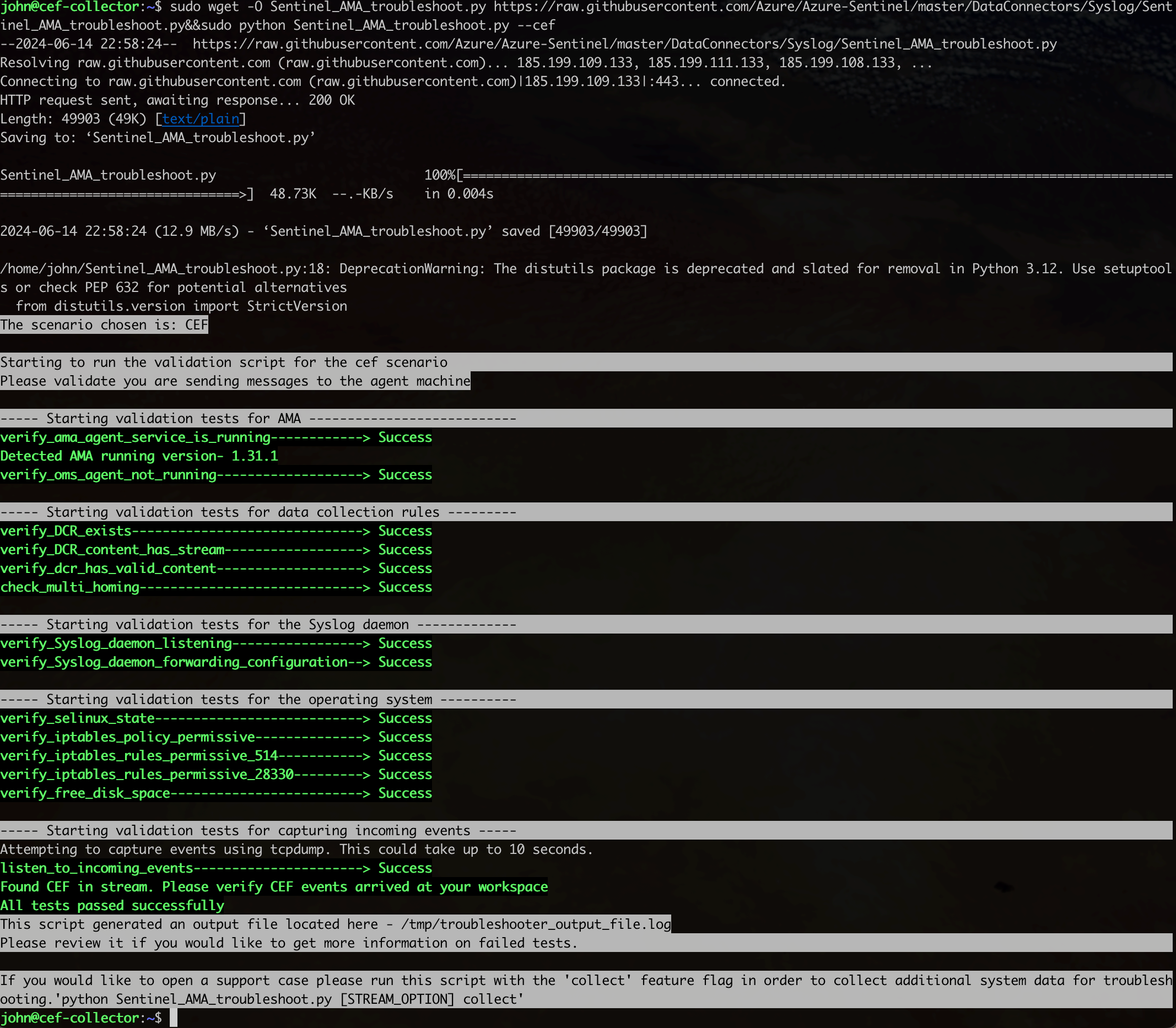
For the latest Azure Monitor Agent (AMA) troubleshooting commands, refer to [this link](https://learn.microsoft.com/en-us/azure/sentinel/connect-cef-syslog-ama?tabs=portal#test-the-connector).
---
# Agent Instructions
This content is from the Check Point Support Center (https://support.checkpoint.com), the official knowledge base for Check Point cybersecurity products.
## Navigating This Knowledge Base
- **Complete index**: [llms.txt](https://support.checkpoint.com/llms.txt)
- **All SK articles**: [SecureKnowledge Sitemap](https://support.checkpoint.com/sitemaps/secureknowledge-sitemap-index.xml)
- **SK article URL pattern**: `https://support.checkpoint.com/results/sk/{skId}`
- **Markdown responses**: AI bot User-Agents automatically receive `text/markdown` content