> Source: [sk111080](https://support.checkpoint.com/results/sk/sk111080)
# sk111080 - How to configure Check Point software to upload data to Check Point / download data from Check Point in versions R81.10 and lower
| Property | Value |
|----------|-------|
| Solution ID | sk111080 |
| Date Created | 2016-04-18 |
| Last Modified | 2025-09-04 |
| Technical Level | General |
| Products | Security Gateway, Security Management Server |
| Versions | R81.10 (EOS), R81 (EOS) |
| OS | Gaia |
## Solution
### **Note** - For Management Server versions R81.20 and higher, see [sk175504](https://support.checkpoint.com/results/sk/sk175504).
**Table of Contents:**
1. Consent flags
2. How consent flags are enabled
3. Flags Decision Table
* For Security Management Servers / Domain Management Servers / Log Server (all versions)
* For R77.X / R76SP.X Security Gateways managed by R77.X Security Management Servers
* For R77.X / R80.X Security Gateways managed by R80.X Security Management Servers
4. How consent flags are modified
* Edit the consent flags in the Registry
* Edit the consent flags in the Objects Database using SmartConsole / SmartDashboard
* Edit the consent flags in the Objects Database using Database Tool (GuiDBedit Tool) / dbedit tool
5. Related solutions
6. Revision History
Click Here to Show the Entire Article
### (1) Consent flags {#Consent flags}
**Note** - For Quantum Spark appliances, refer to the CLI command "`set privacy-settings`" in the [R81.10.X CLI Reference Guide](https://sc1.checkpoint.com/documents/SMB_R81.10.X/CLI/EN/Default.htm).
**Important Note:** On a Security Gateway, the value of flags is changed automatically during policy installation - after setting the relevant flags on the Security Management Server / Domain Management Server (either using SmartConsole / SmartDashboard, or using Database Tool (GuiDBedit Tool) / dbedit tool).
|-----------------------|--------------------------------------------------------------------------------------------------------------------------------------|
| Flag Type | Description |
| "*Allow Upload*" | Allows the upload of data from the Gaia OS to Check Point. Note: This consent flag is available only starting from R77.20 |
| "*Allow Download*" | Allows the download of data from Check Point to the Gaia OS. Note: This consent flag is available only starting from R77.20 |
| "*Upload Core Dumps*" | Allows the upload of core dump files from the Gaia OS to Check Point. Note: This consent flag is available only starting from R80.40 |
**Notes:**
* The consent flags are stored on the Gaia OS in the following places:
Show / Hide this section
|-------------------------------------|----------------------------------------------|-----------------------------------------------------------------------------------------------------------------------------------------------------------------------------------------------------------------------------------------------------------------------------------------------------------------------------------------------------------------------------------------------------------------------------------------------------------------------------------------------------------------------------------------------------------------------------------------------------------------------------|---------------------------------------------------------------------------------------------------------------------------------------------------------------------------------------------------------------------------------------------------------------------------------------------------------------------------------------------------------------------------------------------------------------------------------------------------------------------------------------------------------------------------------------------------------------------------------------------------------------------------------------------------------------------------------------------------------------------------------------------------------------------------------------------------------------------------------------------------------------------------------------------------------------------------------------------------------------------------------------------------------------------------------------------------------------------------------------------------------------------------------------------------------------------------------------------------------------------------------------------------------------------------------------------------|
| Consent Flags | Where the consent flags are stored | When the consent flags are created | Comments |
| *"Allow Upload"* *"Allow Download"* | `$FWDIR/conf/objects_5_0.C` | R77.20 and higher: * On a Security Gateway / Cluster Member: *During the first policy installation*. * On a Security Management Server / Multi-Domain Security Management Server / Domain Management Server / Multi-Domain Log Server / Domain Log Server / Log Server / SmartEvent Server: *During the first "Install Database" operation*. | * This article refers to this file as the "Objects Database". * You must not edit this file in any text editor - any settings in this file should be modified only using SmartConsole / SmartDashboard / [Database Tool (GuiDBedit Tool)](https://support.checkpoint.com/results/sk/sk13009) / [dbedit tool](https://support.checkpoint.com/results/sk/skI3301). * The consent flags are stored in the "`firewall_properties`" section. The consent flags are: * `:allow_download_content (...)` * `:allow_upload_content (...)` * To check the current flag value, run in the Expert mode: `grep -n "load_content" $FWDIR/conf/objects_5_0.C` Possible values of these flags are: * `(false)` = upload/download of data is forbidden * `(true)` = upload/download of data is allowed * How values of consent flags are checked: 1. Check if the flag value exists in the "Internal Database" (in the `$CPDIR/tmp/umis_objects.C` file) and return it 2. If the flag value does not exist in the "Internal Database", then check if the flag value exists in the "Registry" (in the `$CPDIR/registry/HKLM_registry.data` file) and return it 3. If the flag value does not exist in the "Registry", then assume "`true`" for that consent flag (i.e., allow the upload / download) and return it |
| *"Allow Upload"* *"Allow Download"* | `$CPDIR/registry/HKLM_registry.data` | R80.10 and higher: * On a Security Gateway / Security Management Server / Multi-Domain Security Management Server / Domain Management Server / Multi-Domain Log Server / Domain Log Server / Log Server / SmartEvent Server: *During the First Time Configuration Wizard*. R80 / R77.30 / R77.20: * On a Security Gateway / Cluster Member: *During the first policy installation*. * On a Security Management Server / Multi-Domain Security Management Server / Domain Management Server / Multi-Domain Log Server / Domain Log Server / Log Server / SmartEvent Server: *During the first "Install Database" operation.* | * This article refers to this file as the "Registry". * You must not edit this file in any text editor - any settings in this file should be modified only using the "`ckp_regedit`" command or the "`cpprod_util`" command. * The consent flags are stored at: `/SOFTWARE/CheckPoint/CPshared/6.0/reserved` the consent flags are: * `:AllowReceivingDataFromCheckPoint (...)` * `:AllowSendingDataToCheckPoint (...)` * To check the current values, run in the Expert mode one of these two commands: * `grep Allow $CPDIR/registry/HKLM_registry.data | grep Data` * `ckp_regedit -p /SOFTWARE/CheckPoint/CPshared/6.0/reserved | grep CheckPoint` Possible values of these flags are: * `(0)` = upload/download of data is forbidden * `(1)` = upload/download of data is allowed * How values of consent flags are checked: 1. Check if the flag value exists in the "Internal Database" (in the `$CPDIR/tmp/umis_objects.C` file) and return it 2. If the flag value does not exist in the "Internal Database", then check if the flag value exists in the "Registry" (in the `$CPDIR/registry/HKLM_registry.data` file) and return it 3. If the flag value does not exist in the "Registry", then assume "`true`" for that consent flag (i.e., allow the upload / download) and return it |
| *"Allow Upload"* *"Allow Download"* | `$CPDIR/tmp/umis_objects.C` | R77.20 and higher / R76SP.X (from *Take_84* of [R76SP.30 Jumbo Hotfix](https://support.checkpoint.com/results/sk/sk108901), and from *Take_16* of [R76SP.50 Jumbo Hotfix](https://support.checkpoint.com/results/sk/sk117633)): * On a Security Gateway / Cluster Member: *During the first policy installation*. * On a Security Management Server / Multi-Domain Security Management Server / Domain Management Server / Domain Log Server / Log Server / SmartEvent Server: *During the first "Install Database" operation*. | * This article refers to this file as the "Internal Database". This file is an internal database created by the FWD daemon based on the information from the Registry. * You must not edit this file in any text editor. This file is updated automatically during *each* start of the FWD daemon / policy installation / database installation operation. * The consent flags are stored in this file in the `DownloadAccess` section. The consent flags are: * `:allow_download_content (...)` * `:allow_upload_content (...)` * To check the current values, run in the Expert mode: `grep -A 2 DownloadAccess $CPDIR/tmp/umis_objects.C` Possible values of these flags are: * `(false)` = upload/download of data is forbidden * `(true)` = upload/download of data is allowed * How values of consent flags are checked: 1. Check if the flag value exists in the "Internal Database" (in the `$CPDIR/tmp/umis_objects.C` file) and return it 2. If the flag value does not exist in the "Internal Database", then check if the flag value exists in the "Registry" (in the `$CPDIR/registry/HKLM_registry.data` file) and return it 3. If the flag value does not exist in the "Registry", then assume "`true`" for that consent flag (i.e., allow the upload / download) and return it |
| *"Upload Core Dumps"* | `/config/db/initial` `/config/db/initial_db` |
| **Important** - This consent flag works independently of the "Allow Upload" and "Allow Download" consent flags. * This article refers to these files as the "Gaia OS Database". * You must not edit this file in any text editor - any settings in this file should be modified only using Gaia Portal or Gaia Clish. * To check the current flag value, run this command: * In the Expert mode R80.40 - R81.10: `dbget cdm:allow_sending` Possible values of this flag are: * `0` = upload of data is forbidden * `1` = upload of data is allowed * In Gaia Clish R80.40 - R81.10: `show core-dump crash_data_status` |
* The "`Allow Upload`" consent flag has priority over the "`Sync with User Center`" consent flag (refer to [sk94064](https://support.checkpoint.com/results/sk/sk94064)).
Meaning that if administrator enabled the "`Sync with User Center`" consent flag, but did not enable the "`Allow Upload`" consent flag, then synchronization with User Center will *not* be performed.
* In R77.X and lower, the consent flags on a Security Gateway are *independent of* the consent flags on a Security Management Server.
Meaning that, for example, if administrator enabled the "`Allow Upload`" consent flag on an R77.X Security Gateway, but disabled the "`Allow Upload`" consent flag on an R77.X Security Management Server, then the Security Gateway would still be able to upload the data to Check Point.
Starting in R80, the consent flags on an R80.X Security Management Server have priority over the consent flags on an R77.X / R80.X Security Gateway.
For details, refer to "Flags Decision Table" section below.
**Important Notes:**
* To *completely block the upload* of data from a Security Management Server / Multi-Domain Security Management Server / Domain Management Server / Multi-Domain Log Server / Domain Log Server / Log Server / SmartEvent Server to Check Point cloud, the administrator must:
1. Disable the consent flags in the Objects Database (either using SmartConsole / SmartDashboard, or using Database Tool (GuiDBedit Tool) / dbedit tool)
2. Perform "Install Database" operation
3. Disable the consent flag in the Gaia OS Database
* To *completely block the upload* of data from a Security Gateway to Check Point cloud, the administrator must:
1. Disable the consent flags in the Objects Database (either using SmartConsole / SmartDashboard, or using Database Tool (GuiDBedit Tool) / dbedit tool)
2. Perform "Install Policy" operation
3. Disable the consent flag in the Gaia OS Database
### (2) How consent flags are enabled {#How consent flags are enabled}
Consent flags are enabled during the initial installation and database installation / policy installation.
* The Gaia First Time Configuration Wizard creates the consent flags in the following way:
Show / Hide this section
|-----------------------|----------------------------------------------------------------------------------------------------------------------------------------------------------------------------------------------------------------------------------------------------------------------------------------------------------------------------------------------------------------------------------------------------------------------------------------------------------------------------------------------------------------------------------------------------------------------------------------------------------------------------------------------------------------------------------------------------------------------------------------------------------------------------------------------------------------------------------------------------------------------------------------------------------------------------------------------|
| Consent Flag | Description |
| *"Allow Download"* | The Gaia First Time Configuration Wizard creates the "*Allow Download* " consent flags in the Registry (in the `$CPDIR/registry/HKLM_registry.data` file). This consent flag is enabled by default. * In R80.40 and higher versions: The checkbox is called "*Automatically download Blade Contracts, new software, and other important data (highly recommended)*":  * In R80.30, R80.20, R80.10, and R80 versions: The checkbox is called "*Automatically download Blade Contracts and other important data*": 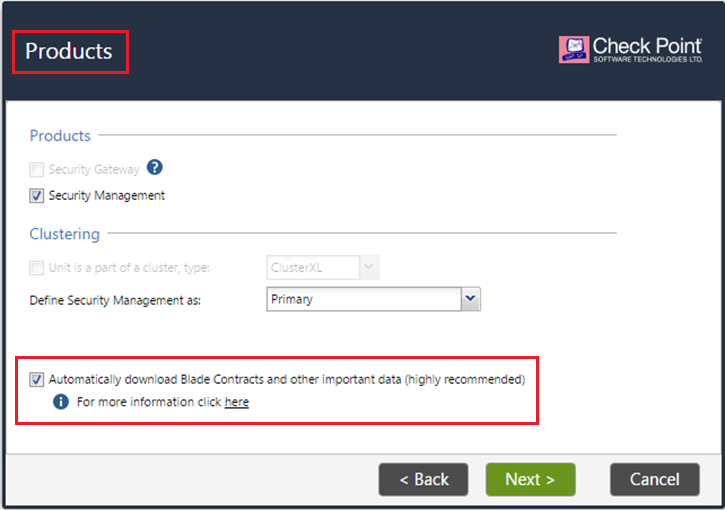 * In R77.30 and R77.20 versions: The checkbox is called "*Automatically download Blade Contracts and other important data*": 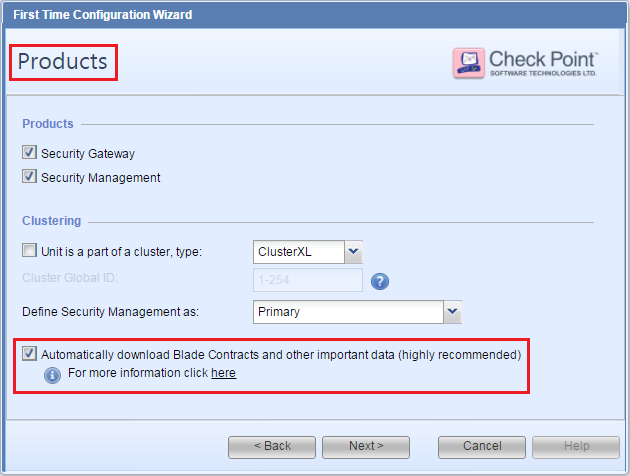 |
| *"Allow Upload"* | * In R80.40 and higher versions: The checkbox is called "*Send data to Check Point*": 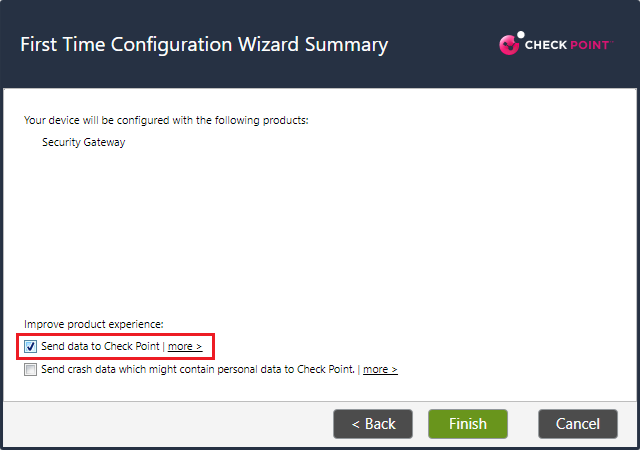 * In R80.30, R80.20, R80.10, and R80 versions: The checkbox is called "*Improve product experience by sending data to Check Point*": 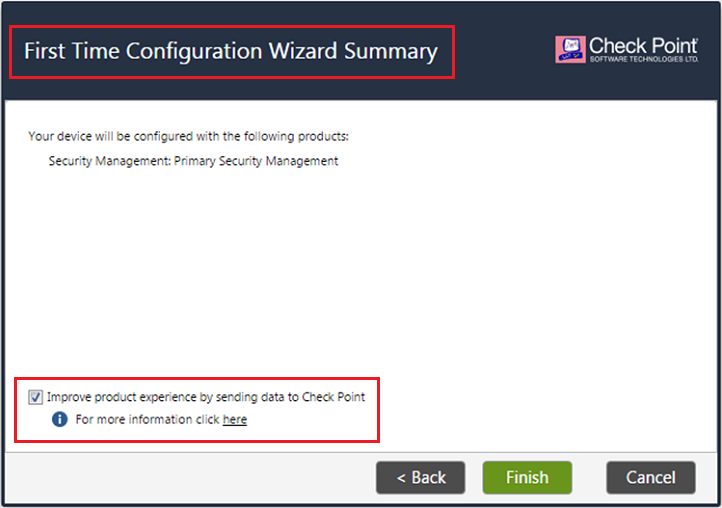 * In R77.30 and R77.20 versions: The checkbox is called "*Improve product experience by sending data to Check Point*": 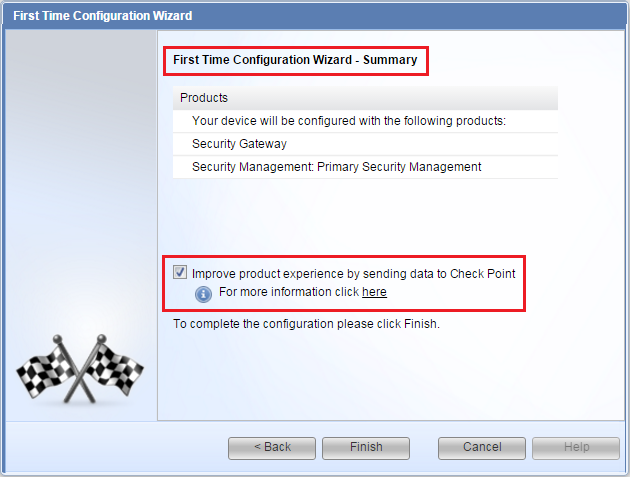 |
| *"Upload Core Dumps"* | * In R80.40 and higher versions: The Gaia First Time Configuration Wizard creates the "*Upload Core Dumps* " consent flags in the Gaia OS Database (in the `/config/initial*` files). The checkbox is called "*Send crash data which might contain personal data to Check Point*":  |
* The "Install Policy" operation:
* Creates the "`Allow Upload`" and "`Allow Download`" consent flags in the Objects Database (in the `$FWDIR/conf/objects_5_0.C` file) on all configurations (Security Gateway, Management Server, and so on).
* Creates the "`Allow Upload`" and "`Allow Download`" consent flags in the Registry (in the `$CPDIR/registry/HKLM_registry.data` file) on a Security Gateway.
* Creates the "`Allow Upload`" and "`Allow Download`" consent flags in the Internal Database (in the `$CPDIR/tmp/umis_objects.C` file) on a Security Gateway.
* The "Install Database" operation on a Management Server / Domain Log Server / Log Server / SmartEvent Server object:
* Creates the "`Allow Upload`" and "`Allow Download`" consent flags in the Internal Database (in the `$CPDIR/tmp/umis_objects.C` file) on a Security Management Server / Multi-Domain Security Management Server / Domain Security Management Server / Multi-Domain Log Server / Domain Log Server / Log Server / SmartEvent Server.
* Gaia Portal or Gaia Clish
In the R80.40 and higher versions, you can control the "*Upload Core Dumps*" consent flag:
* In Gaia Portal:
1. In the navigation tree, click **System Management** \> **Core Dumps**.
2. Select or clear the option "**Send crash data which might contain personal data to Check Point**"
3. Click **Apply**.
* In Gaia Clish:
1. Run:
`set core-dump send_crash_data {on | off}`
2. Run:
`save config`
During upgrade:
* No change is made to these flags.
* After the upgrade is completed, flags can be modified as described in the "How consent flags are modified" section below.
### (3) Flags Decision Table {#Flags Decision Table}
The following tables show possible combinations of flags values and whether the Gaia OS can download data from / upload data to Check Point.
**Note:** The ability to download / upload is controlled separately by the corresponding flags. Refer to "How consent flags are modified" section below.
* Show / Hide summary table only for Security Management Servers / Domain Management Servers / Log Server (all versions)
**Important Note:** To completely block the *upload* of data from a Security Management Server / Multi-Domain Security Management Server / Domain Management Server / Multi-Domain Log Server / Domain Log Server / Log Server / SmartEvent Server to Check Point cloud, administrator has to disable the consent flags in the Objects Database (either using SmartConsole / SmartDashboard, or using Database Tool (GuiDBedit Tool) / dbedit tool) and perform "Install Database" operation.
|---|---------------------------------------------------------------|---------------------------------------------------------------|-----------------------------------------------------------------|----------------------------------------------------------------------------------------------------------------------------------------------------------------------------------------------|
| # | Value of flags in Database on R77.X / R80.X Management Server | Value of flags in Registry on R77.X / R80.X Management Server | Ability to download / upload on R77.X / R80.X Management Server | How is this configuration possible? |
| 1 | `false` | `0` | Server is ***not*** able to download / upload | Both flags were manually disabled in the Registry (either during the First Time Configuration Wizard, or later), and in the Objects Database. Then Install Database operation was performed. |
| 2 | `false` | **`1`** | Server is ***not*** able to download / upload | Both flags were enabled during First Time Configuration Wizard (default), but were manually disabled in the Objects Database. Then Install Database operation was performed. |
| 3 | **`true`** | `0` | Server is ***able*** to download / upload | Both flags were manually disabled in the Registry, but were enabled in the Objects Database. Then Install Database operation was performed. |
| 4 | **`true`** | **`1`** | Server is ***able*** to download / upload | Both flags were enabled in the Registry (during the First Time Configuration Wizard, or later), and in the Objects Database. Then Install Database operation was performed. |
How values of consent flags are checked:
1. Check if the flag value exists in the "Internal Database" (in the `$CPDIR/tmp/umis_objects.C` file) and return it
2. If the flag value does not exist in the "Internal Database", then check if the flag value exists in the "Registry" (in the `$CPDIR/registry/HKLM_registry.data` file) and return it
3. If the flag value does not exist in the "Registry", then assume "`true`" for that consent flag (i.e., allow the upload / download) and return it
{#Flags Decision Table - Management Servers (all versions)}
{#Flags Decision Table - Management Servers (all versions)}
* Show / Hide summary table for R77.X / R76SP.X Security Gateways managed by R77.X Security Management Servers / Multi-Domain Security Management Servers
**Important Notes:**
* On a Security Gateway, the value of flags is changed automatically during policy installation - after setting the relevant flags on a Security Management Server / Domain Management Server (either using SmartConsole / SmartDashboard, or using Database Tool (GuiDBedit Tool) / dbedit tool).
* To completely block the *upload* of data from a Security Gateway to Check Point cloud, the administrator has to disable the consent flags in the Objects Database and install the policy.
**Note:** Value of flags on an R7x Security Management Server is irrelevant - only value of flags on R77.X / R76SP.X Security Gateway counts.
|---|---------------------------------------------|---------------------------------------------|-----------------------------------------------|------------------------------------------------|--------------------------------------------------------------------------------------------------------------------------------------------------------------------------|
| # | Value of flags in Database on R77.X Gateway | Value of flags in Registry on R77.X Gateway | Value of flags in Registry on R76SP.X Gateway | Ability to download / upload on R77.X Gateway | How is this configuration possible? |
| 1 | `false` | `0` | `N/A` | Gateway is ***not*** able to download / upload | Both flags were manually disabled in the Registry (either during the First Time Configuration Wizard, or later), and in the Objects Database. Then policy was installed. |
| 2 | `false` | **`1`** | `N/A` | Gateway is ***not*** able to download / upload | Flags were enabled only in the Registry (during the First Time Configuration Wizard, or later), and disabled in the Objects Database. Then policy was installed. |
| 3 | **`true`** | `0` | `N/A` | Gateway is ***able*** to download / upload | Both flags were manually disabled in the Registry (either during the First Time Configuration Wizard, or later). Then policy was installed. |
| 4 | **`true`** | **`1`** | `N/A` | Gateway is ***able*** to download / upload | Both flags were enabled in the Registry (during the First Time Configuration Wizard, or later), and in the Objects Database. Then policy was installed. |
How values of consent flags are checked:
1. Check if the flag value exists in the "Internal Database" (in the `$CPDIR/tmp/umis_objects.C` file) and return it
2. If the flag value does not exist in the "Internal Database", then check if the flag value exists in the "Registry" (in the `$CPDIR/registry/HKLM_registry.data` file) and return it
3. If the flag value does not exist in the "Registry", then assume "`true`" for that consent flag (i.e., allow the upload / download) and return it
{#Flags Decision Table - R77.X Security Gateways managed by R77.X Security Management Servers}
{#Flags Decision Table - R77.X Security Gateways managed by R77.X Security Management Servers}
* Show / Hide summary table for R77.X / R80.X Security Gateways managed by R80.X Security Management Servers
**Important Notes:**
* On a Security Gateway, the value of flags is changed automatically during policy installation - after setting the relevant flags on a Security Management Server / Domain Management Server (either using SmartConsole / SmartDashboard, or using Database Tool (GuiDBedit Tool) / dbedit tool).
* To completely block the *upload* of data from a Security Gateway to Check Point cloud, the administrator has to disable the consent flags in the Objects Database and install the policy.
**Note:** Value of flags on an R8x Security Management Server has priority over flags on an R77.X / R80.X Security Gateway.
|----|----------------------------------------------------|--------------------------------------------|-------------------------------------------------------------|-----------------------------------------------------|-------------------------------------------------------|--------------------------------------------------------------------------------------------------------------------------------------------------------------------------------------------------------------------------------------------------------------------------------------------|------------------------------------------------------------------------------------------------------------------------------------------------------------------------------------------------------------------------------------------------|
| # | Value of flags in Objects Database on R80.X Server | Value of flags in Registry on R80.X Server | Value of flags in Objects Database on R77.X / R80.X Gateway | Value of flags in Registry on R77.X / R80.X Gateway | Ability to download / upload on R77.X / R80.X Gateway | How is this configuration possible? | Comments |
| 1 | `false` | `0` | `false` | `0` | Gateway is ***not*** able to download / upload | * On a Security Gateway and on a Security Management Server: Both flags were manually disabled in the Registry (either during FTW, or later), and in the Objects Database | Flags are disabled on a Security Gateway. In addition, priority is given to flags on a Security Management Server. |
| 2 | `false` | `0` | `false` | **`1`** | Gateway is ***not*** able to download / upload | * On a Security Gateway / Cluster Member: Flags were manually disabled in the Objects Database * On a Management Server / Domain Log Server / Log Server / SmartEvent Server: Both flags were manually disabled in the Registry (either during FTW, or later) | Priority is given to flags on a Security Management Server. |
| 3 | `false` | `0` | **`true`** | `0` | Not relevant | * On a Security Gateway / Cluster Member: Both flags were manually disabled in the Registry (either during FTW, or later) * On a Management Server / Domain Log Server / Log Server / SmartEvent Server: Both flags were manually disabled in the Registry (either during FTW, or later) | This scenario can be only temporary because once policy installation is performed, the Security Management Server transfers its configuration information to the Security Gateway. |
| 4 | `false` | `0` | **`true`** | **`1`** | Not relevant | * On a Management Server / Domain Log Server / Log Server / SmartEvent Server: Both flags were manually disabled in the Registry (either during FTW, or later) | This scenario can be only temporary because once policy installation is performed, the Security Management Server transfers its configuration information to the Security Gateway. |
| 5 | `false` | **`1`** | `false` | `0` | Gateway is ***not*** able to download / upload | * On a Security Gateway / Cluster Member: Both flags were manually disabled in the Registry (either during FTW, or later), and in the Objects Database * On a Management Server / Domain Log Server / Log Server / SmartEvent Server: Flags were manually disabled in the Objects Database | Priority is given to the consent flags in a Database on a Security Management Server. |
| 6 | `false` | **`1`** | `false` | **`1`** | Gateway is ***not*** able to download / upload | * On a Security Gateway and on a Security Management Server: Flags were manually disabled in the Objects Database | Priority is given to the consent flags in a Database on a Security Management Server. |
| 7 | `false` | **`1`** | **`true`** | `0` | Not relevant | * On a Security Gateway / Cluster Member: Both flags were manually disabled in the Registry (either during FTW, or later) * On a Management Server / Domain Log Server / Log Server / SmartEvent Server: Flags were manually disabled in the Objects Database | This scenario can be only temporary because once policy installation is performed, the Security Management Server transfers its configuration information to the Security Gateway. |
| 8 | `false` | **`1`** | **`true`** | **`1`** | Not relevant | * On a Management Server / Domain Log Server / Log Server / SmartEvent Server: Flags were manually disabled in the Objects Database | This scenario can be only temporary because once policy installation is performed, the Security Management Server transfers its configuration information to the Security Gateway. |
| 9 | **`true`** | `0` | `false` | `0` | Gateway is ***not*** able to download / upload | * On a Security Gateway / Cluster Member: Both flags were manually disabled in the Registry (either during FTW, or later) * On a Management Server / Domain Log Server / Log Server / SmartEvent Server: Both flags were manually disabled in the Registry (either during FTW, or later) | Flags are disabled on a Security Gateway. In addition, priority is given to flags on a Security Management Server. |
| 10 | **`true`** | `0` | `false` | **`1`** | Not relevant | * On a Security Gateway / Cluster Member: Flags were manually disabled in the Objects Database * On a Management Server / Domain Log Server / Log Server / SmartEvent Server: Both flags were manually disabled in the Registry (either during FTW, or later) | This scenario can be only temporary because once policy installation is performed, the Security Management Server transfers its configuration information to the Security Gateway. |
| 11 | **`true`** | `0` | **`true`** | `0` | Gateway is ***able*** to download / upload | * On a Security Gateway / Cluster Member: Both flags were manually disabled in the Registry (either during FTW, or later) * On a Management Server / Domain Log Server / Log Server / SmartEvent Server: Both flags were manually disabled in the Registry (either during FTW, or later) | Priority is given to the consent flags in a Database on a Security Management Server. |
| 12 | **`true`** | `0` | **`true`** | **`1`** | Gateway is ***able*** to download / upload | * On a Management Server / Domain Log Server / Log Server / SmartEvent Server: Both flags were manually disabled in the Registry (either during FTW, or later) | Priority is given to the consent flags in a Database on a Security Management Server. |
| 13 | **`true`** | **`1`** | `false` | `0` | Gateway is ***not*** able to download / upload | * On a Security Gateway / Cluster Member: Both flags were manually disabled in the Registry (either during FTW, or later), and in the Objects Database | Flags are disabled on a Security Gateway. In addition, priority is given to flags on a Security Management Server. |
| 14 | **`true`** | **`1`** | `false` | **`1`** | Not relevant | * On a Security Gateway / Cluster Member: Flags were manually disabled in the Objects Database | Priority is given to flags on a Security Management Server. This scenario can be only temporary because once policy installation is performed, the Security Management Server transfers its configuration information to the Security Gateway. |
| 15 | **`true`** | **`1`** | **`true`** | `0` | Gateway is ***able*** to download / upload | * On a Security Gateway / Cluster Member: Both flags were manually disabled in the Registry (either during FTW, or later) | Priority is given to flags on a Security Management Server. |
| 16 | **`true`** | **`1`** | **`true`** | **`1`** | Gateway is ***able*** to download / upload | * On a Security Gateway and on a Security Management Server: Both flags are enabled in the Registry, and in the Objects Database | Priority is given to the consent flags in a Database on a Security Management Server. |
How values of consent flags are checked:
1. Check if the flag value exists in the "Internal Database" (in the `$CPDIR/tmp/umis_objects.C` file) and return it
2. If the flag value does not exist in the "Internal Database", then check if the flag value exists in the "Registry" (in the `$CPDIR/registry/HKLM_registry.data` file) and return it
3. If the flag value does not exist in the "Registry", then assume "`true`" for that consent flag (i.e., allow the upload / download) and return it
{#Flags Decision Table - R77.X / R80.X Security Gateways managed by R80.X Security Management Servers}
{#Flags Decision Table - R77.X / R80.X Security Gateways managed by R80.X Security Management Servers}
### (4) How consent flags are modified {#How consent flags are modified}
**Important Notes:**
* On a Security Gateway, the value of flags is changed automatically during policy installation - after setting the relevant flags on a Security Management Server / Domain Management Server (either using SmartConsole / SmartDashboard, or using Database Tool (GuiDBedit Tool) / dbedit tool).
* On a Multi-Domain Security Management Server, you must configure the applicable value for the consent flags also in the Global Domain (in addition to the applicable Domain Management Servers).
* On a Multi-Domain Log Server, you must configure the applicable value for the consent flags also in the Global Domain (in addition to the applicable Domain Log Servers).
**Instructions:**
* Show / Hide instructions how to edit the consent flags in the Registry (in the `$CPDIR/registry/HKLM_registry.data` file)
Use the following CLI commands:
* In R80.X versions - the "`cpprod_util`" command:
|--------------------|-----------------------|------------------------------------------------------------------------------------------------------------------------------------------------------------------------------------------------|
| Flag | Operation | Syntax |
| "*Allow Download*" | Get the current value | `[Expert@HostName:0]# $CPDIR/bin/cpprod_util CPPROD_GetValue CPshared//6.0//reserved AllowReceivingDataFromCheckPoint 1` Returned values: * "`1`" - flag is enabled * "`0`" - flag is disabled |
| "*Allow Download*" | Enable | `[Expert@HostName:0]# $CPDIR/bin/cpprod_util CPPROD_SetValue CPshared//6.0//reserved AllowReceivingDataFromCheckPoint 1 1 1` Note: This command returns "`0`" on success |
| "*Allow Download*" | Disable | `[Expert@HostName:0]# $CPDIR/bin/cpprod_util CPPROD_SetValue CPshared//6.0//reserved AllowReceivingDataFromCheckPoint 1 0 0` Note: This command returns "`0`" on success |
| "*Allow* *Upload*" | Get the current value | `[Expert@HostName:0]# $CPDIR/bin/cpprod_util CPPROD_GetValue CPshared//6.0//reserved AllowSendingDataToCheckPoint 1` Returned values: * "`1`" - flag is enabled * "`0`" - flag is disabled |
| "*Allow* *Upload*" | Enable | `[Expert@HostName:0]# $CPDIR/bin/cpprod_util CPPROD_SetValue CPshared//6.0//reserved AllowSendingDataToCheckPoint 1 1 1` Note: This command returns "`0`" on success |
| "*Allow* *Upload*" | Disable | `[Expert@HostName:0]# $CPDIR/bin/cpprod_util CPPROD_SetValue CPshared//6.0//reserved AllowSendingDataToCheckPoint 1 0 0` Note: This command returns "`0`" on success |
* In R77.X versions - the "`ckp_regedit`" command:
|--------------------|-----------------------|-------------------------------------------------------------------------------------------------------------------------------------------------------------------------------------------|
| Flag | Operation | Syntax |
| "*Allow Download*" | Get the current value | `[Expert@HostName:0]# ckp_regedit SOFTWARE/CheckPoint/CPshared/6.0/reserved/AllowReceivingDataFromCheckPoint` Returned values: * "`[s]1`" - flag is enabled * "`[s]0`" - flag is disabled |
| "*Allow Download*" | Enable | `[Expert@HostName:0]# ckp_regedit -a SOFTWARE/CheckPoint/CPshared/6.0/reserved/AllowReceivingDataFromCheckPoint 1` |
| "*Allow Download*" | Disable | `[Expert@HostName:0]# ckp_regedit -a SOFTWARE/CheckPoint/CPshared/6.0/reserved/AllowReceivingDataFromCheckPoint 0` |
| "*Allow* *Upload*" | Get the current value | `[Expert@HostName:0]# ckp_regedit SOFTWARE/CheckPoint/CPshared/6.0/reserved/AllowSendingDataToCheckPoint` Returned values: * "`[s]1`" - flag is enabled * "`[s]0`" - flag is disabled |
| "*Allow* *Upload*" | Enable | `[Expert@HostName:0]# ckp_regedit -a SOFTWARE/CheckPoint/CPshared/6.0/reserved/AllowSendingDataToCheckPoint 1` |
| "*Allow* *Upload*" | Disable | `[Expert@HostName:0]# ckp_regedit -a SOFTWARE/CheckPoint/CPshared/6.0/reserved/AllowSendingDataToCheckPoint 0` |
{#How consent flags are modified - Edit the consent flags in the Registry}
{#How consent flags are modified - Edit the consent flags in the Registry}
* Show / Hide instructions how to edit the consent flags in the Objects Database (in the `$FWDIR/conf/objects_5_0.C` file) using SmartConsole (R80 and higher) / SmartDashboard (R77.30 and lower)
Follow these steps in SmartConsole / SmartDashboard:
1. Go to **Global Properties**:
|----------------------------------------------------------------------------|--------------------------------------------------------------------------------------------------|
| In SmartDashboard R77.30 and lower: | In SmartConsole R80 and higher: |
| 1. At the top, click the **Policy** menu 2. Click **Global Properties...** | 1. In the top left corner, click the **Application menu** icon 2. Click **Global properties...** |
2. Navigate to the **Security Management Access** page.
3. Select (to enable) / Clear (to disable) the relevant boxes:
* To modify the "**Allow Download**" consent flag, refer to this checkbox:
***Automatically download Contracts and other important data***
* To modify the "**Allow Upload**" consent flag, refer to this checkbox:
***Improve product experience by sending information to Check Point***
|------------------------------------------------------------------------------------------------------------------------------------------------------------------------------------------------------------------------------------------|------------------------------------------------------------------------------------------------------------------------------------------------------------------------------------------------------------------------------------------|
| In SmartDashboard R77.30 and lower: | In SmartConsole R80 and higher: |
| [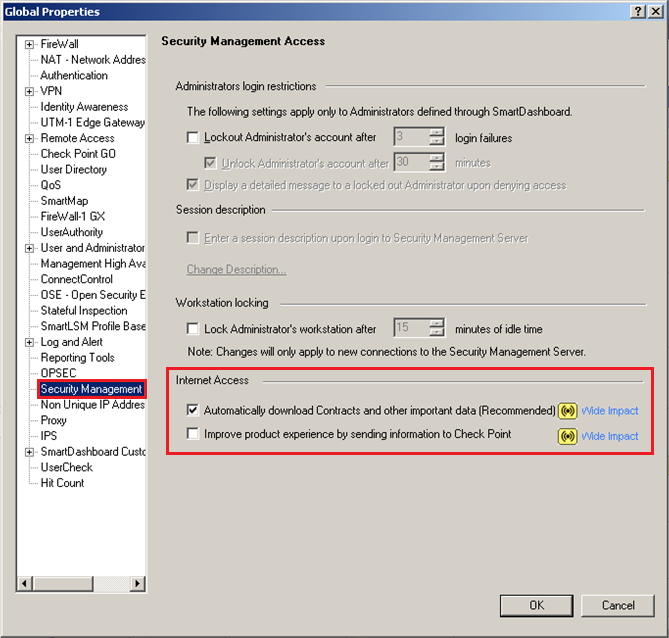](https://sc1.checkpoint.com/sc/SolutionsStatics/sk111080/R7X_Global_Properties.png "Click the image to see it in full size in a new tab/window") | [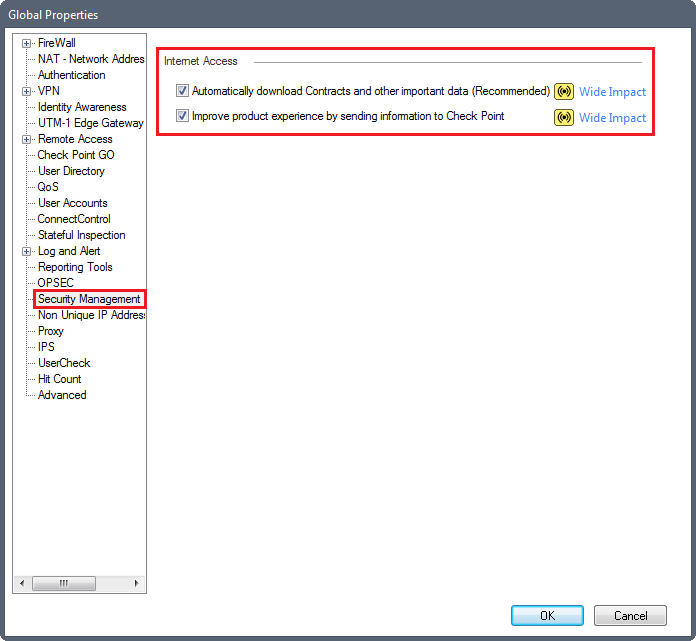](https://sc1.checkpoint.com/sc/SolutionsStatics/sk111080/R80_Global_Properties.png "Click the image to see it in full size in a new tab/window") |
4. Click **OK** to close the **Global Properties** window.
5. Install Database on all managed objects:
|-----------------------------------------------------------------------------------------------------------------|--------------------------------------------------------------------------------------------------------------------------------------------|
| In SmartDashboard R77.30 and lower: | In SmartConsole R80 and higher: |
| 1. At the top, click the **Policy** menu 2. Click **Install Database...** 3. Select all objects 4. Click **OK** | 1. In the top left corner, click the **Application menu** icon 2. Click **Install database...** 3. Select all objects 4. Click **Install** |
6. Install Policy on all managed Security Gateway / Cluster objects:
|------------------------------------------------------------------------------------------------------------------------------------------------------------------------------|----------------------------------------------------------------------------------------------------------------------------------------------------------------------------------------------------------|
| In SmartDashboard R77.30 and lower: | In SmartConsole R80 and higher: |
| 1. At the top, click the **Policy** menu 2. Click **Install...** 3. Select all objects 4. Click **OK** 5. Repeat for *each* policy (in the **File** menu, click **Open...**) | 1. In the top left corner, click the **Application menu** icon 2. Click **Install policy** 3. Select the applicable policy 4. Select the Policy Targets 5. Click **Install** 6. Repeat for *each* policy |
{#How consent flags are modified - Edit the consent flags in the Objects Database using SmartConsole / SmartDashboard}
{#How consent flags are modified - Edit the consent flags in the Objects Database using SmartConsole / SmartDashboard}
* Show / Hide instructions how to edit the consent flags in the Objects Database (in the `$FWDIR/conf/objects_5_0.C` file) using Database Tool (GuiDBedit Tool) / dbedit tool
To edit the consent flags in the Objects Database (in the `$FWDIR/conf/objects_5_0.C` file), you can also use either [Database Tool (GuiDBedit Tool)](https://support.checkpoint.com/results/sk/sk13009), or [dbedit tool](https://support.checkpoint.com/results/sk/skI3301).
* Show / Hide instructions for *Database Tool (GuiDBedit Tool)*
1. Connect with SmartConsole (R80 and higher) / SmartDashboard (R77.30 and lower) to the Security Management Server / Domain Management Server.
2. Go to the ***File*** menu \> click ***Database Revision Control...*** \> create a revision snapshot.
Note: Database Revision Control is not supported for VSX objects ([sk65420](https://support.checkpoint.com/results/sk/sk65420)).
In addition, refer to:
* [sk108902 - Best Practices - Backup on Gaia OS](https://support.checkpoint.com/results/sk/sk108902)
* [sk91400 - System Backup and Restore feature in Gaia](https://support.checkpoint.com/results/sk/sk91400)
* [sk54100 - How to back up your system on SecurePlatform](https://support.checkpoint.com/results/sk/sk54100)
* [sk98153 - How to take a snapshot of Endpoint Security Management Server database](https://support.checkpoint.com/results/sk/sk98153)
3. Close all SmartConsole windows (SmartDashboard, SmartView Tracker, SmartView Monitor, etc.).
4. Connect with [Database Tool (GuiDBedit Tool)](https://support.checkpoint.com/results/sk/sk13009) to the Security Management Server / Domain Management Server.
5. In the lop left pane, go to ***Table*** \> ***Global Properties*** \> ***properties***.
6. To modify the "`Allow Download`" consent flag:
1. In the top right pane, click ***firewall_properties***.
2. Press CTRL+F (or go to the ***Search*** menu \> ***Find*** ) \> paste ***allow_download_content*** \> click ***Find Next***.
3. In the bottom pane, right-click the ***allow_download_content*** \> select ***Edit...*** \> select the desired value \> click ***OK***:
* ***false*** = disabled
* ***true*** = enabled
7. To modify the "`Allow Upload`" consent flag:
1. In the top right pane, click ***firewall_properties***.
2. Press CTRL+F (or go to the ***Search*** menu \> ***Find*** ) \> paste ***allow_upload_content*** \> click ***Find Next***.
3. In the bottom pane, right-click the ***allow_upload_content*** \> select ***Edit...*** \> select the desired value \> click ***OK***:
* ***false*** = disabled
* ***true*** = enabled
8. Save the changes: go to the ***File*** menu \> click ***Save All***.
9. Close the Database Tool (GuiDBedit Tool).
10. Connect with SmartConsole (R80 and higher) / SmartDashboard (R77.30 and lower) to the Security Management Server / Domain Management Server.
11. Install the policy onto the relevant Security Gateway / Cluster objects.
* Show / Hide instructions for the *dbedit* tool
1. Back up the Security Management Server / applicable Domain Management Server.
Refer to:
* [sk108902 - Best Practices - Backup on Gaia OS](https://support.checkpoint.com/results/sk/sk108902).
* [sk91400 - System Backup and Restore feature in Gaia](https://support.checkpoint.com/results/sk/sk91400).
* [sk98153 - How to take a snapshot of Endpoint Security Management Server database](https://support.checkpoint.com/results/sk/sk98153).
2. Close all SmartConsole windows (SmartDashboard, SmartView Tracker, SmartView Monitor, etc.).
3. Connect to command line on the Security Management Server / Multi-Domain Security Management Server.
4. Log in to Expert mode.
5. On a Multi-Domain Security Management Server, switch to the context of Domain Management Server:
`[Expert@HostName:0]# mdsenv `
6. Connect with [dbedit tool](https://support.checkpoint.com/results/sk/skI3301) to the Security Management Server / Domain Management Server:
`[Expert@HostName:0]# dbedit`
7. To modify the "`Allow Download`" consent flag:
1. Check the current value (run this command and find the "`allow_download_content`" field closer to the top):
`dbedit> print properties firewall_properties`
2. Set the desired value:
* To enable:
`dbedit> modify properties firewall_properties allow_download_content true`
* To disable:
`dbedit> modify properties firewall_properties allow_download_content false`
3. Check that the value was changed (run this command and find the "`allow_download_content`" field closer to the top):
`dbedit> print properties firewall_properties`
4. Save the changes and exit:
`dbedit> quit -update_all`
8. To modify the "`Allow Upload`" consent flag:
1. Check the current value (run this command and find the "`allow_upload_content`" field closer to the top):
`dbedit> print properties firewall_properties`
2. Set the desired value:
* To enable:
`dbedit> modify properties firewall_properties allow_upload_content true`
* To disable:
`dbedit> modify properties firewall_properties allow_upload_content false`
3. Check that the value was changed (run this command and find the "`allow_upload_content`" field closer to the top):
`dbedit> print properties firewall_properties`
4. Save the changes and exit:
`dbedit> quit -update_all`
9. Connect with SmartConsole (R80 and higher) / SmartDashboard (R77.30 and lower) to the Security Management Server / Domain Management Server.
10. Install Database on all managed objects.
11. Install Policy on all managed Security Gateway / Cluster objects.
* Show / Hide instructions for *Gaia Portal* or *Gaia Clish*
In R80.40 and higher versions, you can control the "Upload Core Dumps" consent flag:
* In Gaia Portal:
1. In the navigation tree, click **System Management** \> **Core Dumps**.
2. Select or clear the option "**Send crash data which might contain personal data to Check Point**"
3. Click **Apply**.
* In Gaia Clish:
1. Run:
`set core-dump send_crash_data {on | off}`
2. Run:
`save config`
{#How consent flags are modified - Edit the consent flags in the Objects Database using GuiDBedit Tool / dbedit tool}
{#How consent flags are modified - Edit the consent flags in the Objects Database using GuiDBedit Tool / dbedit tool}
### (5) Related solutions {#Related solutions}
* [sk94508 - Recommended Internet Access Settings for Automatic Downloads](https://support.checkpoint.com/results/sk/sk94508)
* [sk94509 - Recommended Internet Access Settings for Uploading Data](https://support.checkpoint.com/results/sk/sk94509)
* [sk106251 - How to configure Security Gateway to accept its traffic only to Check Point online services](https://support.checkpoint.com/results/sk/sk106251)
* [sk92739 - The CPinfo utility](https://support.checkpoint.com/results/sk/sk92739)
### (6) Revision History {#Revision History}
Show / Hide the revision history
|--------------|----------------------------------------------------------------------------------------------------------------------------------------------------------------------------------------------------------------------------------------------------------------------|
| Date | Description |
| 04 Sep 2025 | Improved formatting. On a Multi-Domain Security Management Server / Multi-Domain Log Server, you must configure the applicable value for the consent flags also in the Global Domain (in addition to the applicable Domain Management Servers / Domain Log Servers). |
| 15 Jan 2022 | Improved formatting. |
| 06 Dec 2022 | Added the information about the "Upload Core Dumps" consent flag (available in R80.40 and higher versions). |
| 27 Aug 2017 | "Allow Upload" / "Allow Download" consent flags are stored in the `$CPDIR/tmp/umis_objects.C` file from *Take_16* of [R76SP.50 Jumbo Hotfix](https://support.checkpoint.com/results/sk/sk117633). |
| 18 July 2017 | "Allow Upload" / "Allow Download" consent flags are stored in the `$CPDIR/tmp/umis_objects.C` file from *Take_84* of [R76SP.30 Jumbo Hotfix](https://support.checkpoint.com/results/sk/sk108901). |
| 13 July 2017 | Added R76SP.X in relevant places. |
| 31 Aug 2016 | Major updates in the technical explanations. |
| 16 May 2016 | First release of this article. |
---
# Agent Instructions
This content is from the Check Point Support Center (https://support.checkpoint.com), the official knowledge base for Check Point cybersecurity products.
## Navigating This Knowledge Base
- **Complete index**: [llms.txt](https://support.checkpoint.com/llms.txt)
- **All SK articles**: [SecureKnowledge Sitemap](https://support.checkpoint.com/sitemaps/secureknowledge-sitemap-index.xml)
- **SK article URL pattern**: `https://support.checkpoint.com/results/sk/{skId}`
- **Markdown responses**: AI bot User-Agents automatically receive `text/markdown` content