> Source: [sk110883](https://support.checkpoint.com/results/sk/sk110883)
# sk110883 - No access to specific HTTPS sites that use ECDHE ciphers when HTTPS Inspection is enabled
| Property | Value |
|----------|-------|
| Solution ID | sk110883 |
| Date Created | 2016-04-07 |
| Last Modified | 2022-08-04 |
| Technical Level | General |
| Products | Security Gateway |
| Versions | R82.10, R82, R81.20 |
| OS | Gaia |
## Symptoms
- * There is no access to some HTTPS websites that use ECDHE cipher suites after you enable ECDHE on the Security Gateway based on the instructions in [sk104717](http://supportcontent.checkpoint.com/solutions?id=sk104717#Perfect Forward Secrecy (PFS)) - section "Perfect Forward Secrecy (PFS)".
* The affected websites use ECDH curve P-384.
See [Qualys SSL Labs "SSL Server Test"](https://www.ssllabs.com/ssltest/index.html):

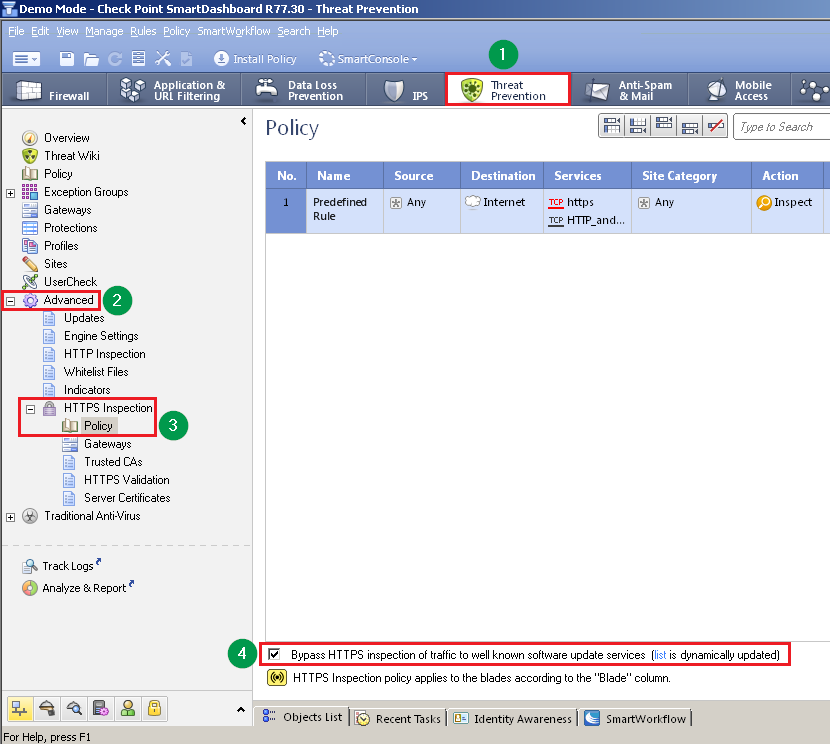
* Hosts cannot download Windows Updates through the Security Gateway with enabled HTTPS Inspection, although the option "`Bypass HTTPS inspection of traffic to well known software update services`" is enabled:
To resolve this issue, do these steps:
In SmartDashboard, go to the "Application \& URL Filtering" / "Data Loss Prevention" / "IPS" / "Threat Prevention" tab - expand "Advanced" - expand "HTTPS Inspection" - click on "Policy" - check the box at the bottom of this page.
*Example*:
[](https://sc1.checkpoint.com/sc/SolutionsStatics/sk110883/Bypass_HTTPS_inspection_of_traffic_to_well_known_software_update_services.png "Click the image to see it in full size in a new tab/window")
Enabling the HTTPS Inspection Bypass Mechanism resolves the issue (Hosts can download Windows Updates).
* Debug of the WSTLSD daemon (as per sk105559) on the Security Gateway shows that the HTTPS site sends a TLS handshake failure
```
;21Dec2017 13:27:10.175176;[cpu_0];[fw4_1];fwtls_hs_list_handler: called.;
;21Dec2017 13:27:10.175177;[cpu_0];[fw4_1];fwtls_pending_data_handler: called.;
;21Dec2017 13:27:10.175178;[cpu_0];[fw4_1];fwtls_rx_handler: called.;
;21Dec2017 13:27:10.175179;[cpu_0];[fw4_1];fwtls_rx_handler: called. 7 bytes to read;
;21Dec2017 13:27:10.175180;[cpu_0];[fw4_1];fwtls_rx_handler: TLS header:;
;21Dec2017 13:27:10.175185;[cpu_0];[fw4_1]; 0: <15 03 03 00 02> .....;
;21Dec2017 13:27:10.175186;[cpu_0];[fw4_1];;
;21Dec2017 13:27:10.175188;[cpu_0];[fw4_1];fwtls_rx_handler: handling CPTLS_alert record, length 2;
;21Dec2017 13:27:10.175189;[cpu_0];[fw4_1];fwtls_rx_handler: data before decryption:;
;21Dec2017 13:27:10.175192;[cpu_0];[fw4_1]; 0: <02 28> .(;
;21Dec2017 13:27:10.175192;[cpu_0];[fw4_1];;
;21Dec2017 13:27:10.175194;[cpu_0];[fw4_1];fwtls_rx_handler: fatal alert, desc = CPTLS_handshake_failure;
;21Dec2017 13:27:10.175195;[cpu_0];[fw4_1];cptls_send_trap: sending msg to daemon:;
;21Dec2017 13:27:10.175196;[cpu_0];[fw4_1];conn id : 0x000000000000008e;
;21Dec2017 13:27:10.175197;[cpu_0];[fw4_1];msg : 1 HS_EVENT_HANDLER;
;21Dec2017 13:27:10.175197;[cpu_0];[fw4_1];event type: CPTLS_HS_ALERT;
;21Dec2017 13:27:10.175198;[cpu_0];[fw4_1];buflen : 2;
;21Dec2017 13:27:10.175201;[cpu_0];[fw4_1];fwtls_rx_handler: fatal alert, desc = CPTLS_handshake_failure;
```
## Cause
The ECDHE cipher suite and other ciphers use Elliptic Curve Cryptography (ECC), an approach to public-key cryptography based on the algebraic structure of elliptic curves over finite fields.
By default, HTTPS Inspection in R77.30 supports up to curve P256.
## Solution
Note about SMB Appliances:
Support for P-384 was integrated into R77.20.80 (and higher).
*** ** * ** ***
This problem was fixed. The fix is included in:
* **[Check Point R80.20](https://supportcenter.checkpoint.com/supportcenter/portal?eventSubmit_doGoviewsolutiondetails=&solutionid=sk122485)**
Check Point recommends to always [upgrade to the most recent version](https://supportcenter.checkpoint.com/supportcenter/portal?eventSubmit_doShowproductpage&productTab=overview&product=435).
Starting from R80.30 and higher, you can configure the cipher to be used by the Security Gateway through the cipher_util on the command line. For details, see [sk126613](https://supportcenter.checkpoint.com/supportcenter/portal?eventSubmit_doGoviewsolutiondetails=&solutionid=sk126613).
*** ** * ** ***
### Instructions for R80.10
Show / Hide this section
> **Note:** In a cluster environment, you must do this procedure on ***all*** members of the cluster.
>
> 1. Configure the Security Gateway / *each* cluster member to prefer / propose the applicable cipher suites as described in [sk104717 - HTTPS Inspection Enhancements](http://supportcontent.checkpoint.com/solutions?id=sk104717#Perfect Forward Secrecy (PFS)) - section "*Perfect Forward Secrecy (PFS)*":
>
> * To prefer / propose ECDHE cipher suites:
>
> 1. `[Expert@HostName]# ckp_regedit -a SOFTWARE//CheckPoint//FW1 CPTLS_ACCEPT_ECDHE 1`
> 2. `[Expert@HostName]# ckp_regedit -a SOFTWARE//CheckPoint//FW1 CPTLS_PROPOSE_ECDHE 1`
> * To prefer / propose ECDSA cipher suites:
>
> 1. `[Expert@HostName]# ckp_regedit -a SOFTWARE//CheckPoint//FW1 CPTLS_ACCEPT_ECDSA 1`
> 2. `[Expert@HostName]# ckp_regedit -a SOFTWARE//CheckPoint//FW1 CPTLS_PROPOSE_ECDSA 1`
> 2. Enable support for the P384 curve on the Security Gateway / *each* cluster member:
>
> `[Expert@HostName:0]# ckp_regedit -a SOFTWARE//CheckPoint//FW1 CPTLS_EC_P384 1`
> 3. Stop and start Check Point services on the Security Gateway / *each* cluster member:
>
> **Note**: In a cluster environment, this might cause a fail-over.
>
> `[Expert@HostName:0]# cpstop ; cpstart`
> 4. Consider enabling the Improved HTTPS Inspection Bypass feature (Probe Bypass): set the value of the kernel parameter `enhanced_ssl_inspection` to 1 as described in the [sk104717 - HTTPS Inspection Enhancements](https://supportcenter.checkpoint.com/supportcenter/portal?eventSubmit_doGoviewsolutiondetails=&solutionid=sk104717#Improvements in HTTPS Inspection Bypass mechanism) - section "*Improvements in HTTPS Inspection Bypass mechanism - Probe Bypass*".
### Instructions for R77.30
Show / Hide this section
> 1. [Contact Check Point Support](http://www.checkpoint.com/services/contact/index.html) to get a Hotfix that adds support for the ECDH p-384 elliptic curve.
>
> This fix is already included in (refer to the "Hotfix configuration instructions" below):
> * [Jumbo Hotfix Accumulator for R77.30](https://supportcenter.checkpoint.com/supportcenter/portal?eventSubmit_doGoviewsolutiondetails=&solutionid=sk106162) - since *Take_165*
>
> For **other R77.20 / R77.30 deployments** , a Support Engineer will make sure the Hotfix is compatible with your environment before providing the Hotfix.
> For faster resolution and verification please collect [CPinfo](https://supportcenter.checkpoint.com/supportcenter/portal?eventSubmit_doGoviewsolutiondetails=&solutionid=sk92739) files from the Security Management and Security Gateways involved in the case.
>
> **Hotfix installation instructions:**
> > **Note:** In cluster environment, this procedure must be performed on *all* members of the cluster.
> > * Using CPUSE on Gaia OS:
> >
> > Refer to [sk92449: CPUSE - Gaia Software Updates (including Gaia Software Updates Agent)](https://supportcenter.checkpoint.com/supportcenter/portal?eventSubmit_doGoviewsolutiondetails=&solutionid=sk92449#How to work with CPUSE):
> > * Section "[(4-A-c)](https://supportcenter.checkpoint.com/supportcenter/portal?eventSubmit_doGoviewsolutiondetails=&solutionid=sk92449#How to work with CPUSE - How to download and import a CPUSE package - Import instructions for Offline procedure - Gaia Portal)" / "[(4-A-d)](https://supportcenter.checkpoint.com/supportcenter/portal?eventSubmit_doGoviewsolutiondetails=&solutionid=sk92449#How to work with CPUSE - How to download and import a CPUSE package - Import instructions for Offline procedure - Gaia Clish)" - refer to import instructions for *Offline procedure*
> > * Section "[(4-B-a)](https://supportcenter.checkpoint.com/supportcenter/portal?eventSubmit_doGoviewsolutiondetails=&solutionid=sk92449#How to work with CPUSE - How to install a CPUSE package - Installing a Hotfix package / Minor Version package)" - refer to installation instructions for *Hotfixes*
> >
> > **Note:** Machine will be rebooted automatically.
> > * Using Legacy CLI on Gaia/SecurePlatform/IPSO OS:
> >
> > 1. Transfer the hotfix package to the machine (into some directory, e.g., */some_path_to_fix/*).
> >
> > 2. Unpack and install the hotfix package:
> >
> > `[Expert@HostName:0]# cd /some_path_to_fix/`
> > `[Expert@HostName:0]# tar -zxvf fw1_wrapper_.tgz`
> > `[Expert@HostName:0]# ./fw1_wrapper_`
> > **Note:** The script will stop all of Check Point services (*cpstop*) - read the output on the screen.
> > 3. Reboot the machine.
>
> **Hotfix configuration instructions:**
> > 1. Connect to the command line.
> >
> > 2. Log in to the Expert mode.
> >
> > 3. Enable the support for the P384 curve on Security Gateway / *each* cluster member:
> >
> > *[Expert@HostName:0]# ckp_regedit -a SOFTWARE//CheckPoint//FW1 CPTLS_EC_P384 1*
> > 4. To disable support for the P384 curve on the Security Gateway / each cluster member:
> >
> > `[Expert@HostName:0]# ckp_regedit -a SOFTWARE//CheckPoint//FW1 CPTLS_EC_P384 0`
> 2. Configure the Security Gateway / *each* cluster member to prefer / propose the applicable cipher suites as described in [sk104717 - HTTPS Inspection Enhancements](http://supportcontent.checkpoint.com/solutions?id=sk104717#Perfect Forward Secrecy (PFS)) - section "*Perfect Forward Secrecy (PFS)*":
>
> * To prefer / propose ECDHE cipher suites:
>
> 1. `[Expert@HostName]# ckp_regedit -a SOFTWARE//CheckPoint//FW1 CPTLS_ACCEPT_ECDHE 1`
> 2. `[Expert@HostName]# ckp_regedit -a SOFTWARE//CheckPoint//FW1 CPTLS_PROPOSE_ECDHE 1`
> * To prefer / propose ECDSA cipher suites:
>
> 1. `[Expert@HostName]# ckp_regedit -a SOFTWARE//CheckPoint//FW1 CPTLS_ACCEPT_ECDSA 1`
> 2. `[Expert@HostName]# ckp_regedit -a SOFTWARE//CheckPoint//FW1 CPTLS_PROPOSE_ECDSA 1`
> 3. Stop and strat Check Point services on the Security Gateway / *each* cluster member:
>
> **Note**: In a cluster environment, this might cause a fail-over.
>
> `[Expert@HostName:0]# cpstop ; cpstart`
> 4. Consider enabling the Improved HTTPS Inspection Bypass feature (Probe Bypass): set the value of the kernel parameter `enhanced_ssl_inspection `to 1 as described in the [sk104717 - HTTPS Inspection Enhancements](https://supportcenter.checkpoint.com/supportcenter/portal?eventSubmit_doGoviewsolutiondetails=&solutionid=sk104717#Improvements in HTTPS Inspection Bypass mechanism) - section "*Improvements in HTTPS Inspection Bypass mechanism - Probe Bypass*".
### Instructions for R76SP.50
Show / Hide this section
> In addition to doing the above, you must follow the steps in the articles below. The two articles contain **important security enhancements** that prevent the Security Gateway from dropping to a lower cipher:
>
> *
> * [sk113114: Check Point response to CVE-2016-2183 (Sweet32)](https://supportcenter.checkpoint.com/supportcenter/portal?eventSubmit_doGoviewsolutiondetails=&solutionid=sk113114)
> * [sk104095: RC4 cipher is allowed for Inbound HTTPS Inspection](https://supportcenter.checkpoint.com/supportcenter/portal?eventSubmit_doGoviewsolutiondetails=&solutionid=sk104095)
*** ** * ** ***
### Important Notes
These cipher suites under ECDHE curve P384 are currently supported:
* TLS_ECDHE_RSA_WITH_AES_128_GCM_SHA256 (0xc02f)
* TLS_ECDHE_RSA_WITH_AES_256_CBC_SHA (0xc014)
* TLS_ECDHE_RSA_WITH_AES_128_CBC_SHA (0xc013)
* For other supported cipher suites, see [sk104562 - Supported cipher suites for HTTPS Inspection](https://supportcenter.checkpoint.com/supportcenter/portal?eventSubmit_doGoviewsolutiondetails=&solutionid=sk104562).
**Probing Feature:**
* In R80.10, before Jumbo Hotfix Accumulator for R80.10 Take 189, the probing feature is set, by default, to Fail Open.
* From Take 189, the default behavior is Fail Close.
* To return to the behavior before Take 189, set `bypass_on_enhanced_ssl_inspection 1`
**To set the default to Fail Open:**
1. Run: `fw ctl set int bypass_on_enhanced_ssl_inspection 1`
2. In the `$FWDIR/modules/fwkern.conf` file, add this line:
`bypass_on_enhanced_ssl_inspection=1`
**The probing feature may fail in these scenarios (and is therefor not recommended):**
* Server requires an SNI extension in the SSL "Client hello" packet.
* Missing cipher - The Security Gateway does not support any of the server allowed ciphers.
* The server presents an incorrect certificate when SNI is not provided.
**To disable probing (Recommended):**
1. Run: `fw ctl set int enhanced_ssl_inspection 0`
2. In the `$FWDIR/modules/fwkern.conf` file, add this line:
`enhanced_ssl_inspection=0`
### Related Solutions
* [sk104717 - HTTPS Inspection Enhancements](https://supportcenter.checkpoint.com/supportcenter/portal?eventSubmit_doGoviewsolutiondetails=&solutionid=sk104717)
* [sk112954 - Some HTTPS sites do not load when HTTPS Inspection is enabled, if TLS 1.2 with ECDHE cipher is used](https://supportcenter.checkpoint.com/supportcenter/portal?eventSubmit_doGoviewsolutiondetails=&solutionid=sk112954)
* [sk112672 - Cannot open some HTTPS web sites in Chrome browser when HTTPS Inspection is enabled after installing Take 172, Take 174, or Take 178 of R77.30 Jumbo Hotfix Accumulator](https://supportcenter.checkpoint.com/supportcenter/portal?eventSubmit_doGoviewsolutiondetails=&solutionid=sk112672)
* [sk96125 - Windows Update fails through Security Gateway with enabled HTTPS Inspection](https://supportcenter.checkpoint.com/supportcenter/portal?eventSubmit_doGoviewsolutiondetails=&solutionid=sk96125)
---
# Agent Instructions
This content is from the Check Point Support Center (https://support.checkpoint.com), the official knowledge base for Check Point cybersecurity products.
## Navigating This Knowledge Base
- **Complete index**: [llms.txt](https://support.checkpoint.com/llms.txt)
- **All SK articles**: [SecureKnowledge Sitemap](https://support.checkpoint.com/sitemaps/secureknowledge-sitemap-index.xml)
- **SK article URL pattern**: `https://support.checkpoint.com/results/sk/{skId}`
- **Markdown responses**: AI bot User-Agents automatically receive `text/markdown` content