> Source: [sk108517](https://support.checkpoint.com/results/sk/sk108517)
# sk108517 - "Hardware Health" page in Gaia Portal shows the Value "Invalid" for the Sensor "BIOS"
| Property | Value |
|----------|-------|
| Solution ID | sk108517 |
| Date Created | 2015-11-03 |
| Last Modified | 2025-07-01 |
| Technical Level | General |
| Products | Security Gateway |
| Versions | R82, R81.20, R81.10 (EOS), R81 (EOS) |
| OS | Gaia |
| Platform | 15000, 3000, 5000, 7000, 28000, 9000, LightSpeed QLS, LightSpeed MLS, 16000, 26000, 19000, 29000, 6000 |
## Symptoms
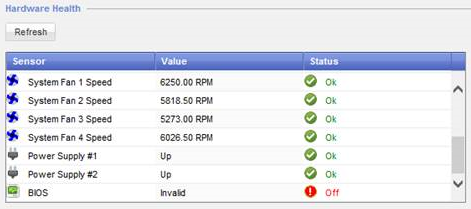
- * Gaia Portal \> "**Maintenance** " section \> "**Hardware Health** " page shows for the Sensor "**BIOS**":
* Value "`Invalid`"
* Status "`Off`"
Example:
* Query for SNMP Request or SNMP Trap for the OID .1.3.6.1.4.1.2620.1.3000.0.12.0 returns:
`the BIOS has failed, using recovery BIOS`
(This OID can not be queried directl using 'snmpwalk' only by traffic capture or by a 'trap receiver' server)
* The output of the "`dmidecode -t 11`" command (in the Expert mode) shows that the appliance uses the Secondary BIOS or the Recovery BIOS.
Example:
```
Handle 0x0022, DMI type 11, 5 bytes.
OEM Strings
String 1: Secondary BIOS
```
or:
```
Handle 0x0022, DMI type 11, 5 bytes.
OEM Strings
String 1: Recovery BIOS
```
## Cause
The primary BIOS has failed, and the appliance loaded from the secondary BIOS.
## Solution
### For 15000, 16000, 19000, 23000, 26000, 28000, 29000 MLS800, QLS models, Smart-1 7000 models, Smart-1 700 models
Show / Hide this section
> Only if ALL the above symptoms match, [contact Check Point Support](http://www.checkpoint.com/services/contact/index.html) to request the RMA of the problematic appliance.
### For 3000, 5000, 6000, 7000, 9000, Smart-1 600-S, MLS250, TE250XN models
Show / Hide this section
**Important** - The appliance is still fully operational with the Secondary/Recovery BIOS, you can continue working in Secondary/Recovery BIOS normally.
In case you would like to return the appliance to Primary BIOS and ALL the above symptoms match, do these steps (physical access is required):
1. Shut down the appliance from Gaia Portal or Gaia Clish (see the [*Gaia Administration Guide*](https://support.checkpoint.com/product/73) for your version).
2. Disconnect the power cables from the appliance (see the *Getting Started Guide* for your model in [sk96246](https://supportcenter.checkpoint.com/supportcenter/portal?eventSubmit_doGoviewsolutiondetails=&solutionid=sk96246)).
3. Wait for 2-3 minutes.
4. Connect the power cables to the appliance.
5. Power on the appliance.
6. Examine how the appliance is booting:
* If the appliance is booting with the Primary BIOS, then the appliance is fully functional. No other steps are required.
* If the appliance is still booting with the Secondary/Recovery BIOS, then [contact Check Point Support](http://www.checkpoint.com/services/contact/index.html) to request the RMA of the problematic appliance.
The above actions will not prevent it from going to Secondary/Recovery BIOS in the future as it's part of the Dual BIOS mechanism.
---
# Agent Instructions
This content is from the Check Point Support Center (https://support.checkpoint.com), the official knowledge base for Check Point cybersecurity products.
## Navigating This Knowledge Base
- **Complete index**: [llms.txt](https://support.checkpoint.com/llms.txt)
- **All SK articles**: [SecureKnowledge Sitemap](https://support.checkpoint.com/sitemaps/secureknowledge-sitemap-index.xml)
- **SK article URL pattern**: `https://support.checkpoint.com/results/sk/{skId}`
- **Markdown responses**: AI bot User-Agents automatically receive `text/markdown` content