> Source: [sk106994](https://support.checkpoint.com/results/sk/sk106994)
# sk106994 - R77.30 - Improved overlapping rules verification and H.323 protocol stability (Hotfix # 4)
| Property | Value |
|----------|-------|
| Solution ID | sk106994 |
| Date Created | 2015-07-26 |
| Last Modified | 2017-06-09 |
| Technical Level | General |
| Products | Security Gateway, Security Management Server, Multi-Domain Security Management Server |
| Versions | R82.10, R82, R81.20, R82.20 |
## Solution
**Table of Contents:**
* Introduction
* Installation instructions
* Uninstall instructions
* Related solutions
Click Here to Show Entire Article
This hotfix is accumulative and contains the previous R77.30 Recommended Hotfixes - for more details, refer to [sk106389 - R77.30 Recommended Hotfixes](https://supportcenter.checkpoint.com/supportcenter/portal?eventSubmit_doGoviewsolutiondetails=&solutionid=sk106389).
**Note:** This hotfix is fully integrated into **[Check Point R80.10](https://supportcenter.checkpoint.com/supportcenter/portal?eventSubmit_doGoviewsolutiondetails=&solutionid=sk111841)**.
Introduction {#Introduction}
----------------------------
This article provides a unified hotfix package for the following issues:
* Policy Verification fails to find overlapping rules ([sk106854](https://supportcenter.checkpoint.com/supportcenter/portal?eventSubmit_doGoviewsolutiondetails=&solutionid=sk106854)).
* Policy Verification fails with "`Diameter rule service's check: Failed to flatten services list`" ([sk107322](https://supportcenter.checkpoint.com/supportcenter/portal?eventSubmit_doGoviewsolutiondetails=&solutionid=sk107322)).
* Improved security of H.323 protocol inspection ([sk107184](https://supportcenter.checkpoint.com/supportcenter/portal?eventSubmit_doGoviewsolutiondetails=&solutionid=sk107184)).
* Memory leak caused by identity sharing when used by Application Control rules ([sk106420](https://supportcenter.checkpoint.com/supportcenter/portal?eventSubmit_doGoviewsolutiondetails=&solutionid=sk106420)).
This hotfix package should be installed on all machines in the environment:
* Security Gateway
* Cluster
* VSX
* Security Management Server
* Multi-Domain Security Management Server
* Standalone machine (Gateway + Management)
Installation instructions {#Installation instructions}
------------------------------------------------------
**Important Note:** Effective **Aug 19, 2015** , all hotfix packages have been replaced with updated packages resolving [sk107322 - "Policy Verification fails with "Diameter rule service's check: Failed to flatten services list"](https://supportcenter.checkpoint.com/supportcenter/portal?eventSubmit_doGoviewsolutiondetails=&solutionid=sk107322).
* **Instructions for Gaia OS using CPUSE (Check Point Update Service Engine)**
* **Online installation**
1. Connect to the Gaia Portal on your Check Point machine and navigate to ***Upgrades (CPUSE)*** pane - click on ***Status and Actions***.
2. Select the hotfix package ***R77.30 Hotfix for sk106994 (Improved overlapping rules verification and H.323 protocol stability)*** - click on ***Install Update*** button on the toolbar.
3. Reboot is required.
* **Offline installation**
|--------------|---------------------------------------------------------------------------------------------------------------------------------------------------------------|
| OS | R77.30 |
| Gaia - CPUSE | [](http://supportcontent.checkpoint.com/file_download?id=43608) |
1. Download the Gaia CPUSE Offline package from the table above.
2. Connect to the Gaia Portal on your Check Point machine and navigate to ***Upgrades (CPUSE)*** pane (in Gaia R77.20 and above) / to ***Software Updates*** pane (in Gaia R77.10 and lower) - click on ***Status and Actions***.
3. On the toolbar, click on the ***More*** button - select ***Import Package*** - browse for the CPUSE Offline package (TGZ file) - click on ***Upload***.
4. Select the hotfix package ***R77.30 Hotfix for sk106994 (Improved overlapping rules verification and H.323 protocol stability)*** - click on ***Install Update*** button on the toolbar.
5. Reboot is required.
**Notes:**
* For detailed installation instructions, refer to [sk92449: CPUSE - Gaia Software Updates (including Gaia Software Updates Agent)](https://supportcenter.checkpoint.com/supportcenter/portal?eventSubmit_doGoviewsolutiondetails=&solutionid=sk92449#How to work with CPUSE) - section "*(4) How to work with CPUSE*".
* Make sure to take a snapshot of your Check Point machine before installing this hotfix.
* Hotfix has to be installed on **all Check Point machines running on Gaia OS**.
* In cluster environment, this procedure must be performed on *all* members of the cluster.
* In Management HA environment, this procedure must be performed on *both* Management Servers.
* **Instructions for Gaia OS (manual installation in Command Line)**
[Click here](https://supportcenter.checkpoint.com//supportcenter/portal?eventSubmit_doGoviewsolutiondetails=&solutionid=sk106994#CLI_anchor_for_Mobile_App_Gaia) to see the available downloads.
>
> |------------|-----------------------------------------------------------------------------------------------------------------------------------------------------|
> | OS | R77.30 |
> | Gaia - CLI | [](http://supportcontent.checkpoint.com/file_download?id=43607) |
**Procedure:**
1. Download the relevant hotfix package from the table above, transfer the hotfix package to the machine and unpack it:
**`[Expert@HostName]# tar -zxvf Check_Point_Hotfix_R77.30_Gaia_sk106994.tgz`**
2. Install the hotfix:
**`[Expert@HostName]# ./UnixInstallScript`**
Note: The script will stop all of Check Point services ('*cpstop*') - read the output on the screen.
3. Reboot is required.
**Notes:**
* Make sure to take a snapshot of your Check Point machine before installing this hotfix.
* Hotfix has to be installed on **all Check Point machines running on Gaia OS**.
* In cluster environment, this procedure must be performed on *all* members of the cluster.
* In Management HA environment, this procedure must be performed on *both* Management Servers.
{#CLI_anchor_for_Mobile_App_Gaia}
{#CLI_anchor_for_Mobile_App_Gaia}
* **Instructions for SecurePlatform OS and Linux OS**
[Click here](https://supportcenter.checkpoint.com//supportcenter/portal?eventSubmit_doGoviewsolutiondetails=&solutionid=sk106994#CLI_anchor_for_Mobile_App_SPLAT) to see the available downloads.
>
> |--------------------------------|-----------------------------------------------------------------------------------------------------------------------------------------------------------------------|
> | OS | R77.30 |
> | SecurePlatform and Linux - CLI | [](http://supportcontent.checkpoint.com/file_download?id=43611) |
**Procedure:**
1. Download the relevant hotfix package from the table above, transfer the hotfix package to the machine and unpack it:
**`[Expert@HostName]# tar -zxvf Check_Point_Hotfix_R77.30_Linux_sk106994.tgz`**
2. Install the hotfix:
**`[Expert@HostName]# ./UnixInstallScript`**
Note: The script will stop all of Check Point services ('*cpstop*') - read the output on the screen.
3. Reboot is required.
**Notes:**
* Make sure to take a snapshot of your Check Point machine before installing this hotfix (on SecurePlatform OS).
* Hotfix has to be installed on **all Check Point machines running on SecurePlatform OS / Linux OS**.
* In cluster environment, this procedure must be performed on *all* members of the cluster.
* In Management HA environment, this procedure must be performed on *both* Management Servers.
{#CLI_anchor_for_Mobile_App_SPLAT}
{#CLI_anchor_for_Mobile_App_SPLAT}
* **Instructions for IPSO OS**
[Click here](https://supportcenter.checkpoint.com//supportcenter/portal?eventSubmit_doGoviewsolutiondetails=&solutionid=sk106994#CLI_anchor_for_Mobile_App_IPSO) to see the available downloads.
>
> |------|-----------------------------------------------------------------------------------------------------------------------------------------------------|
> | OS | R77.30 |
> | IPSO | [](http://supportcontent.checkpoint.com/file_download?id=43612) |
**Procedure:**
1. Download the relevant hotfix package from the table above, transfer the hotfix package to the machine and unpack it:
**`[admin]# tar -zxvf Check_Point_Hotfix_R77.30_IPSO_sk106994.tgz`**
2. Install the hotfix:
**`[admin]# ./UnixInstallScript`**
Note: The script will stop all of Check Point services ('*cpstop*') - read the output on the screen.
3. Reboot is required.
Notes:
* Hotfix has to be installed on **all Check Point machines running on IPSO OS**.
* In cluster environment, this procedure must be performed on *all* members of the cluster.
* In Management HA environment, this procedure must be performed on *both* Management Servers.
{#CLI_anchor_for_Mobile_App_IPSO}
{#CLI_anchor_for_Mobile_App_IPSO}
* **Instructions for Windows OS**
[Click here](https://supportcenter.checkpoint.com//supportcenter/portal?eventSubmit_doGoviewsolutiondetails=&solutionid=sk106994#CLI_anchor_for_Mobile_App_Windows) to see the available downloads.
>
> |---------|--------------------------------------------------------------------------------------------------------------------------------------------------------|
> | OS | R77.30 |
> | Windows | [](http://supportcontent.checkpoint.com/file_download?id=43613) |
**Procedure:**
1. Download the relevant hotfix package from the table above, transfer the hotfix package to the machine and unpack it using an archive program (e.g., WinZIP, WinRAR, 7-zip, etc.).
2. Install the hotfix: Right-click on the ***Setup.exe*** - click on ***Run as administrator***
Note: The script will stop all of Check Point services ('*cpstop*') - read the output on the screen.
3. Reboot is required.
Notes:
* Hotfix has to be installed on **all Check Point machines running on Windows OS**.
* In cluster environment, this procedure must be performed on *all* members of the cluster.
* In Management HA environment, this procedure must be performed on *both* Management Servers.
{#CLI_anchor_for_Mobile_App_Windows}
{#CLI_anchor_for_Mobile_App_Windows}
Uninstall instructions {#Uninstall instructions}
------------------------------------------------
* **On Gaia OS using CPUSE (Check Point Update Service Engine)**
1. Connect to the Gaia Portal on your Check Point machine and navigate to ***Upgrades (CPUSE)*** pane - click on ***Status and Actions***.
2. Select ***Installed*** in the menu near the Help icon.
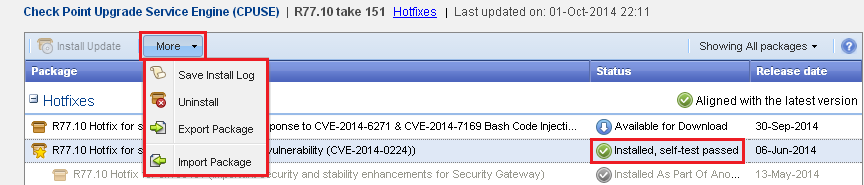
3. Select the hotfix package ***R77.30 Hotfix for sk106994 (Improved overlapping rules verification and H.323 protocol stability)*** - click on ***More*** button on the toolbar - click on ***Uninstall*** .
*Example* :
[](https://sc1.checkpoint.com/sc/SolutionsStatics/sk92449/sk92449_v705_More_button_for_Installed_package.png "Click the image to see it in full size in a new tab/window")
4. Reboot is required.
**Notes:**
* For detailed uninstall instructions, refer to [sk92449: CPUSE - Gaia Software Updates (including Gaia Software Updates Agent)](https://supportcenter.checkpoint.com/supportcenter/portal?eventSubmit_doGoviewsolutiondetails=&solutionid=sk92449#How to work with CPUSE) - section "*(4) How to work with CPUSE*".
* In cluster environment, this procedure must be performed on *all* members of the cluster.
* In Management HA environment, this procedure must be performed on *both* Management Servers.
* **On Gaia OS, SecurePlatform OS, Linux OS and IPSO OS (manual uninstall in Command Line)**
1. Download and unpack the hotfix package (refer to the "*Installation instructions* " *(manual installation in Command Line)* above).
2. Run the installation script with "-u" flag:
***# ./UnixInstallScript -u***
3. Reboot is required.
**Notes:**
* In cluster environment, this procedure must be performed on *all* members of the cluster.
* In Management HA environment, this procedure must be performed on *both* Management Servers.
* **On Windows OS**
1. Go to ***Control Panel*** :
* On Windows 2000 / 2003 - click on ***Add/Remove Programs***
* On Windows 2008 / Vista / 7 - click on ***Programs and Features***
2. Select the hotfix ***Check Point R77.30 Hotfix R77_30_HF4SW*** - click on ***Uninstall** button* .
**Note:** The script will stop all of Check Point services ('*cpstop*') - read the output on the screen.
3. Reboot is required.
Alternatively, run the installation program with '**-u**' flag:
1. Open the elevated Command Prompt:
Start - Programs - Accessories - right-click on 'Command Prompt' icon - select '`Run as administrator`'.
2. Navigate to the folder where you unpacked the hotfix package:
**`DISK:\> cd "path_to_unpacked_hotfix_package"`**
3. Run the installation program with '**-u** ' flag:
**`DISK:\path_to_unpacked_hotfix_package\> Setup.exe -u`**
4. Reboot is required.
**Notes:**
* In cluster environment, this procedure must be performed on *all* members of the cluster.
* In Management HA environment, this procedure must be performed on *both* Management Servers.
Related solutions {#Related solutions}
--------------------------------------
* [sk106389 - R77.30 Recommended Hotfixes](http://supportcontent.checkpoint.com/solutions?id=sk106389)
* [sk107322 - Policy Verification fails with "Diameter rule service's check: Failed to flatten services list"](https://supportcenter.checkpoint.com/supportcenter/portal?eventSubmit_doGoviewsolutiondetails=&solutionid=sk107322)
---
# Agent Instructions
This content is from the Check Point Support Center (https://support.checkpoint.com), the official knowledge base for Check Point cybersecurity products.
## Navigating This Knowledge Base
- **Complete index**: [llms.txt](https://support.checkpoint.com/llms.txt)
- **All SK articles**: [SecureKnowledge Sitemap](https://support.checkpoint.com/sitemaps/secureknowledge-sitemap-index.xml)
- **SK article URL pattern**: `https://support.checkpoint.com/results/sk/{skId}`
- **Markdown responses**: AI bot User-Agents automatically receive `text/markdown` content