> Source: [sk105412](https://support.checkpoint.com/results/sk/sk105412)
# sk105412 - R77.30 Add-On
| Property | Value |
|----------|-------|
| Solution ID | sk105412 |
| Date Created | 2015-03-26 |
| Last Modified | 2024-09-12 |
| Technical Level | General |
| Products | Security Gateway, Security Management Server, Multi-Domain Security Management Server |
| Versions | R82.10, R82, R81.20, R82.20 |
| OS | Windows, Linux, Gaia |
## Solution
**Table of Contents**
* R77.30 Add-On What's New
* R77.30 Add-On Downloads
* R77.30 Add-On Installation Instructions
* R77.30 Add-On Uninstall Instructions
* Revision History
Click Here to Show the Entire Article
The R77.30 Security Management Server and some Software Blades have new features that require the installation of the Add-on.
R77.30 Add-On What's New {#New}
-------------------------------
* New Software Blade: Threat Extraction - is a new Software Blade in the Threat Prevention family that pro-actively cleans potential threats from incoming documents.
* Application Control Software Blade: Detailed monitoring and enforcement of Modbus traffic.
* Mobile Access blade and Capsule enhancements: Introducing Session Management tool, SSO improvements, and Capsule Workspace Push Notification management from SmartDashboard (refer to [sk104542](https://support.checkpoint.com/results/sk/sk104542)).
* Manage 1100 / 1200R / 1400 Appliances running R77.20 (refer to [sk105379](https://support.checkpoint.com/results/sk/sk105379) and [sk111292](https://support.checkpoint.com/results/sk/sk111292)).
* Support for Carrier solutions (LTE suite): NAT64, GTP, SCTP, CGNAT and more.
* Compliance Blade enhancements (refer to [sk104541](https://support.checkpoint.com/results/sk/sk104541)).
* Configure R77.30 Security Gateway on Gaia OS to send FireWall logs directly to an external Syslog server (refer to [sk87560](https://support.checkpoint.com/results/sk/sk87560)).
R77.30 Add-On Downloads {#Downloads}
------------------------------------
Download the relevant package from the table below.
Use **[CPUSE](https://support.checkpoint.com/results/sk/sk92449)** in the Gaia Portal to quickly and easily update Check Point products.
|--------------------------------------|-----------------------------------------------------------------------------------------------------------------------------------------------------------------------|--------------------------------------------------------------------------------------------------------------------------------------------------------------------|---------------------------------------------------------------------------------------------------------------------------------------------------------|------------------------------------------------------------------------------------------------------------------------------------------------|-----------------------------------------------------------------------------------------------------------------------------------------------|--------------------------------------------------------------------------------------------------------------------------------------------------|
| Gaia CPUSE Online | Gaia CPUSE Offline | Gaia Legacy CLI | SecurePlatform | Linux | IPSO | Windows |
| *Check_Point_R77_30_T204_Add-on.tgz* | [](https://support.checkpoint.com/results/download/41371) | [](https://support.checkpoint.com/results/download/41372) | [](https://support.checkpoint.com/results/download/41377) | [](https://support.checkpoint.com/results/download/41374) | [](https://support.checkpoint.com/results/download/41373) | [](https://support.checkpoint.com/results/download/41378) |
**Important Note:** Effective **May 27, 2015** , Installation and Upgrade images for Windows OS have been replaced to *Take 207* resolving [sk106229](https://support.checkpoint.com/results/sk/sk106229).
**Note:** *T204* on the package name is refering to the R77.30 GA take, and not to Jumbo hotfix take. There is no conflict between any [Jumbo Hotfix Accumulator](https://support.checkpoint.com/results/sk/sk106162) and the R77.30 Add-On.
### When to install the Add-On
Check Point recommends that you install the R77.30 Add-on *only* if you require the feature it enables, or if your Check Point Reseller or Technical Support suggests that you do so.
**Note:** To use the Add-On, you must install it on all Security Management servers, Multi-Domain Servers, and Log Servers in your environment.
For environments with Endpoint Security it must be installed on all Policy Servers as well.
It is crucial to take a Database Revision Control / backup / snapshot of your Check Point machine before installing this Add-on.
Installation Instructions {#Installation Instructions}
------------------------------------------------------
* **On Gaia OS using CPUSE (Check Point Update Service Engine)**
1. \[This Step applies to CPUSE Agent *build 974 and lower*\] Manually restart the CPUSE Agent:
Note: For details, refer to [sk110235 - Check Point processes are down after CPUSE installation of a package that does not require reboot](https://support.checkpoint.com/results/sk/sk110235).
1. Connect to command line on Security Management Server / Multi-Domain Security Management Server.
2. Log in to Expert mode.
3. Disable monitoring of the CPUSE Agent daemon by Check Point WatchDog:
***\[Expert@HostName\]# $DADIR/bin/dastop***
4. Manually stop the CPUSE Agent daemon:
***\[Expert@HostName\]# DAClient stop***
5. Enable monitoring of the CPUSE Agent daemon by Check Point WatchDog:
***\[Expert@HostName\]# $DADIR/bin/dastart***
6. Manually start the CPUSE Agent daemon:
***\[Expert@HostName\]# DAClient start***
2. To install the ***R77.30 Add-On*** package, see the [CPUSE Administration Guide](https://sc1.checkpoint.com/documents/CPUSE/Default.htm?cshid=ID004).
**Important Note:** If you wish to reboot the machine after installation is complete, then it is necessary to wait for at least 10 minutes to make sure that FWM daemon had enough time to perform the relevant updates in the management database. As an indicator, you could monitor the FWM daemon's utilization of CPU (using the *top* command, or *ps auxw \| grep -E "PID\|fwm"* command).
3. On Multi-Domain Security Management Server - activate the Add-on on ***each*** relevant Domain:
1. Connect with SmartDomain Manager to Multi-Domain Security Management Server.
2. Go to ***Version \& Blade Updates*** tab on the ***Selection Bar***.
3. Right-click on the Domain - select select both ***R77.20 Add-on*** and ***R77.30 Add-on*** - select ***Activate Update on this Domain***.
4. Verify that Add-on is explicitly listed as Installed Plug-in:
1. Connect to command line on Security Management Server / Multi-Domain Security Management Server.
2. Log in to Expert mode.
3. Check that the "Installed Plug-ins" line shows the text "Add-on":
***\[Expert@HostName:0\]# fwm ver***
`Installed Plug-ins: R77.20 Add-on, R77.30 Add-on`
* **On Gaia OS, SecurePlatform, Linux, and IPSO OS (manual installation in Command Line)**
1. Download and transfer the relevant Check Point R77.30 Add-on Package from the above table to the Security Management Server / Multi-Domain Security Management Server.
2. Connect to command line on Security Management Server / Multi-Domain Security Management Server.
3. Log in to Expert mode.
4. Extract the TGZ:
***\[Expert@HostName:0\]# tar -zxvf Check_Point_R77_30_T\_Add-On_\.tgz***
5. Stop Check Point services:
* On Security Management Server:
***\[Expert@HostName:0\]# cpstop***
* On Multi-Domain Security Management Server:
***\[Expert@HostName:0\]# mdsstop***
6. Run the installation file:
***\[Expert@HostName:0\]# ./UnixInstallScript***
7. Start Check Point services upon completing the installation:
* On Security Management Server:
***\[Expert@HostName:0\]# cpstart***
* On Multi-Domain Security Management Server:
***\[Expert@HostName:0\]# mdsstart***
No reboot is required.
8. Verify that Add-on is explicitly listed as Installed Plug-in.
Check that the "Installed Plug-ins" line shows the text "Add-on":
***\[Expert@HostName:0\]# fwm ver***
`Installed Plug-ins: R77.20 Add-on, R77.30 Add-on`
9. On Multi-Domain Security Management Server - activate the Add-on on ***each*** relevant Domain:
1. Connect with SmartDomain Manager to Multi-Domain Security Management Server.
2. Go to ***Version \& Blade Updates*** tab on the ***Selection Bar***.
3. Right-click on the Domain - select both ***R77.20 Add-on*** and ***R77.30 Add-on*** - select ***Activate Update on this Domain***.
* **On Windows OS**
1. Download and transfer the relevant Check Point R77.30 Add-on Package from the above table to the Security Management Server.
2. Extract the TGZ:
Use an archiving program to open the package (e.g., WinZIP, WinRAR, 7-zip, IZArc, etc.)
3. Stop Check Point services. Run ***cpstop*** command in Windows Command Prompt.
4. Stop Windows SNMP service per [sk61840 - Upgrade of Management Server on Windows OS might fail due to SNMP service](https://support.checkpoint.com/results/sk/sk61840).
5. Run the installation file:
Right-click on ***setup.exe*** - select *Run as administrator*
**Important Note:** If you wish to reboot the machine after installation is complete (not mandatory), then it is necessary to wait for at least 10 minutes to make sure that FWM daemon had enough time to perform the relevant updates in the management database. As an indicator, you could monitor the FWM daemon's utilization of CPU (using Windows Task Manager).
6. Reboot is required.
7. Verify that Add-on is explicitly listed as Installed Plug-in.
Check that the "Installed Plug-ins" line shows the text "Add-on":
***C:\\\> fwm ver***
`Installed Plug-ins: R77.20 Add-on, R77.30 Add-on`
8. Start Windows SNMP service per [sk61840 - Upgrade of Management Server on Windows OS might fail due to SNMP service](https://support.checkpoint.com/results/sk/sk61840).
Notes:
* ***Make sure to take a Database Revision Control / backup / snapshot of your Check Point machine before installing this Add-on.***
* In Management HA environment, this procedure must be performed on *both* Management Servers.
Uninstall Instructions {#Uninstall Instructions}
------------------------------------------------
* **On Gaia OS using CPUSE (Check Point Update Service Engine)**
Note: For detailed instructions see the [CPUSE Administration Guide](https://sc1.checkpoint.com/documents/CPUSE/Default.htm?cshid=ID006).
1. On Multi-Domain Security Management Server - deactivate the Add-on on ***each*** relevant Domain:
1. Connect with SmartDomain Manager to Multi-Domain Security Management Server.
2. Go to ***Version \& Blade Updates*** tab on the ***Selection Bar***.
3. Right-click on the Domain - select both ***R77.20 Add-on*** and ***R77.30 Add-on*** - select ***Deactivate Update on this Domain***.
2. Connect to the Gaia Portal on your Check Point machine and navigate to ***Upgrades (CPUSE)*** pane - click on ***Status and Actions***.
3. Select ***Installed*** in the menu near the Help icon.
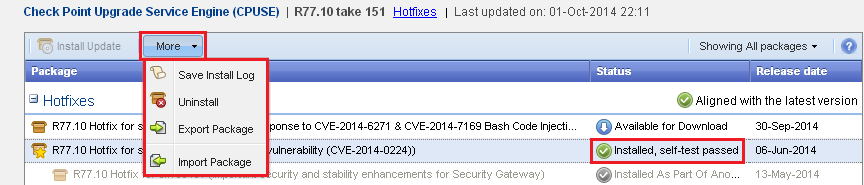
4. Select the package ***Check Point R77.30 Add-on*** - click on ***More*** button on the toolbar - click on ***Uninstall*** .
*Example* :
[](https://sc1.checkpoint.com/sc/SolutionsStatics/sk92449/sk92449_v705_More_button_for_Installed_package.png "Click the image to see it in full size in a new tab/window")
5. Connect to command line on Security Management Server / Multi-Domain Security Management Server.
6. Log in to Expert mode.
7. Verify that the indicators plugin "`PItpi`" was uninstalled:
***\[Expert@HostName:0\]# rpm -qa \| grep PItpi***
* If the returned output is empty, then proceed to the next step.
* If the returned output shows the "`PItpi`" package, then uninstall it manually:
***\[Expert@HostName:0\]# /opt/CPPItpi-R77/bin/uacRunner -p PItpi -preuninstall***
***\[Expert@HostName:0\]# rpm -e CPPItpi-R77***
8. Verify that the scrub plugin "`PIscrub`" was uninstalled:
***\[Expert@HostName:0\]# rpm -qa \| grep PIscrub***
* If the returned output is empty, then proceed to the next step.
* If the returned output shows the "`PIscrub`" package, then uninstall it manually:
***\[Expert@HostName:0\]# /opt/CPPIscrub-R77/bin/uacRunner -p PIscrub -preuninstall***
***\[Expert@HostName:0\]# rpm -e CPPIscrub-R77***
9. Start Check Point services:
* On Security Management Server:
***\[Expert@HostName:0\]# cpstart***
* On Multi-Domain Security Management Server:
***\[Expert@HostName:0\]# mdsstart***
No reboot is required.
10. Verify that Add-on is *not* listed as Installed Plug-in.
Check that the "Installed Plug-ins" line does *not* show the text "Add-on":
***\[Expert@HostName:0\]# fwm ver***
`Installed Plug-ins:`
* **On Gaia OS, SecurePlatform, Linux and IPSO OS (manual uninstall in Command Line)**
* **On Security Management Server:**
1. Connect to command line on Security Management Server.
2. Log in to Expert mode.
3. Run the uninstall script:
***\[Expert@HostName:0\]# /opt/CPUninstall/R77.30_Add-ons_Package/UnixUninstallScript***
4. Start Check Point services:
***\[Expert@HostName:0\]# cpstart***
No reboot is required.
5. Verify that the indicators plugin "`PItpi`" was uninstalled:
***\[Expert@HostName:0\]# rpm -qa \| grep PItpi***
* If the returned output is empty, then proceed to the next step.
* If the returned output shows the "`PItpi`" package, then uninstall it manually:
***\[Expert@HostName:0\]# /opt/CPPItpi-R77/bin/uacRunner -p PItpi -preuninstall***
***\[Expert@HostName:0\]# rpm -e CPPItpi-R77***
6. Verify that the scrub plugin "`PIscrub`" was uninstalled:
***\[Expert@HostName:0\]# rpm -qa \| grep PIscrub***
* If the returned output is empty, then proceed to the next step.
* If the returned output shows the "`PIscrub`" package, then uninstall it manually:
***\[Expert@HostName:0\]# /opt/CPPIscrub-R77/bin/uacRunner -p PIscrub -preuninstall***
***\[Expert@HostName:0\]# rpm -e CPPIscrub-R77***
7. Verify that Add-on is *not* listed as Installed Plug-in.
Check that the "Installed Plug-ins" line does *not* show the text "Add-on":
***\[Expert@HostName:0\]# fwm ver***
`Installed Plug-ins:`
* **On Multi-Domain Security Management Server:**
1. Deactivate the Add-on on ***each*** relevant Domain:
1. Connect with SmartDomain Manager to Multi-Domain Security Management Server.
2. Go to ***Version \& Blade Updates*** tab on the ***Selection Bar***.
3. Right-click on the Domain - select both ***R77.20 Add-on*** and ***R77.30 Add-on*** - select ***Deactivate Update on this Domain***.
2. Connect to command line on Multi-Domain Security Management Server.
3. Log in to Expert mode.
4. Switch to the context of MDS:
***\[Expert@HostName:0\]# mdsenv***
5. Run the uninstall script:
***\[Expert@HostName:0\]# /opt/CPUninstall/R77.30_Add-ons_Package/UnixUninstallScript***
6. Verify that the indicators plugin "`PItpi`" was uninstalled:
***\[Expert@HostName:0\]# rpm -qa \| grep PItpi***
* If the returned output is empty, then proceed to the next step.
* If the returned output shows the "`PItpi`" package, then uninstall it manually:
***\[Expert@HostName:0\]# /opt/CPPItpi-R77/bin/uacRunner -p PItpi -preuninstall***
***\[Expert@HostName:0\]# rpm -e CPPItpi-R77***
7. Verify that the scrub plugin "`PIscrub`" was uninstalled:
***\[Expert@HostName:0\]# rpm -qa \| grep PIscrub***
* If the returned output is empty, then proceed to the next step.
* If the returned output shows the "`PIscrub`" package, then uninstall it manually:
***\[Expert@HostName:0\]# /opt/CPPIscrub-R77/bin/uacRunner -p PIscrub -preuninstall***
***\[Expert@HostName:0\]# rpm -e CPPIscrub-R77***
8. Start Check Point services:
***\[Expert@HostName:0\]# mdsstart***
No reboot is required.
9. Verify that Add-on is *not* listed as Installed Plug-in.
Check that the "Installed Plug-ins" line does *not* show the text "Add-on":
***\[Expert@HostName:0\]# fwm ver***
`Installed Plug-ins:`
* **On Windows OS**
1. Run the following commands in Windows Command Prompt:
1. Stop Check Point services:
*C:\\\> **cpstop***
2. Run the pre-uninstall validation for the scrub plugin "`PIscrub`":
*C:\\\> **cd /d "%ProgramFiles%\\CheckPoint\\CPPIscrub\\bin\\"***
*C:\\...\\bin\\\> **uacRunner -p PIscrub -preuninstall***
The following should be displayed on the screen:
> ` Uninstall of plug-in is allowed`
> ` After uninstalling the plug-in, all objects will be removed from the database.`
> ` Execution has finished `
3. Run the pre-uninstall validation for the indicators plugin "`PItpi`":
*C:\\\> **cd /d "%ProgramFiles%\\CheckPoint\\CPPItpi\\R77\\bin\\"***
*C:\\...\\R77\\bin\\\> **uacRunner -p PItpi -preuninstall***
The following should be displayed on the screen:
> ` Uninstall of plug-in is allowed`
> ` After uninstalling the plug-in, all objects will be removed from the database.`
> ` Execution has finished `
2. Go to ***Start*** menu - go to ***Control Panel***.
3. Go to "***Add/Remove Programs*** " (Windows 2000/2003) / "***Programs and Features***" (Windows 2008).
4. Select "***Check Point R77.30 Add-on R77.30*** " - click on "***Uninstall***" on the toolbar - wait for the uninstall to complete.
5. Select "***Check Point R77.20 Add-on R77.20*** " - click on "***Uninstall***" on the toolbar - wait for the uninstall to complete.
6. Reboot is required.
7. Verify that Add-on is *not* listed as Installed Plug-in.
Check that the "Installed Plug-ins" line does *not* show the text "Add-on":
*C:\\\> **fwm ver***
`Installed Plug-ins:`
Alternative method:
1. Download and unpack the hotfix package (refer to the "Installation Instructions" above).
2. Open the elevated Command Prompt:
Start - Programs - Accessories - right-click on 'Command Prompt' icon - select '`Run as administrator`'.
3. Stop Check Point services. Run ***cpstop*** command.
4. Navigate to the folder where you unpacked the hotfix package:
***DISK:\\\> cd "path_to_unpacked_hotfix_package"***
5. Run the installation program with '**-u** ' flag:
***DISK:\\path_to_unpacked_hotfix_package\\\> Setup.exe -u***
6. Reboot is required.
7. Verify that Add-on is *not* listed as Installed Plug-in.
Check that the "Installed Plug-ins" line does *not* show the text "Add-on":
*C:\\\> **fwm ver***
`Installed Plug-ins:`
Notes:
* Make sure to take a Database Revision Control / backup / snapshot of your Check Point machine before uninstalling this Add-on.
* In Management HA environment, this procedure must be performed on *both* Management Servers.
Revision History {#Revision History}
------------------------------------
Show / Hide revision history
|--------------|------------------------------------------------------------------------------------------------------------------------------------------------------------------------------------------------------------------------------------------------------------------------------------------------------------------------|
| Date | Description |
| 17 July 2017 | * "R77.30 Add-On Downloads" section - added CPUSE Identifier for Gaia OS |
| 29 Mar 2017 | * "R77.30 Add-On Uninstall Instructions" section - improved uninstall instructions on Windows |
| 28 Mar 2017 | * "R77.30 Add-On Uninstall Instructions" section - improved uninstall instructions on Windows |
| 21 Feb 2017 | * "R77.30 Add-On Uninstall Instructions" section - improved uninstall instructions for the "PItpi" plugin and "PIscrub" plugin on Windows |
| 29 Jan 2017 | * "R77.30 Add-On Uninstall Instructions" section - improved uninstall instructions for the "PItpi" plugin and "PIscrub" plugin on Gaia OS, SecurePlatform OS, Linux OS, IPSO OS |
| 08 Dec 2016 | * Added link to [sk111292](https://support.checkpoint.com/results/sk/sk111292) |
| 30 June 2016 | * "R77.30 Add-On Installation Instructions" section - added a note to wait before reboot |
| 30 June 2016 | * "R77.30 Add-On Installation Instructions" section - added a step to disable SNMP Service on Windows OS |
| 30 May 2016 | * "R77.30 Add-On Installation Instructions" section - added a note to take Database Revision Control / backup / snapshot * "R77.30 Add-On Uninstall Instructions" section - added a note to take Database Revision Control / backup / snapshot |
| 08 May 2016 | * Improved article design * "R77.30 Add-On Uninstall Instructions" section - added additional steps for removing plugin packages |
| 22 Mar 2016 | * "R77.30 Add-On Installation Instructions" section - added a step to verify that Add-on is explicitly listed as Installed Plug-in |
| 07 Mar 2016 | * "R77.30 Add-On Installation Instructions" section - updated instructions for Gaia CPUSE |
| 17 Nov 2015 | * "R77.30 Add-On Downloads" section - added Gaia Offline CPUSE package |
| 17 Nov 2015 | * "What's New" section - added Compliance Blade enhancements |
| 08 Sep 2015 | * Improved installation and uninstall instructions |
| 04 June 2015 | * Added uninstall instructions |
| 27 May 2015 | * Added packages for SecurePlatform and Linux * Replaced Windows Installation and Upgrade images to Take 207 resolving [sk106229](https://support.checkpoint.com/results/sk/sk106229) (possible issue with Edge devices connectivity to Service Center after upgrade of Security Management Server to R77.30 Take 204) |
| 19 May 2015 | * First release of this document |
---
# Agent Instructions
This content is from the Check Point Support Center (https://support.checkpoint.com), the official knowledge base for Check Point cybersecurity products.
## Navigating This Knowledge Base
- **Complete index**: [llms.txt](https://support.checkpoint.com/llms.txt)
- **All SK articles**: [SecureKnowledge Sitemap](https://support.checkpoint.com/sitemaps/secureknowledge-sitemap-index.xml)
- **SK article URL pattern**: `https://support.checkpoint.com/results/sk/{skId}`
- **Markdown responses**: AI bot User-Agents automatically receive `text/markdown` content