> Source: [sk102796](https://support.checkpoint.com/results/sk/sk102796)
# sk102796 - Creating a QR Code using CPQRGen for Mobile applications
| Property | Value |
|----------|-------|
| Solution ID | sk102796 |
| Date Created | 2014-10-07 |
| Last Modified | 2026-03-30 |
| Technical Level | General |
| Products | Endpoint Security |
| Versions | Cloud, E89.X, E88.X |
| OS | Android, iOS |
| Platform | Mobile Devices |
## Solution
**Table of Contents:**
* Background
* Creating QR Code
* Related solutions
* Related documentation
Background {#Background}
------------------------
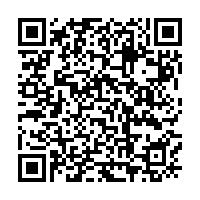
A QR Code is a URL that is encoded in a QR image. Check Point Mobile applications have a built-in QR scanner that can read the URL and create a VPN Site. You can create a QR Code that creates VPN Sites on handheld devices.
Creating QR Code {#Creating QR Code}
------------------------------------
1. Download the [CPQRGen Tool](https://support.checkpoint.com/results/download/17821) to your Windows computer.
2. Extract the *CPQRCodeGenerator.exe* tool from the ZIP file.
3. Open Windows Command Prompt:
Start menu - Run... - **`cmd`** - click on OK.
4. Run the ***CPQRCodeGenerator.exe*** tool with mandatory parameters:
**`CPQRCodeGenerator.exe name="`*VPN_SITE_NAME* `" host="`*VPN_SITE_ADDRESS* `" fingerprint="`*FINGERPRINT* `" file="`*PNG_FILE_NAME*`"`** \[*other parameters*\]
* **Mandatory Parameters:**
|--------------------|---------------------------------------------------------------------------------------------------------------------------------------------------------------------------------------------------------------------------|---------|
| Parameter | Description | Product |
| `VPN_SITE_NAME` | The name of the VPN Site that is shown to the user. | All |
| `VPN_SITE_ADDRESS` | The address of the host. Example: *androdemo.checkpoint.com* | All |
| `FINGERPRINT` | Fingerprint that is used for server validation. If you set the value to the server fingerprint, and the certificate is valid and signed by a trusted CA, users will *not* be prompted to decide if they trust the server. | All |
| `PNG_FILE_NAME` | The file name of the output \*.PNG image with the QR Code. Example: *MySite.png* | All |
*Example*:
>
> ```
> C:\> cpQRCodeGenerator name="Demo_VPN_Site" host="demo.example.com" fingerprint="DEMO FING ERP RINT FOR CODE" user="John Doe" file="DemoQR.png"
>
> __________ Check Point QR Code Generator __________
> Version: 1
>
> Encoding...
>
> _____Arguments and values_____
> name = Demo_VPN_Site
> host = demo.example.com
> fingerprint = DEMO+FING+ERP+RINT+FOR+CODE
> user = John+Doe
>
> Output string: cpvpn:///?V1&name=Demo_VPN_Site&host=demo.example.com&fingerprint=DEMO+FING+ERP+RINT+FOR+CODE&user=John+Doe
>
> Encoding to file "DemoQR.png" completed successfully!
>
> C:\>
> ```
*Result*:
> 
* **Optional Parameters:**
|------------------------|----------------------------------------------------------------------------------------------------------------------------------------------------------------------------------------------------------------------------------------------------------------------------------|---------------|------------|
| Parameter | Description | Default Value | Product |
| `user` | Login name for the user. | No value | All |
| `tun` | The valid values are: * *kmp* (IPsec tunnel) * *snx* (SSL tunnel) | *kmp* | Mobile VPN |
| `auth` | Authentication method. The valid values are: * *username* (User name and Password) * *RSA* (RSA SecurID) * *Certificate* * *PinPad* (Keypad for PIN code) * *KeyFob* (Security token key fob) * *Challenge* (Challenge and Response method) | *username* | All |
| `port` | Port to use | *443* | All |
| `url` | This URL will be opened after each connection to this VPN Site. | No value | Mobile VPN |
| `remoteActions` | Enables using the VPN Site API. The valid values are: * *yes* * *no* | *no* | Mobile VPN |
| `realm` | When Multi-Realm (Multi-factor authentication) is configured on the VPN site, this key should be used instead of the "`auth`" key. The value should be the realm (Login Option) Name as configured on the dashboard (not the display name shown to the user). | No value | Mobile VPN |
| `wifiOnly` | Allow the VPN site to connect only while the device is on Wi-Fi networks. The valid values are: * *yes* * *no* | *no* | Mobile VPN |
| `tcptimeout` | The default timeout for connection attempts on the client is 20 seconds. Sometimes authentication through external servers and user challenges may take longer and it is possible to set a longer timeout. The value is the number of seconds. | *20* | Mobile VPN |
| `enforceRoutes` | Should VPN routes take precedence over local routes? The valid values are: * *yes* * *no* | *no* | Mobile VPN |
| `includeLocalNetworks` | By default local networks are excluded. This key can be used to include them in the VPN tunnel. The "`enforceRoutes`" key must be enabled for this to take effect. The valid values are: * *yes* * *no* | *no* | MobileVPN |
| `includeGwRoute` | When "`enforceRoutes`" is enabled, the VPN gateway route is included automatically. If however you still want to exclude it, you may use this key with the value "`no`". The "`enforceRoutes`" key must be enabled for this to take effect. The valid values are: * *yes* * *no* | *no* | MobileVPN |
* **Parameters for Certificate Authentication:**
|------------------|--------------------------------------------------|---------------|------------|
| Parameter | Description | Default Value | Product |
| `regKey` | Activation key that enrolls a certificate. | No value | All |
| `onDemand` | The valid values are: * *yes* * *no* * *askUser* | *no* | Mobile VPN |
| `domainAlways` | An array of hosts, to which the client *always* tries to connect. Example: *domainAlways="example1.com example2.com checkpoint.com*" || Mobile VPN |
| `domainNever` | An array of hosts, to which the client *never* tries to connect. Example: *domainNever="example1.com example2.com checkpoint.com"* || Mobile VPN |
| `domainIfNeeded` | An array of hosts, to which the client tries to connect when necessary. Example: *domainIfNeeded="example1.com example2.com checkpoint.com"* || Mobile VPN |
Related Documentation {#Related documentation}
----------------------------------------------
* [Check Point Mobile VPN for iOS, Android, and Windows 8.1 Administration Guide](https://support.checkpoint.com/results/download/20361).
Related Solution: {#Related solutions}
--------------------------------------
* [sk69540 (Check Point Mobile VPN application - Layer-3 VPN for Apple iPhone and iPad)](https://support.checkpoint.com/results/sk/sk69540)
---
# Agent Instructions
This content is from the Check Point Support Center (https://support.checkpoint.com), the official knowledge base for Check Point cybersecurity products.
## Navigating This Knowledge Base
- **Complete index**: [llms.txt](https://support.checkpoint.com/llms.txt)
- **All SK articles**: [SecureKnowledge Sitemap](https://support.checkpoint.com/sitemaps/secureknowledge-sitemap-index.xml)
- **SK article URL pattern**: `https://support.checkpoint.com/results/sk/{skId}`
- **Markdown responses**: AI bot User-Agents automatically receive `text/markdown` content